You've saved a proxy address, opened Chrome, and confirmed that your public IP changed. Then your monitoring service still connects directly, a local dashboard stops loading, and your testing tool reports a different location.
That's usually a scope problem, not a broken proxy. Windows has several networking paths, and changing the Settings page doesn't force every application through the same connection. Start by choosing the right configuration method, then verify the applications that matter to your workflow.
Which Proxy Method Windows 10 Offers and When to Use Each
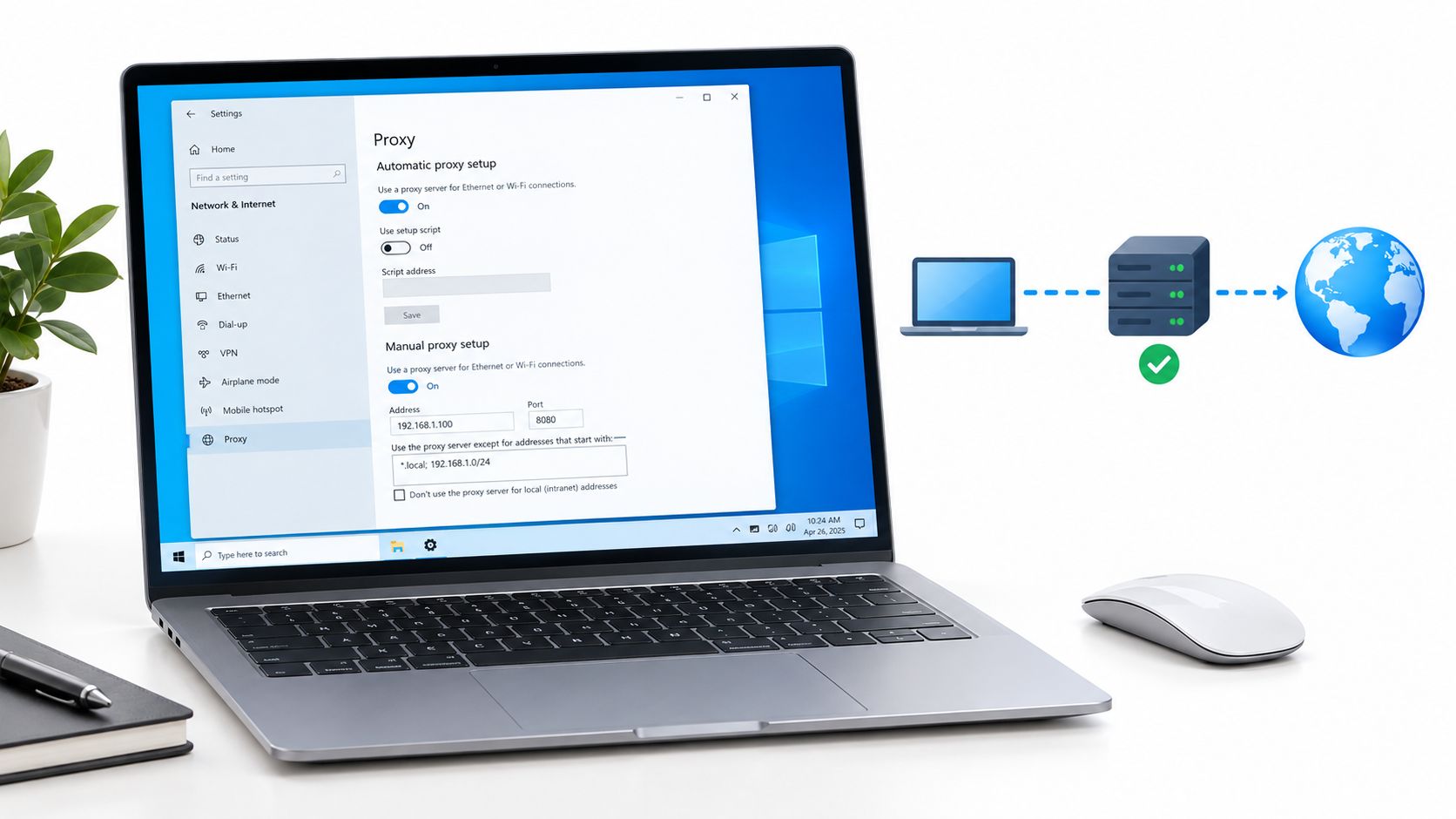
Open Settings > Network & internet > Proxy. The controls look straightforward, but enabling several methods together makes troubleshooting harder because your manual endpoint might not determine the route an application takes.
The Microsoft proxy setup guide describes three configuration paths: automatic detection, a setup script, and manual configuration. Manual setup needs two endpoint fields, the server address and port, with optional bypass rules.
Windows 10 proxy methods at a glance
| Method | What you enter | Best used when | Typical failure point |
|---|---|---|---|
| Automatic detection | Nothing; Windows attempts to discover proxy information | The network already advertises proxy settings through discovery | Fails quietly when discovery is blocked or absent |
| Setup script (PAC) | A PAC script address | Routing depends on destination, with some domains direct and others proxied | An unreachable or broken script can disrupt browsing; fallback behavior determines the scope |
| Manual proxy | Server address or hostname, port, optional exceptions | You have a known endpoint and need a fixed route | A wrong port or overly broad exception list causes partial failures |
A PAC file, short for Proxy Auto-Configuration, contains JavaScript that chooses a route for each destination. It can send internal applications directly while routing public websites through a corporate proxy.
Match the method to the job
Say a social media team receives a PAC address from IT. They should enable Use setup script, enter that address, and leave manual routing alone unless IT specifies otherwise. A freelance QA tester with a fixed endpoint should use manual setup instead.
Automatic detection fits a managed network that already provides discovery. It isn't a way to discover an arbitrary commercial proxy account or retrieve its credentials.
Manual exceptions accept website addresses separated by semicolons, including wildcard-style domain endings. A separate checkbox controls whether local intranet addresses bypass the proxy.
Practical rule: Match your situation to a row before changing any field. More enabled switches don't mean better coverage.
Mobile, Residential and Datacenter Proxies Behind the Settings
Windows configures the gateway your application contacts. The gateway's exit network determines whether websites see a mobile, residential, or datacenter connection.
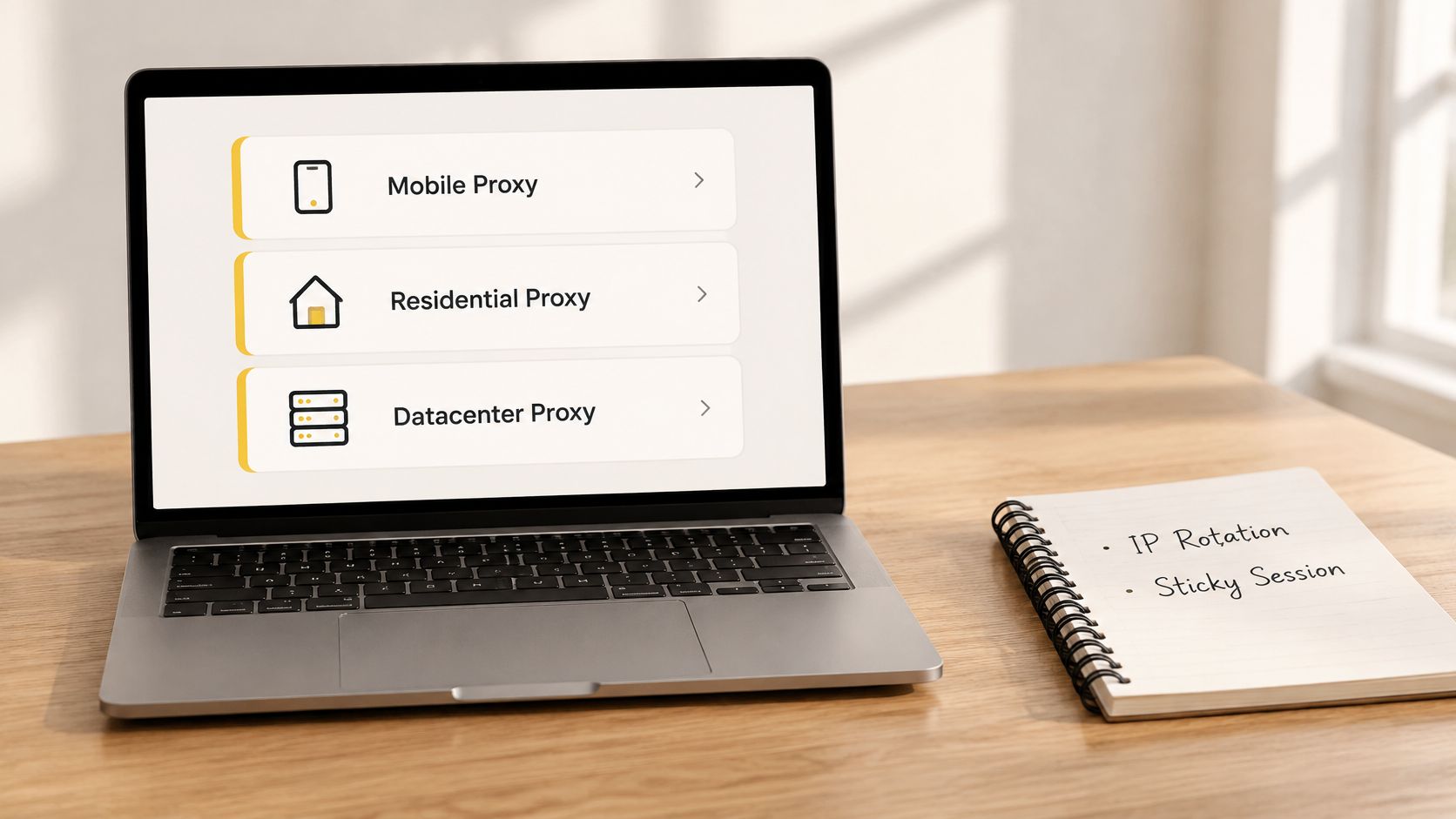
Mobile proxies use carrier-assigned addresses over 4G/5G networks. Residential proxies use addresses assigned by household internet providers. Datacenter proxies use hosting or cloud networks.
Mobile, residential and datacenter proxies compared
| Proxy type | IP source | Detection and blocking exposure | Typical fit |
|---|---|---|---|
| Mobile (4G/5G) | IPs assigned by mobile carriers | Harder to block indiscriminately because CGNAT shares public addresses among real subscribers | Authorized multi-account social management and mobile-view ad verification |
| Residential | IPs assigned by household ISPs | Often resemble ordinary home traffic, but individual addresses can acquire a poor reputation | Market research and location-specific price or SEO checks |
| Datacenter | IPs from hosting and cloud networks | Easier to identify by ASN and block at scale | Permitted high-volume tasks where speed and cost matter more than IP reputation |
Choose network identity and session behavior separately
An ASN, or autonomous system number, identifies a network's routing administration. A hosting-network ASN can reveal datacenter origin even when the address itself is unfamiliar.
Carrier-grade NAT, or CGNAT, lets a carrier share a public address among subscribers. Blocking that address can also block legitimate customers, making mobile IPs harder to block without collateral damage. They aren't invisible: websites can still evaluate account behavior, browser characteristics, and request patterns.
IP rotation changes the exit address between requests or on a schedule. A sticky session retains an exit address for a period, which is usually more suitable for an authorized login or checkout test. Use the rotating proxy selection guide to consider rotation separately from network type.
Geo-targeting selects an exit country or region. An ad verification specialist checking French-market creative on mobile carriers needs the correct geography and carrier context, not just any changed IP.
Before testing, use tekRESCUE's guide to locate your office network's IP address so you have a baseline. Windows' manual field accepts an endpoint, but the client must also support its protocol; an HTTP endpoint and a SOCKS endpoint aren't interchangeable.
How to Set a Manual Proxy in Windows 10 Step by Step
Record the current switches, address, port, and exceptions before changing anything. On a managed laptop, ask whether policy controls these values rather than trying to override them.
Enter and apply the endpoint
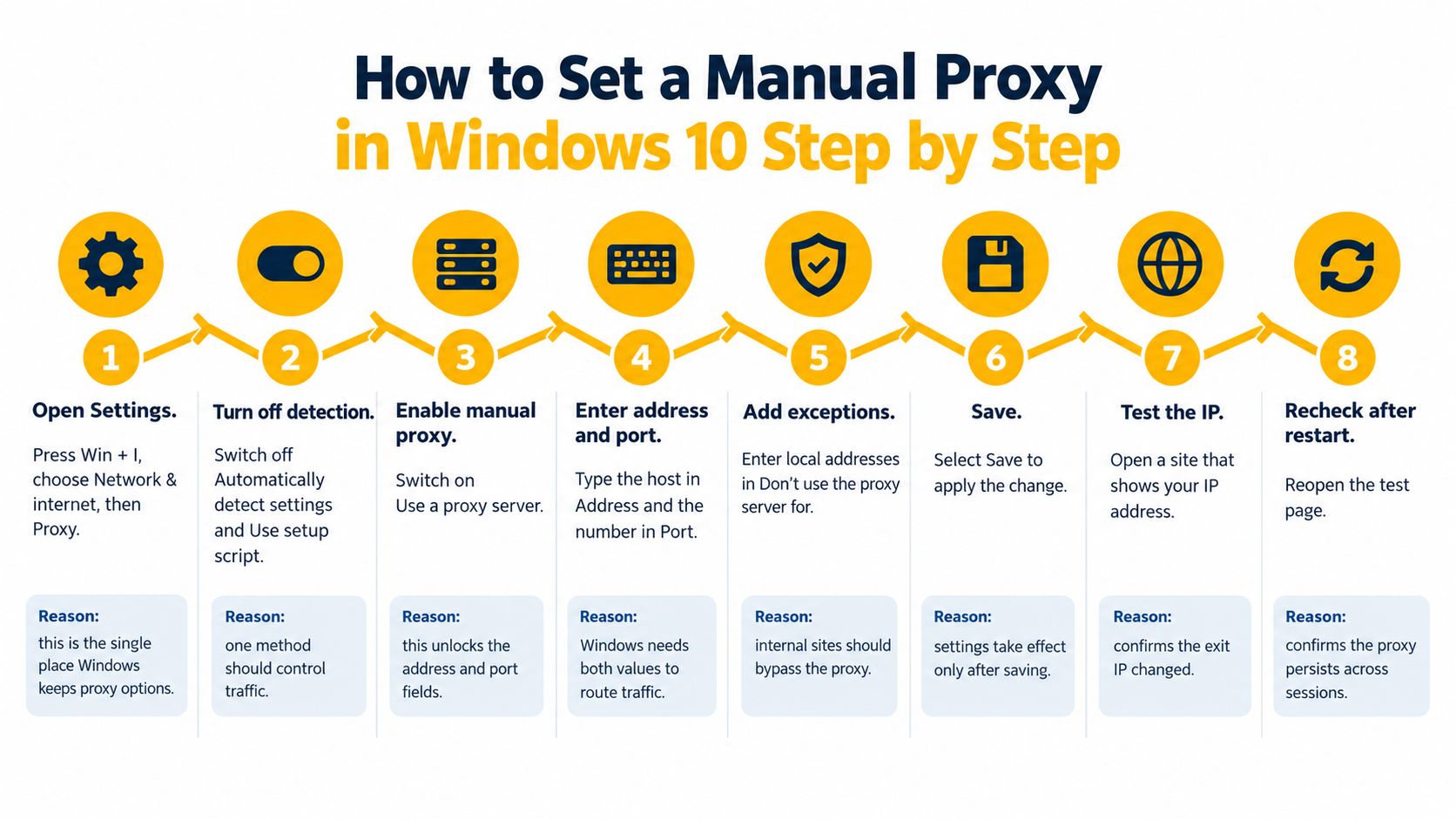
Open the proxy controls. Press Win + I, choose Network & internet, then Proxy. Use this page rather than a browser-specific field when you want applications that follow Windows settings to share the route.
Under Automatic proxy setup, switch off Automatically detect settings and Use setup script for an isolated manual test. This removes competing discovery and script decisions, so you can tell whether the manual endpoint works.
Enable manual routing. Under Manual proxy setup, turn on Use a proxy server. This activates the address and port controls.
Enter the hostname or IP in Address, without a scheme such as
http://, then enter the supplied number in Port. Keep these values separate because Windows needs a host and a listening port, not a pasted connection URL.In the exceptions field, enter hosts that should connect directly, separated by semicolons, such as
*.corp.example;localhost. Keep the list narrow so public test destinations don't accidentally bypass your proxy.Choose intranet behavior. Tick Don't use the proxy server for local (intranet) addresses if internal resources should connect directly. This is useful for local dashboards, but it isn't a replacement for explicit exceptions when internal names aren't recognized as local.
Select Save, open a fresh browser session, and check your public IP using a neutral IP-check page. Then load an internal page and the actual business application you intend to use, since a browser-only success doesn't establish application coverage.
Know how to revert. Switch off Use a proxy server to disable the manual configuration. Restore the original automatic or script settings if they were part of your normal network configuration.
Confirm more than a changed address
The most common entry mistake is putting a scheme or the port into Address while also filling Port. That can make every attempted connection through that endpoint fail.
The manual Settings panel also has no universal username-and-password storage field. A browser may prompt for proxy authentication, while an unattended application may fail because it can't display that prompt.
A successful test means the public exit IP changes, intended internal pages still load directly, and the target application completes its normal workflow. For a QA session, include a real navigation sequence rather than stopping at the IP-check result.
Setup Scripts and How the Windows Fallback Chain Works
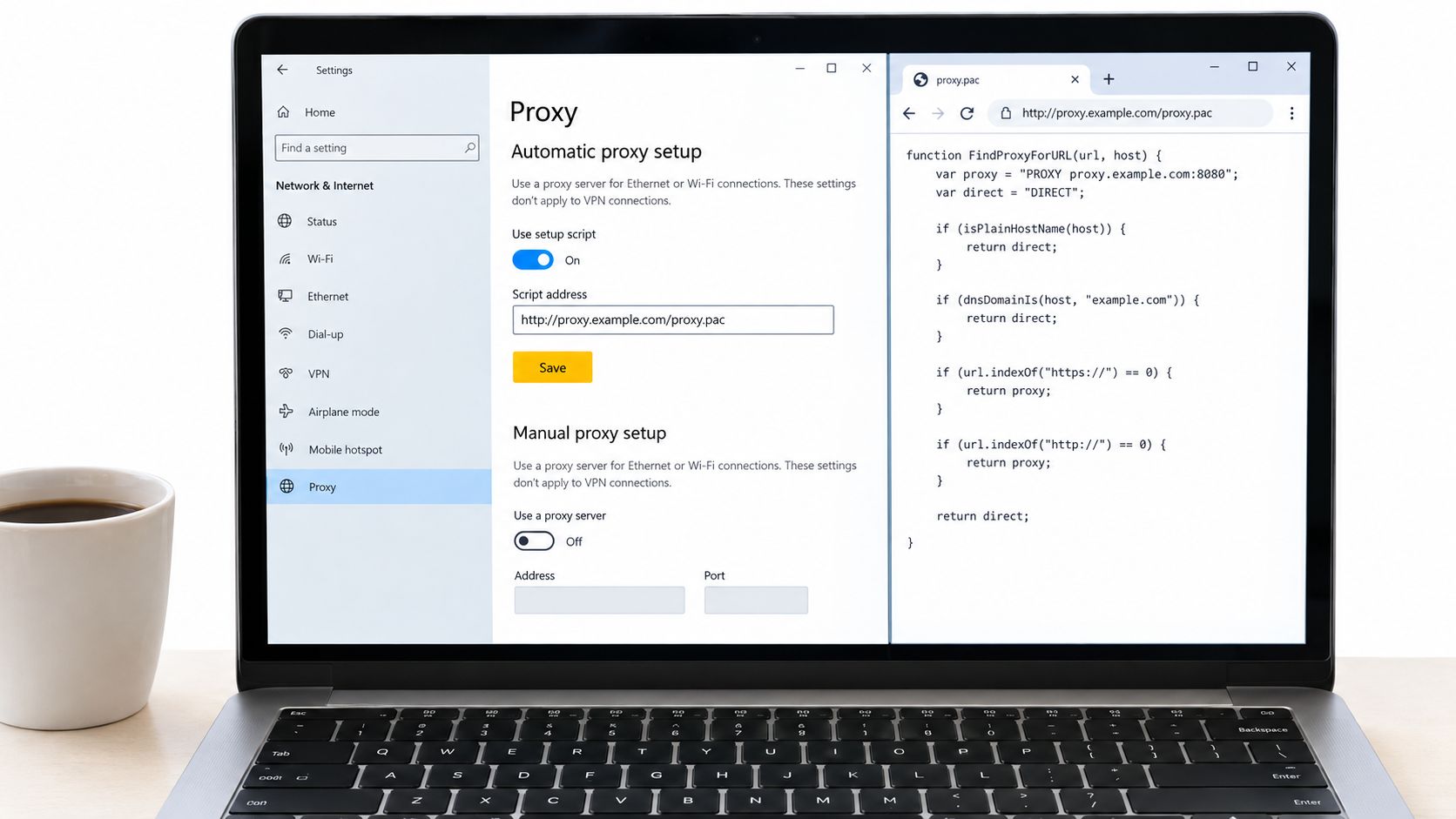
A setup script is useful when routing decisions belong to destinations rather than individual users. Under Automatic proxy setup, enable Use setup script, paste the PAC address, and select Save.
Before applying it, open the same address in a browser and confirm that it returns the script rather than an error or login page. Successful downloading proves reachability, not that the JavaScript or its routing decisions are correct.
Read the route before diagnosing the failure
A minimal illustrative PAC function is:
function FindProxyForURL(url, host) {
    if (dnsDomainIs(host, ".corp.example")) {
        return "DIRECT";
    }
    return "PROXY proxy.example:8080";
}
Here, DIRECT means connect without the proxy. The other return value identifies the proxy host and port; it doesn't configure the destination website.
The Microsoft NetworkProxy CSP documentation specifies this resolution order: try automatic PAC discovery, then the configured script, then an explicit static proxy, and otherwise connect directly. This policy framework applies to Ethernet and Wi-Fi, not VPN connections.
| Stage | What Windows attempts | What to investigate when it fails |
|---|---|---|
| Automatic discovery | Find a PAC script through network discovery | Whether the network supplies discovery information |
| Configured script | Download the supplied PAC address | Reachability, authentication barriers, and script validity |
| Static proxy | Use the explicitly configured endpoint | Endpoint access and authentication |
| Direct connection | Connect without a proxy | Whether direct access is allowed or creates unintended exposure |
Don't interpret that policy sequence as a universal guarantee for every browser, service, or custom networking library. An application can implement its own proxy resolution and error handling.
Check who owns the setting
The policy is per user by default; machine-wide configuration broadens its scope across accounts and applicable system consumers. Say a shared workstation serves several client accounts: a machine-wide change can alter their routes together rather than isolating the change to the operator's profile.
For deployment context, the guide to automatic proxy setup helps distinguish discovery from a supplied PAC address.
Keep PAC logic short and document every direct-connect rule. A script that silently bypasses a required destination is harder to notice than a connection error.
Which Apps Follow the System Proxy and Which Ignore It
Chrome and Edge follow the Windows system proxy by default, Firefox follows only when its own connection settings say so, and a Windows service can ignore the page entirely. The Settings page configures one set of APIs; each application decides which configuration it actually reads.
Which setting each application type reads
| Application | Setting it reads | How to confirm |
|---|---|---|
| Chrome and Edge | Windows system proxy by default | Load an IP-check page in a fresh window and compare the IP |
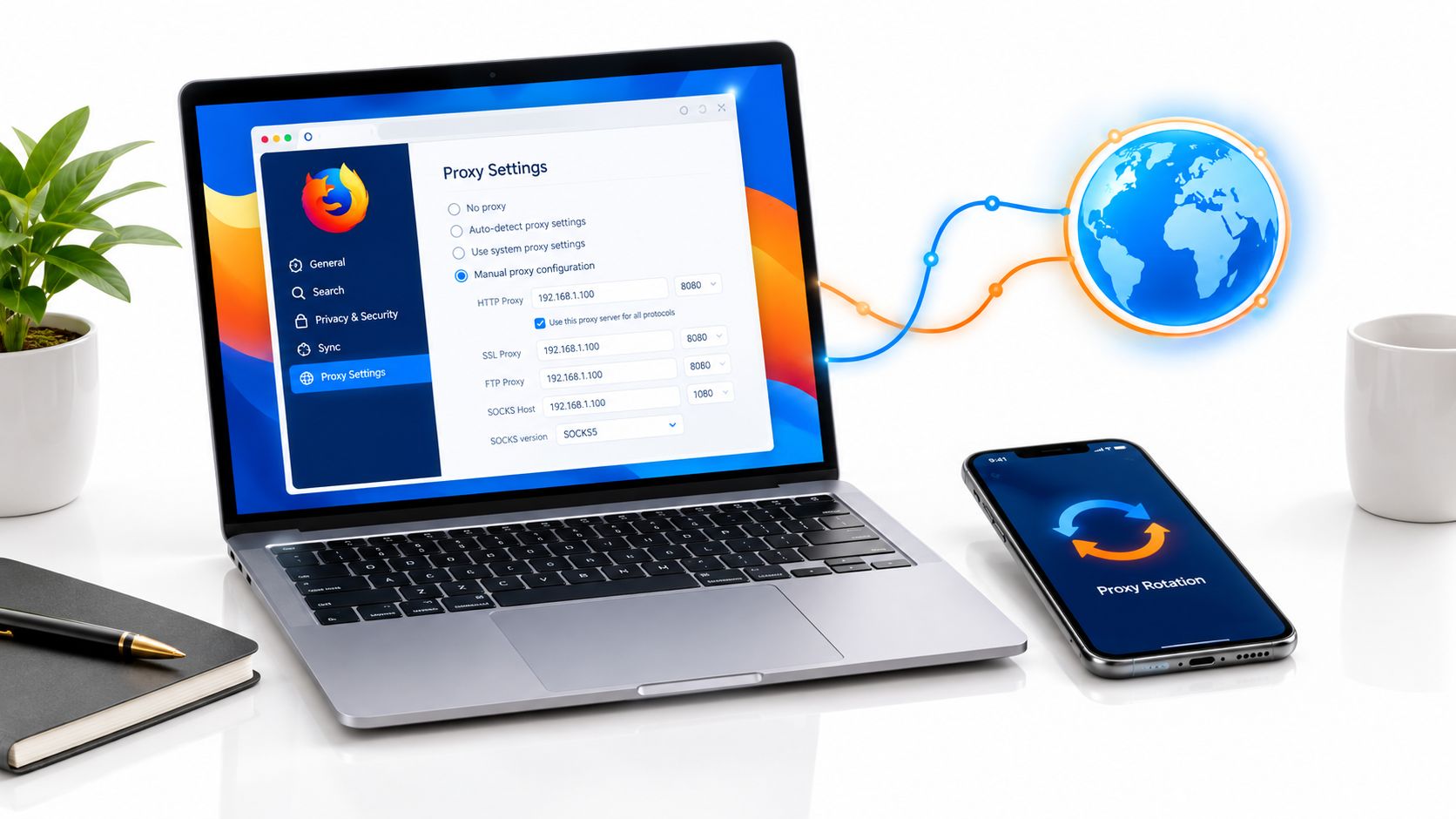
| Firefox | Its own connection settings, which can follow the system | Check Settings > General > Network Settings and the active mode |
| Windows services and command-line tools | Often WinHTTP, configured separately with netsh winhttp; some use other libraries |
Run netsh winhttp show proxy, then verify the actual application's traffic |
| Apps with a built-in SOCKS field | The app's own SOCKS5 or SOCKS4 entry | Confirm the protocol version and proxy DNS option |
Diagnose the application, not just the desktop
WinINet is a Windows internet API commonly associated with interactive user applications. WinHTTP is another Windows HTTP stack, often used by services and background software, and it keeps its own proxy value rather than inheriting the interactive user's Settings page.
Inspect WinHTTP with netsh winhttp show proxy. In a terminal opened as administrator, the configuration form is netsh winhttp set proxy proxy-server="<proxy-host>:<port>", replacing the placeholders with your approved endpoint. Confirm the affected service really uses WinHTTP before making that change, since it applies at machine level rather than to one account.
Account context explains many surprises here. A service running under its own account can miss a per-user proxy even while the same machine's browser shows the expected address, so check the service's account, network stack, and any proxy field in its own configuration before touching the browser settings again.
SOCKS5 is a general-purpose proxy protocol that relays TCP connections without interpreting HTTP. Edge distinguishes HTTP, Secure, FTP, and SOCKS identifiers; an HTTPS destination doesn't automatically mean the proxy transport itself is HTTPS.
The Mozilla proxy settings API defaults proxyDNS to enabled for SOCKS5 and disabled for SOCKS4. Other SOCKS clients make their own choice, so treat that as one API's default rather than a guarantee.
When DNS, the system that translates names into addresses, remains local, web traffic and name lookups can take different paths. An application with a remote-DNS option can send lookups through the proxy; one without it exposes the normal DNS path and can produce inconsistent location signals.
Fixing the Most Common Proxy Settings Failures
Start with Address, Port, and the active switches on the Proxy page. Compare them against the endpoint details, then test reachability before changing unrelated Windows settings.
Proxy symptoms, causes and fixes
| Symptom | Likely cause | Fix |
|---|---|---|
| No pages load after saving | Wrong address or port, or endpoint unreachable from this device | Correct the endpoint fields and confirm reachability |
| Settings revert after restart | A management policy reapplies values, or automatic configuration takes precedence | Disable an unmanaged script for testing, or ask the policy owner to change the configuration |
| Local intranet sites fail | Internal hosts are sent to the proxy | Enable intranet bypass or add the affected host to exceptions |
| Only some sites fail | Overbroad exceptions or PAC direct-connect rules | Remove the incorrect exception or correct the matching PAC rule |
| Browser shows the new IP, the app doesn't | The app uses WinHTTP or its own proxy field | Change the configuration that application actually reads |
| PAC script never applies | Script address returns an error or is blocked | Restore access to the script address |
| Location signals look inconsistent | SOCKS traffic resolves DNS locally | Enable proxy DNS in applications that support it |
Retest without introducing new variables
Browsers cache PAC files. Restart the browser after editing a script; a private window can help isolate session state, but it doesn't reliably clear every proxy cache.
Change a setting, restart the affected application, and retest with the same IP-check page and destination. Keep the original values available so a failed experiment doesn't become the new baseline.
For a connection-refused error, use the proxy connection refusal troubleshooting guide to distinguish an unavailable endpoint from an application configuration problem. If authentication is involved, check whether the application supports the required method rather than assuming a browser login carries over.
Avoid destructive fixes
A setup script usually changes route decisions rather than rewriting the manual fields. If saved values visibly return after a restart, investigate device management, login scripts, or configuration software.
Before resetting Windows: Prove that the failure affects the operating system, not merely an endpoint or application setting.
If broader repair becomes necessary, Steel City IT's guidance can help you protect your files before resetting Windows. A reset is a poor first response to a mistyped port.
Read the failure pattern: selected sites suggest exceptions or PAC rules, while an isolated application suggests its own proxy configuration. Widespread failure points first toward endpoint access, authentication, or the active routing method.
Decide Whether Your Windows 10 Proxy Setup Is Ready to Keep
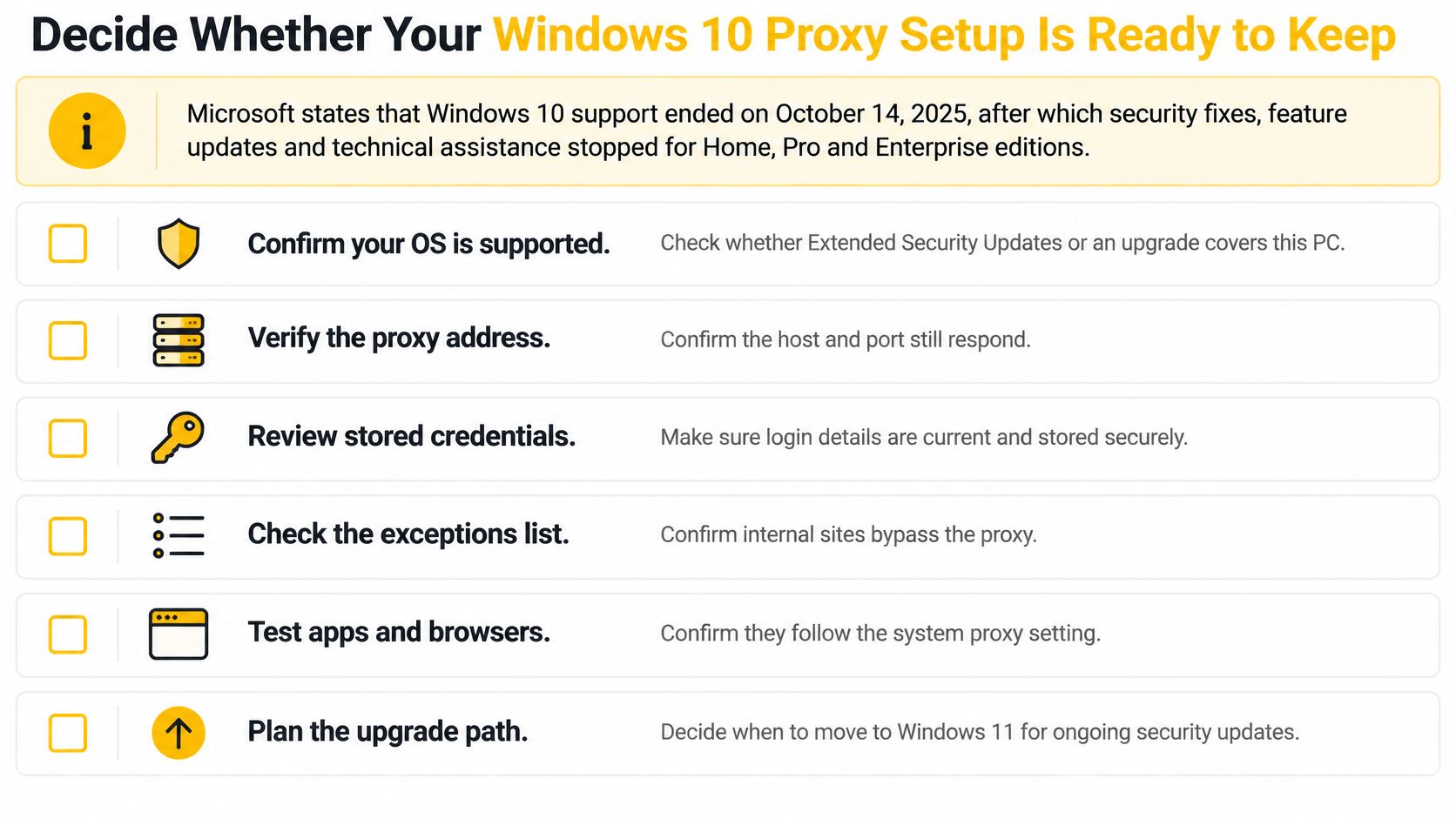
Microsoft's Windows end-of-support guidance states that Windows 10 support ended on October 14, 2025. Standard security fixes, feature updates, and technical assistance ended for Home, Pro, Enterprise, and Education editions, so check whether your particular device has separate extended coverage.
A working proxy doesn't establish that the computer is safe. It routes traffic; it can't patch Windows, protect every application, or repair vulnerabilities in networking components.
Make the keep-or-migrate decision
- Confirm coverage. Check the edition, patch status, and whether the device receives applicable security updates.
- Restrict local administrator rights and isolate the device on a separate network segment where practical.
- Protect credentials. Keep secrets out of PAC scripts because anyone who downloads the file can read them. Handle application-level authentication through supported credential mechanisms.
- Retest the relevant browsers, background applications, bypass behavior, and DNS path after configuration changes.
- Plan migration. Move to a supported Windows release, such as Windows 11, if the hardware allows it.
Keep automation within platform rules and your authorization. For mobile-dependent work, evaluate the complete workflow rather than treating a changed public IP as the final acceptance test.
Evoproxy offers mobile 4G/LTE proxies from France for workflows such as authorized social media management, ad verification, and geo-dependent QA. If those tasks need a French mobile exit, try an endpoint with your Windows configuration and an IP-check page, then verify the actual application before expanding the setup.