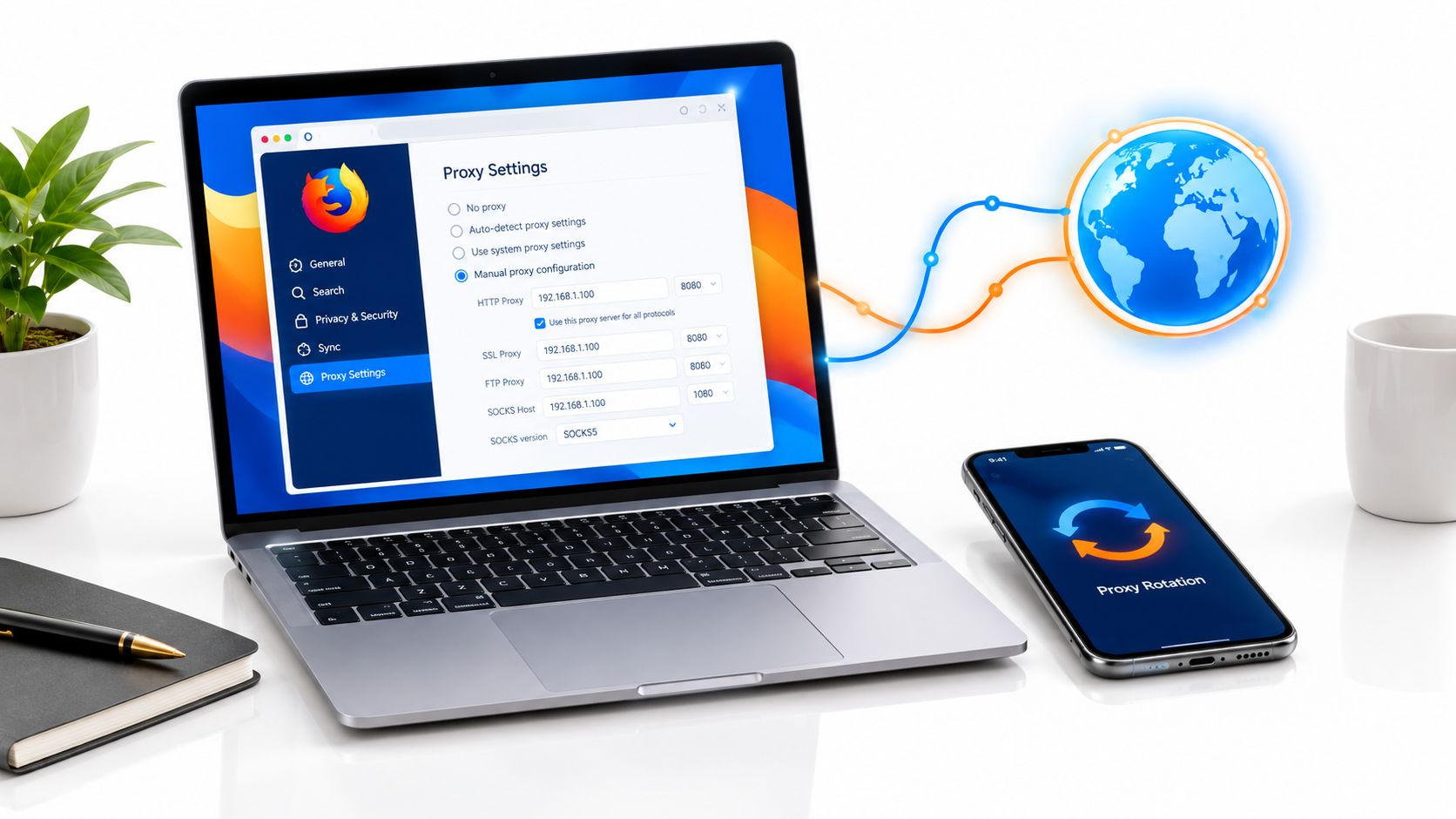
You can setup proxy on Firefox today through Connection Settings by entering a host, port, and protocol, with no extension required. Authentication and DNS safety take a few extra clicks, especially when you use SOCKS5.
A social media manager might be switching between client accounts when one login suddenly triggers a location challenge. A QA tester may be checking a country-specific checkout flow and discover that Firefox is still exposing the office network's public address. In both cases, the proxy itself may not be the problem. The browser could be routing only part of the traffic, resolving DNS locally, or applying one shared configuration where separate sessions are needed.
Firefox keeps proxy handling in its normal settings rather than hiding it behind developer tools. Mozilla's Connection Settings documentation describes manual proxy configuration with fields for hosts, ports, and bypass rules, making the feature a standard browser networking control in 2026.
Why Your Firefox Proxy Configuration Matters
A proxy changes where Firefox sends web requests before they reach their destination. That makes configuration relevant to more than privacy. Teams use controlled routing for legitimate market research, ad verification, price monitoring, brand protection, QA testing, and account operations that comply with platform rules.
A missing proxy can expose the same network identity across workflows that should remain separate. A badly configured proxy can create the opposite problem, where an account sees an unexpected country, internal services stop loading, or authentication repeatedly fails. The operational risk comes from inconsistency, not from the existence of a proxy.

Treat the browser as part of the network
Firefox remains practical for proxy workloads because its connection panel exposes the settings directly. Mozilla's administrator reference also documents Passthrough, which excludes selected hostnames or IP addresses, and the special <local> value, which bypasses proxying for hostnames without periods. Those controls matter when an organization needs external traffic to use a gateway while internal services stay reachable directly.
A social media team may need a consistent regional connection for client-approved publishing and review. An ad verification specialist may need to inspect how a landing page behaves from a target market. A development team may need to test a location-dependent flow without changing the entire operating system's network configuration.
Practical rule: Configure the routing boundary before you troubleshoot the website. If Firefox sends traffic through the wrong path, browser-level testing can produce misleading results.
Choose the proxy category deliberately
Mobile proxies use addresses associated with cellular networks, commonly through 4G or 5G connectivity. Those addresses can be harder for automated defenses to classify as data-center traffic because mobile networks use carrier-grade NAT, where many devices share public address space behind a carrier network.
Residential proxies are associated with consumer internet connections, while datacenter proxies come from hosted infrastructure. Each category has a different trust profile, cost structure, and operational fit. The right choice depends on the workflow, target geography, session requirements, and the permissions governing the activity.
Firefox gives you the routing mechanism. It doesn't decide whether your collection, testing, or account activity is allowed. Teams should verify platform policies, respect access controls, and avoid using proxies to bypass security checks or violate terms.
Manual Proxy Setup in Firefox Settings
Firefox's manual workflow is straightforward once you know which field controls which traffic. Mozilla's current support guidance directs users to the browser's Connection Settings panel and recommends obtaining the correct configuration from a system administrator when manual proxy mode is used.
Open the connection panel
- Open Firefox and select the application menu.
- Choose Settings.
- In the General settings area, find Network Settings.
- Select Settings to open Connection Settings.
- Choose Manual proxy configuration.
Firefox also offers automatic detection, system proxy settings, and an automatic configuration URL. Manual mode is the better choice when a team needs deterministic browser routing and has a specific endpoint to enter.
Enter the endpoint details
Use the values supplied for your proxy account or internal gateway.
- HTTP Proxy: Enter the hostname or address for ordinary web traffic, then enter its port.
- HTTPS Proxy: Fill this separately only when the service supplies a distinct HTTPS endpoint.
- SOCKS Host: Use this field when the service gives you a SOCKS endpoint instead of an HTTP proxy.
- SOCKS v5: Select this when the endpoint specifically uses SOCKS5.
- No Proxy for: Add internal destinations or trusted local services that should connect directly.
Don't copy the same host into every protocol field automatically. Protocol-specific endpoints can use different ports, authentication behavior, or transport expectations. Guidance on automatic proxy setup can help teams decide whether a manual profile or an automated configuration approach better fits their deployment.
Handle authentication and bypass rules
Firefox may request a username and password when the proxy first connects. Enter credentials exactly as supplied, including any required account identifier or session token. Leaving the fields blank won't work when the endpoint requires authentication, and repeatedly dismissing the prompt can make a valid proxy look unavailable.
Use bypass entries sparingly. A local dashboard, intranet hostname, or test service may need direct access, but broad exclusions can unintentionally send traffic outside the intended route. Mozilla documents the <local> passthrough value for hostnames without periods and also describes DNS routing controls for SOCKS5 in its administrator proxy reference.
Select OK, save the settings, and test a permitted destination. Check both the apparent public location and whether the expected internal services still behave correctly.
HTTP Versus SOCKS5 Proxy Protocols
The workflow should determine the protocol. HTTP proxies are designed around web requests, while SOCKS5 works at a lower session level and can carry a broader range of traffic. That difference affects routing, authentication, DNS handling, and whether a mobile proxy behaves as expected.
For browser research, SEO monitoring, QA navigation, and web-based ad checks, HTTP is usually easier to operate. Firefox sends web traffic to the HTTP endpoint, while HTTPS destinations can be tunneled when the proxy supports that behavior. Authentication normally belongs to the proxy endpoint, so verify the supplied host, port, username, and password rather than assuming one profile works for every route.
SOCKS5 suits workflows that need broader session-level routing, including some automation and mobile proxy use cases. It can carry traffic beyond standard web requests, but Firefox needs a separate DNS setting to prevent local lookups from bypassing the proxy.
The DNS failure that exposes the route
DNS translates a domain name into an address. If Firefox sends page traffic through SOCKS5 but resolves domains through the local network, those lookups can expose the normal network even when the page request uses the proxy. This matters when teams separate accounts, validate locations, or run automated sessions through mobile 4G or 5G endpoints.
For SOCKS5 in Firefox:
- Select Manual proxy configuration.
- Enter the SOCKS host and port.
- Choose SOCKS v5.
- Enable Proxy DNS when using SOCKS v5.
Mozilla's administrator documentation calls the corresponding control UseProxyForDNS, which sends DNS lookups through the SOCKS5 proxy rather than the local resolver. The SOCKS5 proxy protocol guide provides further context on how this routing method differs from HTTP.
DNS check: An exit-location test alone does not confirm that DNS follows the proxy. Check name resolution separately, especially for sensitive research, location validation, or multi-account workflows.
HTTP remains the simpler choice for web-only work. SOCKS5 fits applications that require wider traffic support, provided remote DNS is enabled and the endpoint protocol is confirmed. Do not place a SOCKS endpoint in an HTTP field, reuse a port without verification, or assume that both protocols accept the same authentication behavior.
Proxy Isolation with Firefox Containers
A global Firefox proxy affects the browser profile as a whole. That works for a single controlled workflow, but it becomes limiting when one operator manages several client environments, tests multiple locations, or separates personal browsing from work activity.
Firefox Containers create distinct browsing contexts within the same browser. They can separate cookies, logins, and session state, but network isolation must also be configured deliberately. Without scoped routing, a container may keep its own account state while still using the same proxy path as every other container.
Use scoped routing when identities must stay separate
Firefox 141 added support for setting either a direct or manual proxy when creating a user context, as documented in the Firefox 141 release notes. That creates a more precise operating model for teams that need one container to connect directly and another to use a manual gateway.
A practical structure might include:
- A client container with the approved regional proxy.
- A QA container using a separate test route.
- An internal container with direct access to company services.
- A research container with its own session and authentication state.
The value is containment. A login cookie from one client doesn't need to coexist with another client's account, and a test route doesn't have to become the default for internal work.
Know when built-in settings aren't enough
Global manual configuration remains appropriate when every Firefox workflow should use the same endpoint. Per-container routing becomes more useful when account separation, geography, or test conditions differ by task.
Container-level proxy support also changes the troubleshooting model. Check the context that owns the route, not just the browser's general settings. A successful connection in one container doesn't prove that another container uses the same protocol, credentials, bypass list, or DNS behavior.
Use separate, authorized accounts and keep automation within the rules of each platform. Isolation improves operational hygiene, but it doesn't grant permission to create deceptive identities or evade enforcement.
Configuring Mobile 4G and 5G Proxy Providers
Mobile proxy setup starts with the provider's connection model, not with Firefox. A mobile proxy routes traffic through a cellular network, such as 4G or 5G, and may offer a fixed session, a rotating session, or a user-controlled change through a management action.
Mobile addresses can be harder to detect and block than many datacenter addresses because they resemble carrier traffic. That doesn't make them invisible, and it doesn't remove the need for compliant use. It does make the category relevant for location-aware QA, ad verification, social media operations, and research where network reputation affects the result.
Translate provider options into Firefox fields
Ask for four details before opening Connection Settings:
- Protocol and host: Confirm whether the endpoint is HTTP or SOCKS5.
- Port type: Determine whether the port is personal, shared, dedicated, or tied to a session.
- Credentials: Record the exact username and password format.
- Rotation behavior: Understand whether the address stays sticky or changes automatically.
A sticky session keeps the same exit address for a defined workflow period. A rotating session changes the address according to the provider's rules. For account operations and checkout QA, continuity may matter more than frequent changes. For broad market observation, rotation can help collect views across different network identities, provided the activity remains authorized.
Match rotation to the job
Don't treat rotation as automatically beneficial. A changing address during a login or payment flow can trigger additional verification and make a test result unreliable. A stable session is often more useful for reproducing a user journey, while controlled rotation can support region sampling or resilience checks.
Firefox's No Proxy for field is also important with mobile connections. Exclude internal dashboards, private services, or local test targets that must remain reachable without the gateway. Mozilla documents passthrough rules for hostnames and IP addresses, including <local> for hostnames without periods, so teams can define this boundary explicitly.
For a provider such as Evoproxy, map its supplied mobile host, port, protocol, rotation choice, and authentication values into Firefox rather than guessing across fields. Test one approved workflow first, then document the working configuration so another team member can reproduce it.
Troubleshooting Common Proxy Failures
A failed connection doesn't automatically mean the proxy account is invalid. In practice, the browser often has a valid endpoint in the wrong field, a mismatched protocol, or credentials formatted differently from what the service expects.
Start with the field that controls the failure
If Firefox reports that the proxy is unavailable, check the endpoint type first. An HTTP service belongs in the HTTP field, while a SOCKS5 service belongs in the SOCKS Host field with SOCKS v5 selected. Don't populate HTTP, HTTPS, and SOCKS fields with the same value unless the provider explicitly says that one endpoint supports all of them.
Authentication prompts deserve their own check. Confirm the username, password, port, and any session identifier, then remove stale saved credentials if Firefox keeps retrying an old login. A credential problem can look like a network timeout because the proxy refuses the connection before the page loads.
Diagnose leaks and unexpected locations
If the site reports the wrong location, check the session assignment and rotation behavior before changing browser settings. A rotating endpoint may have moved to a different region, or the provider may have supplied a shared route that doesn't match the intended market.
If the public address looks correct but privacy testing still reveals the local network, revisit Proxy DNS when using SOCKS v5. For browser workflows that expose local peer or media-network information, teams can also review this WebRTC leak prevention guidance and test only in environments where such controls are permitted.
Use a short diagnostic sequence:
- Protocol: Is the endpoint HTTP or SOCKS5?
- Port: Does the port match the selected service?
- Credentials: Are the values current and correctly formatted?
- DNS: Is remote DNS enabled for SOCKS5?
- Bypass: Is the destination accidentally excluded?
- Scope: Is the correct Firefox container using the intended route?
Change one setting at a time. That preserves a usable cause-and-effect trail instead of turning troubleshooting into guesswork.
Next Steps for Reliable Proxy Workflows
A working Firefox proxy is only the starting point. Reliable teams validate the route under the conditions that matter to the business: a real login flow, a location-specific page, an authorized crawl, or a repeatable QA journey.
Check the apparent exit location, confirm that DNS follows the intended route, and verify that the session remains stable for the task. If rotation is enabled, observe whether the change occurs at the expected boundary rather than during a critical transaction. For multi-account work, test each container independently and confirm that cookies, credentials, and proxy scope don't cross the operational boundaries you intended.
Proxy selection should follow the workflow:
- Account operations: Prefer stable sessions, clear separation, and documented permissions.
- Market research: Use controlled geography and a rotation policy that doesn't distort results.
- Ad verification: Reproduce the target location consistently before comparing creative or landing-page behavior.
- QA testing: Keep test routes isolated so network changes don't contaminate internal checks.
- Privacy-sensitive browsing: Verify DNS and other browser leak surfaces instead of relying on the proxy label alone.
A mobile 4G or 5G proxy can be a practical fit when carrier-network identity, regional testing, and session control matter. Evaluate trust, throughput, rotation behavior, authentication resilience, and support responsiveness against your specific workload, then begin with a small authorized test before expanding access.
Evoproxy provides mobile proxy connections with personal and shared ports, configurable rotation, and manual Firefox setup for teams that need 4G or 5G routing. Visit Evoproxy to review the available options and test whether its mobile connectivity fits your social media management, ad verification, research, or QA workflow.


