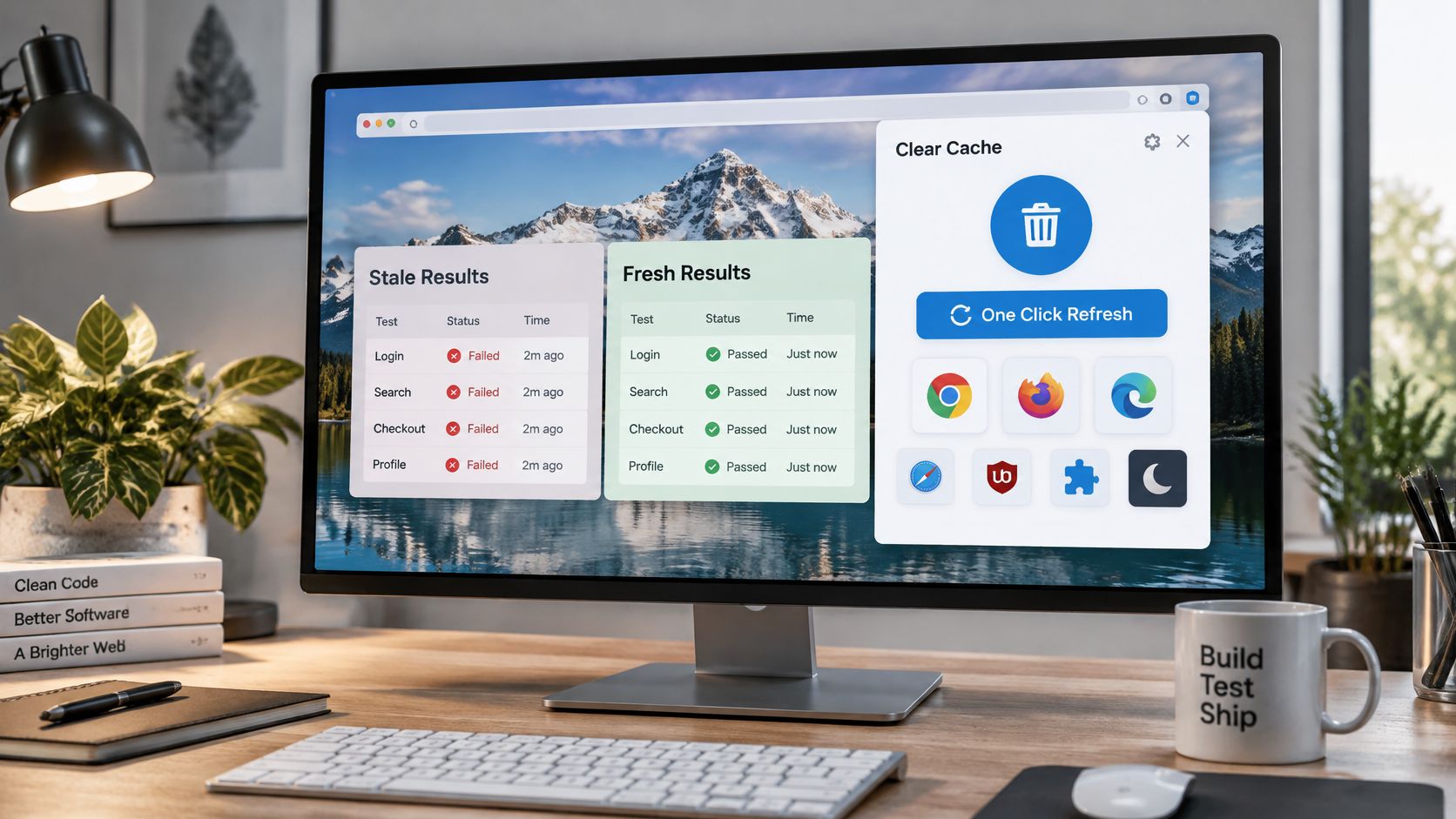
You reload a landing page to verify a live campaign, and the old creative loads again. You report the new ad isn't live, the media buyer checks on a clean machine, and it's live. Your browser served the file from its cache, the local store of previously downloaded responses that speeds up repeat visits. The HTTP caching model in RFC 9111 defines that store as reusable response messages that can cut response time and bandwidth on later equivalent requests.
That distinction matters for social media managers, scraping and QA teams, and ad verification specialists. If you can't prove what came from the network and what came from disk, you can't prove your test result. A good clear cache extension puts that reset on the toolbar, with a defined scope, so you aren't digging through settings between runs. The seven tools below are judged on scope, scheduling, permissions, and best-fit use case, not on one-click claims. Start with what each tool deletes, then match it to your workflow.
1. Clear Cache (Chrome Web Store Extension)
Start here if you need a fast, per-site reset without opening Chrome settings. Clear Cache adds a toolbar button that clears cache, cookies, and other site data for the current tab or domain, depending on how you configure it. That per-origin scope is its main advantage over a full browser clear.

The Chrome Web Store listing for Clear Cache reports more than 1,000,000 users and approximately 1,200 ratings, with an average score of 4.2 out of 5. Treat that as an adoption signal, not proof it fits your test. I recommend checking the current permissions, last update date, and time-range options before you install it on a shared QA profile.
A Repeatable Staging Workflow
Say a QA tester deploys a new build and the staging homepage still loads yesterday's stylesheet. Clear only that domain, reload, and check the Network panel for fresh status codes and transferred bytes. If you also need history scoped separately, compare the approach in this guide to a chrome history cleaner extension before you combine tools.
- Clear one domain first: Run it before a geo-dependent test so older responses don't skew the result.
- Isolate accounts by profile: Pair it with a separate browser profile for each test account, so a reset doesn't log out unrelated work.
Practical rule: Record the exact clearing scope in your bug report. Cache only is a different test from cache plus cookies.
2. Click&Clean
Click&Clean suits teams that repeat the same clean state dozens of times. You can trigger a clear with one click, a hotkey, or a schedule, and target categories such as cache, cookies, local storage, and history separately. That scheduling is the reason to choose it over a simple toolbar button.

The Chrome Web Store documentation for history-cleaning tools shows how far this category has gone, with intervals including 5, 10, and 15 minutes, as well as hourly, daily, weekly, or custom schedules. It also separates history from cookies, cache, and passwords, so sessions can stay active if you choose the narrower scope. Don't assume a scheduled clean is harmless just because it's automatic.
Set It Up Without Breaking Logins
An ad verification specialist might schedule a full clean of a dedicated test profile before each campaign audit. Results stay reproducible because every audit starts from the same state. Test that schedule on a throwaway profile first and note exactly which sessions get logged out.
- Build a clearing profile: Keep pinned work accounts out of the scheduled scope and remove everything else.
- Verify on startup: Check the first load after an automatic clear, since exit clearing can be best effort after a crash.
Confirm current browser support and requested permissions before you roll it out to a team profile.
3. Cookie AutoDelete
Cookie AutoDelete removes cookies and site data when a tab closes, unless you whitelist that domain. Use it to reset site state between test sessions; pair it with a cache tool to refresh scripts, stylesheets, and images.

Storage types behave differently. Chrome's extension storage documentation explains that extension storage persists after cache and browsing history are cleared, while session storage is cleared when an extension is disabled, reloaded, updated, or the browser restarts. A cache-clearing action may therefore leave login state, IndexedDB, or service worker data intact.
Whitelist First, Then Enable
A social media manager can whitelist the brand account used daily, then let research sites reset when their tabs close. The account stays signed in while those sites start fresh on the next visit. For repeatable tests, keep this setup within a dedicated browser profile; teams checking profile isolation can review this guide to stealth web browser setups.
- Whitelist before enabling globally: Otherwise, the first cleanup can sign you out of sites you rely on.
- Pair it with a cache tool: Cookie AutoDelete handles cookies and site data; a cache tool handles stored assets.
Test the whitelist and tab-close behavior on one domain before applying the setup across a profile.
4. EditThisCookie
A staging bug appears only after login, and the same steps work in a clean profile. EditThisCookie manages cookie state, letting you view, add, edit, delete, import, and export cookies for the current site. That makes it useful for separating authentication problems from issues with cached assets.
Debugging Authentication State
A QA engineer can export cookies from a staging login and import them into a clean browser profile to reproduce the bug. If it follows the cookies, session state is a likely cause. If it does not, check cached assets, local storage, or service workers before resetting browser data.
Inspect first, then change one variable at a time. Clearing cookies to address a cached script logs the user out without testing whether the script caused the problem.
Exported cookies are credentials. Store them securely, restrict access, and delete them when testing ends.
- Check the flags: Review Secure and HttpOnly when debugging. These flags affect how a cookie is sent and whether scripts can access it.
- Save a known-good state: Keep a verified login set for each environment so tests can return to a consistent baseline.
- Protect exports: Avoid sharing cookie files in chat. Anyone who imports one may inherit the session.
Use EditThisCookie with a cache-clearing tool when a test needs both a controlled login state and fresh stored responses. Keep the cookie and cache steps separate so each test changes only the state it is meant to examine.
5. Cache Killer (Firefox Add-On)
Cache Killer takes the opposite approach to a one-click clear. Instead of deleting stored files after the fact, it works to prevent caching or clear on demand by adding no-cache behavior to requests. Every load should fetch fresh content, which is useful when you're validating a live update.
That's powerful, and it's easy to misuse. The Mozilla guide to HTTP caching notes that the Clear-Site-Data: cache directive clears stored browser cache entries for the site that sends it, but it does not clear intermediate or shared caches such as proxy and CDN caches. A fresh browser request can still receive an upstream cached response, so record response headers before you blame the add-on.
When Fresh on Every Request Helps
A growth marketer checks whether a landing page variant is served correctly on every request, without a cached copy masking a bad deploy. In Firefox, that workflow fits naturally beside a documented setup proxy on Firefox configuration for geo-specific checks.
- Limit it to test domains: Enable it only where you're testing, so the rest of your browsing stays fast.
- Turn it off after testing: Uncached requests consume more data and don't reflect how repeat visitors experience the page.
Confirm the add-on is actively maintained before you rely on it, and use it only for legitimate testing.
6. Web Developer Extension
The Web Developer extension, created by Chris Pederick, bundles cache and cookie controls into a much larger inspection toolkit. You get menu options to clear cache, disable caching, resize the viewport, and view page information in one profile. For QA and ad verification teams, fewer extensions means fewer permission surfaces to audit.
That audit matters under modern Chrome architecture. The Chrome guidance on migrating to service workers explains that Manifest V3 replaced persistent background pages with event-driven service workers that can terminate whenever inactive, and state should be persisted through storage APIs rather than global variables. An extension can pass a simple test and still fail after a restart, a suspended worker, or a profile switch.
Combine Viewport and Cache Checks
A QA team can disable cache, resize to a mobile viewport, reload, and verify the responsive creative in one pass. That's faster than switching between three single-purpose tools. It's also the kind of bundled workflow teams compare when looking at alternatives for collecting client feedback from stakeholders reviewing the same test page.
- Learn the shortcuts: Keyboard access to cache controls is faster than menu navigation during repeated runs.
- Scope the disable toggle: Use it only while testing, so normal browsing in that profile isn't slowed down.
Choose it if you want breadth. Choose a dedicated clearer if you want the smallest possible scope.
7. Built-in Browser Cache Controls (DevTools and Clear Browsing Data)
Native tools are the baseline every clear cache extension builds on, and they're the most trustworthy option in this list. They need no installation and no extra permissions. If you don't understand what Empty Cache and Hard Reload does, you can't judge what an extension adds.
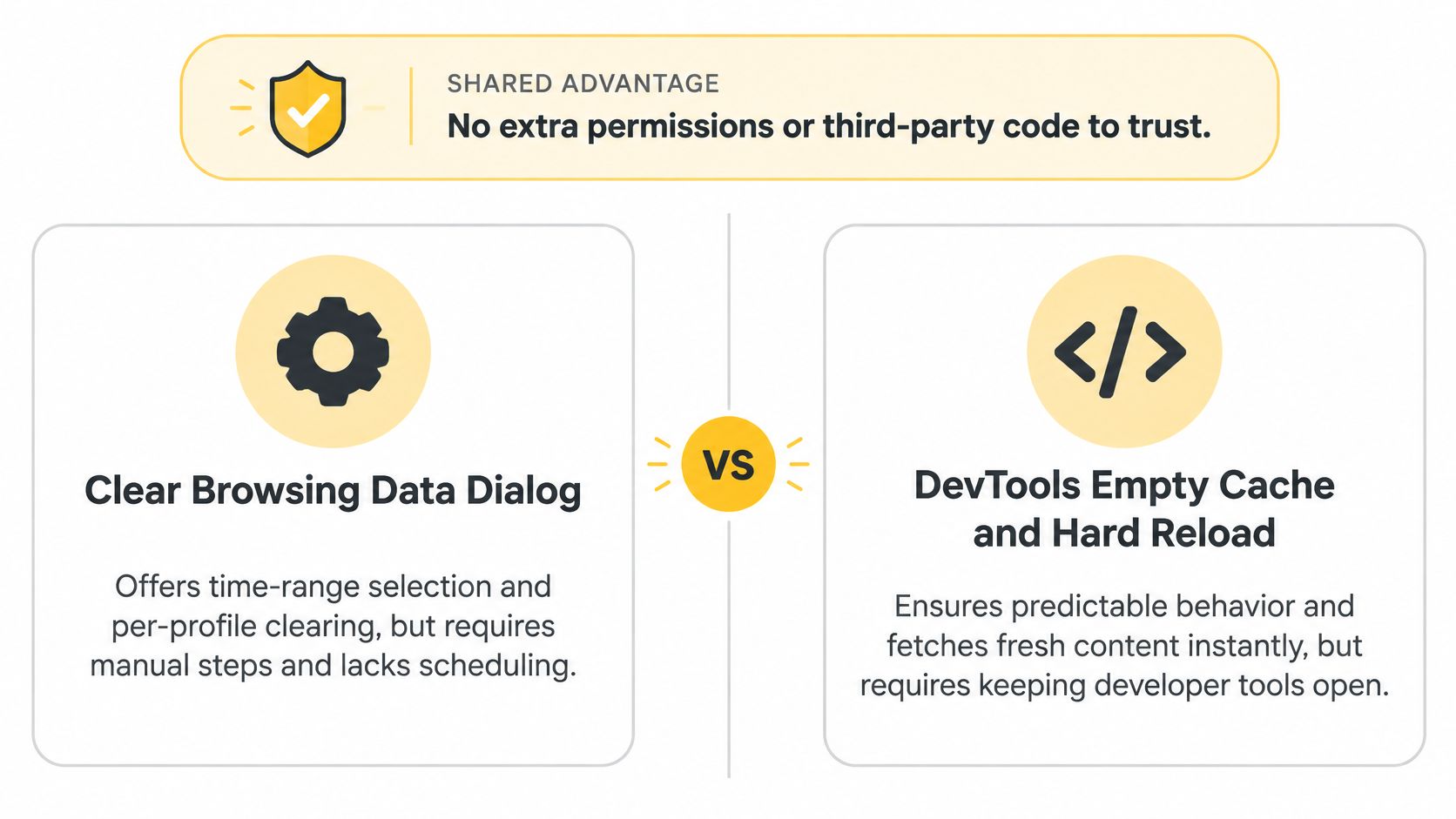
The Chrome DevTools storage documentation describes a concrete model under Application > Storage, where enabling Cache Storage and selecting Clear site data deletes the site's stored data. That broader action can include service workers, localStorage, sessionStorage, IndexedDB, Web SQL, cookies, Cache, and Application Cache. Read that list before you click it on a logged-in test account.
Make Native Clearing Your Audit Standard
An ad verification team performs an Empty Cache and Hard Reload before each audit to confirm they're seeing the live creative. The Network panel then shows exactly what was fetched. Menu locations shift between browser versions, so check the official documentation for your build.
- Keep DevTools open: Enable Disable cache in the Network panel during a controlled test run.
- Use one profile per environment: A clear in staging shouldn't wipe your production verification profile.
Clear cache extensions and tools at a glance
The right tool depends on what a test needs to isolate: one domain's cache, cookies tied to a session, or broader browsing data. Check each tool's scope and permissions before adding it to a test profile. Browser support and available controls can change, so confirm them in the browser's current extension listing.
| Tool | Browser | Clears or controls | Scope and workflow fit |
|---|---|---|---|
| Clear Cache (Chrome Web Store extension) | Chromium-based | One-click cache and data clearing for the active domain | Useful for repeatable, per-domain resets during testing |
| Click&Clean | Chrome | One-click cleanup, with an optional hotkey | Supports selective browsing-data cleanup and scheduled intervals or cleanup on browser close |
| Cookie AutoDelete | Firefox | Automatically removes cookies when tabs close | Supports session isolation; whitelist sessions that must persist |
| EditThisCookie | Chrome | Manual cookie inspection and editing | Useful for debugging cookie-dependent behavior; changes require deliberate per-site handling |
| Cache Killer (Firefox add-on) | Firefox | On-demand cache clearing | Use to request fresh content during a test |
| Web Developer extension | Chrome, Firefox | Cache and cookie controls through a menu | Groups cache controls with other web development tools |
| Built-in browser cache controls (DevTools and Clear Browsing Data) | Chromium-based browsers and Firefox | Manual clearing, hard reload, or time-range cleanup | Provides a native baseline without an extension |
Building a Reliable Test Setup Beyond Cache
A page can look correct after a cache reset and still show the wrong state on the next visit. Keep tests repeatable by assigning each tool a clear role: use a scoped tool for per-domain resets, a scheduled cleaner for session hygiene in a dedicated test profile, and native DevTools as the baseline when results conflict. Check the Network panel and response headers to identify whether cached content was served.
Treat cold-cache and warm-cache runs as separate test conditions. A cold-cache run checks deployment behavior; a warm-cache run approximates a returning user's experience. Label each result so the two conditions are not mistaken for one another. Google's guidance on browser caching recommends cache lifetimes of at least one week, and up to one year for static or infrequently changing assets, because retrieving files over the network can add round trips and delay rendering.
Cache is only one part of the test state. Cookies, local storage, service workers, and IP location can all affect what a site displays. Record the browser profile, clearing scope, and network context alongside each result. Teams documenting repeatable browser tests can explore the Wallaby testing case study.
For geo-dependent QA, identify the proxy type in the test record. Datacenter proxies use server ranges associated with an ASN, or network operator. Residential proxies use home broadband IPs. Mobile proxies use carrier IPs, often shared by subscribers through carrier-grade NAT, so blocking behavior may differ from other network contexts.
Match the network setup to the test. Use a consistent session when a login must retain its network context, and rotate IPs for fresh geo checks. Confirm whether the test requires HTTP or SOCKS5. Evoproxy's website lists the mobile proxy settings available to customers, which teams can check against their compliance records. Its dedicated mobile proxy suits tests where mobile network context, session continuity, or exclusivity matters; its mobile connectivity also offers separate options for dedicated or cost-sensitive testing. Keep the workflow within platform rules and record the proxy, profile, and clearing scope so another tester can reproduce the result.
Clear cache within a defined scope, isolate each test profile, then verify the result in the Network panel before reporting it. For geo-dependent QA and ad verification involving a French mobile network context, Evoproxy offers dedicated and shared mobile ports with scheduled or on-demand rotation. Check the available settings against your compliance requirements, then start with a small test run for the intended use case.