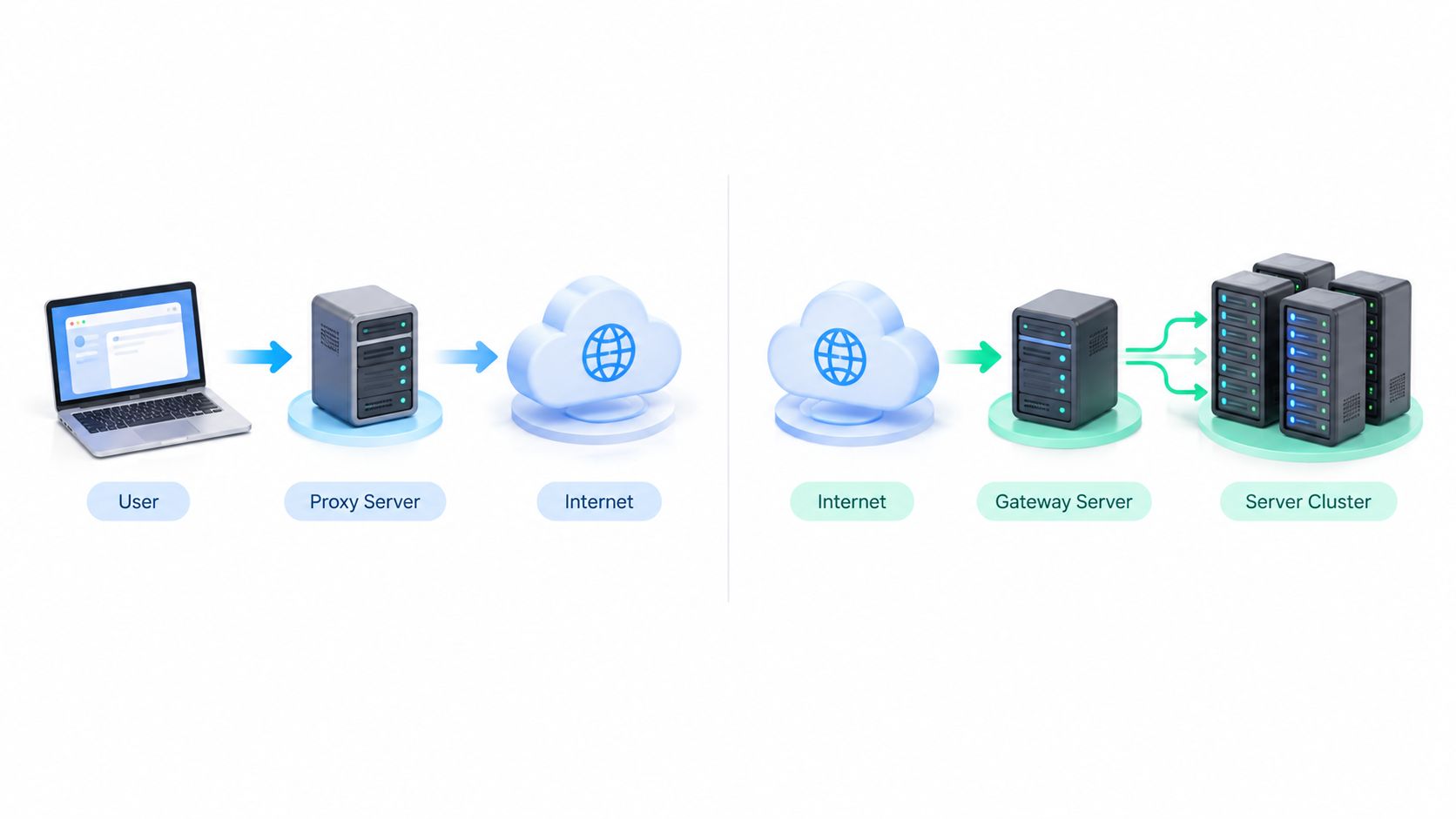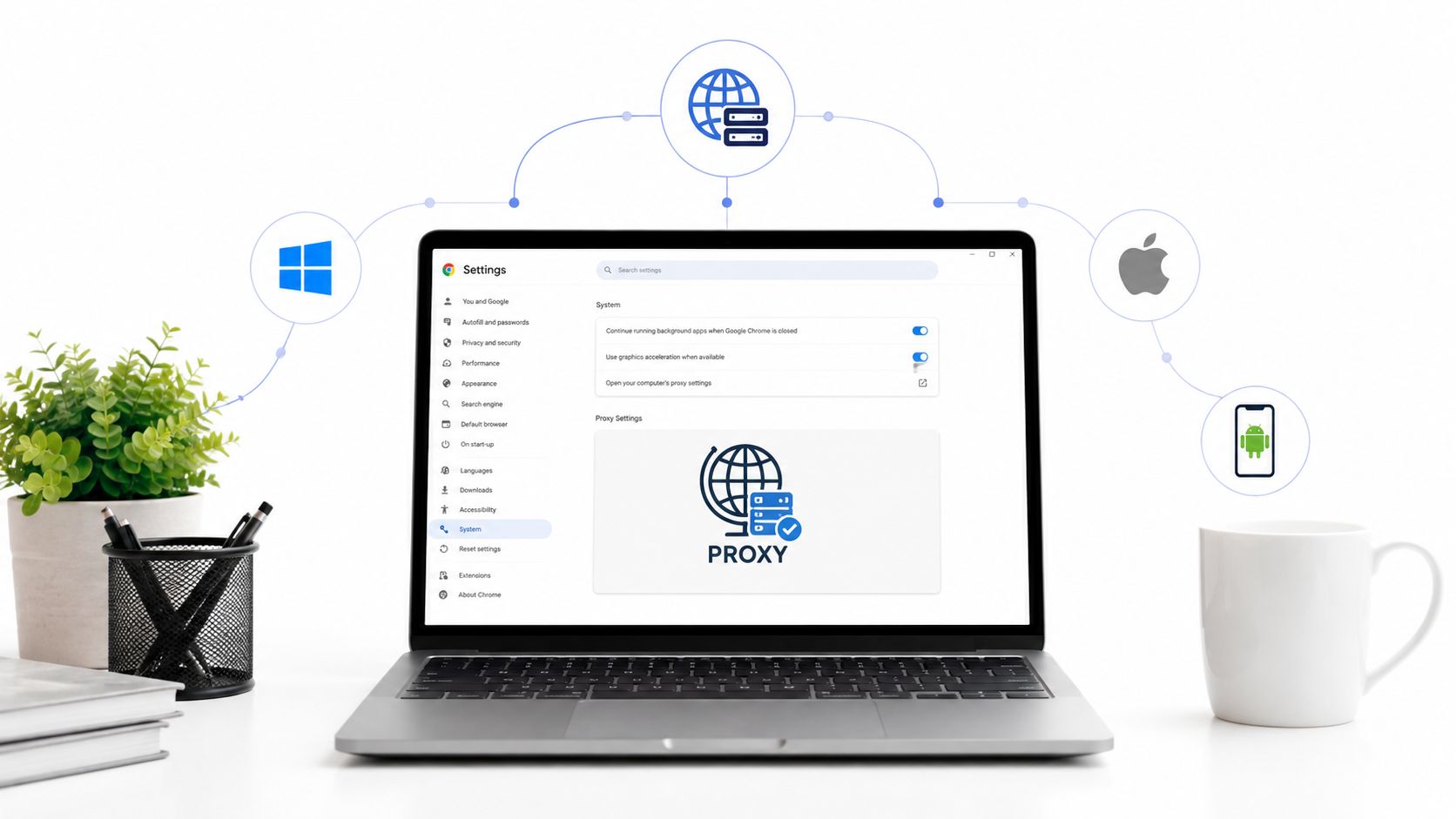
You're staring at a browser that says the proxy is set, the login is still failing, and half the team wants to blame Chrome while the other half is editing the wrong layer entirely. That's the usual mess behind change proxy settings Chrome, especially when ad verification, scraping, account QA, or market research depends on the browser reaching the right exit IP every time.
Chrome does not behave like a self-contained proxy app. It sits on top of the operating system's network stack, so the control point you change determines whether you've changed a browser-only path, the whole machine, or an enterprise policy that you can't override from the UI. Chromium's network model treats proxying as shared system networking, and that distinction is what saves hours when the result looks “configured” but still routes traffic the wrong way (Google's Chrome Enterprise network settings documentation).
How Chrome Handles Proxy Settings Under the Hood
Chrome's proxy behavior makes sense once you stop treating the browser dialog as the source of truth. Chromium's network stack leans on operating-system proxy settings, so Chrome inherits the proxy controls and related network behavior that the OS already exposes (Google's Chrome Enterprise network settings documentation). That is why a change in Chrome often changes traffic behavior beyond Chrome itself.
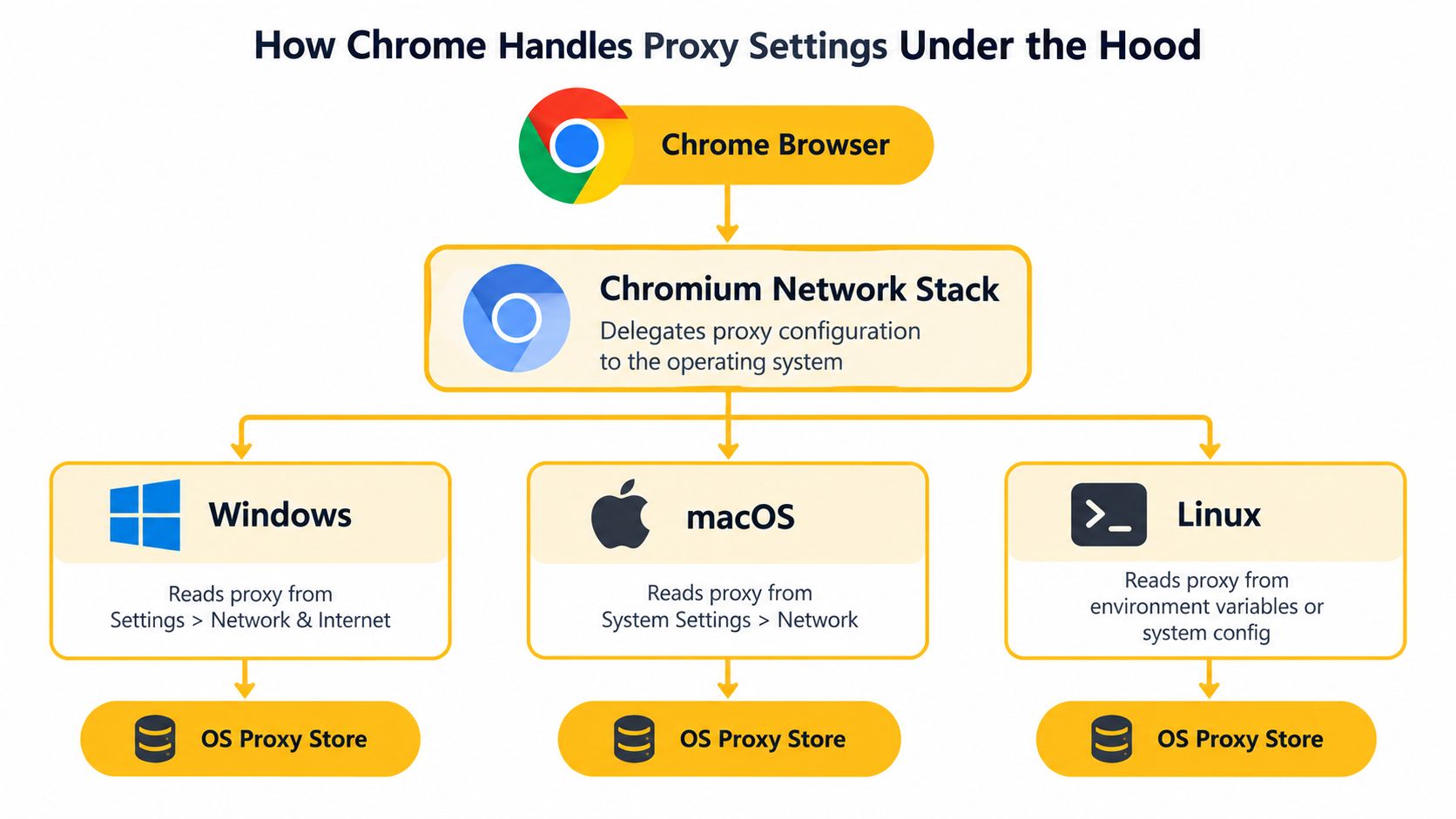
The layers you touch
The path usually starts at chrome://settings/system, which is Chrome handing you off to the platform's proxy pane. From there, the behavior can come from a manual host and port, a PAC script, automatic discovery, or a startup flag such as --proxy-server, --proxy-auto-detect, --no-proxy-server, or --proxy-bypass-list (Chromium proxy documentation, Chrome extension proxy API documentation). In practice, the layers worth checking are the browser entry point, the OS proxy store, and any startup or policy layer that overrides both.
Practical rule: if the browser accepted the value but traffic still exits from the wrong place, assume you edited the wrong layer before you assume the proxy itself is bad.
ChromeOS adds another wrinkle because it supports Manual, PAC script, Auto-detect, and Direct modes at the profile level. That matters for teams that need scoped testing, because changing a ChromeOS profile setting can be narrower than changing the whole operating system, while a system proxy change can affect more than Chrome. Keep those layers separate, and the failure usually points itself out faster.
Setting a Manual Proxy on Windows and macOS
A manual proxy is the right choice when you already know the endpoint and do not need routing logic. On Windows, Chrome's “open your computer's proxy settings” path lands in Settings → Network & Internet → Proxy, where you enter the host, port, and bypass list. On macOS, the equivalent path is System Settings → Network → active interface → Details → Proxies, where the same fields sit under the platform controls.
Windows and macOS setup without guesswork
The flow is straightforward:
- Open Chrome system settings. Use the browser shortcut so you reach the OS proxy pane instead of digging through unrelated menus.
- Choose manual proxy entry. Put the proxy host and port in the correct protocol field.
- Add bypass rules if needed. Keep local services, internal admin panels, or test targets out of the proxy path when the workflow calls for it.
- Save and verify. Check that traffic exits from the expected egress IP, not just that the dialog accepted the values.
Chrome's manual proxy model separates traffic by scheme. It uses one list for HTTP traffic, another for HTTPS, and a separate bucket for traffic that does not fit those categories. That split causes real misses. A team can point HTTP at one proxy and leave HTTPS on a different path without noticing until a request fails or appears to come from the wrong region. Chrome also does not treat embedded credentials in the setting as a normal authentication method.
Operational habit: test a minimal host and port first, then add bypass rules and authentication. If you change everything at once, you lose the signal you need to see which piece is wrong.
For ad verification and geo-sensitive QA, the common failure is partial coverage, not total breakage. HTTP may route through the proxy while HTTPS bypasses it, or the reverse, because the browser is following scheme-specific rules and any local exceptions you added. That is the part to watch first. Once the basic path is correct, layer in the more specific rules.
Configuring Automatic Proxy with PAC and WPAD
Static proxy entries fall apart as soon as routing has to vary by destination, geography, or session state. PAC files and WPAD handle that layer. PAC, or Proxy Auto-Configuration, uses JavaScript to decide whether a URL should go through PROXY, DIRECT, or SOCKS. WPAD discovers the PAC location automatically through network probing (Chromium proxy documentation).
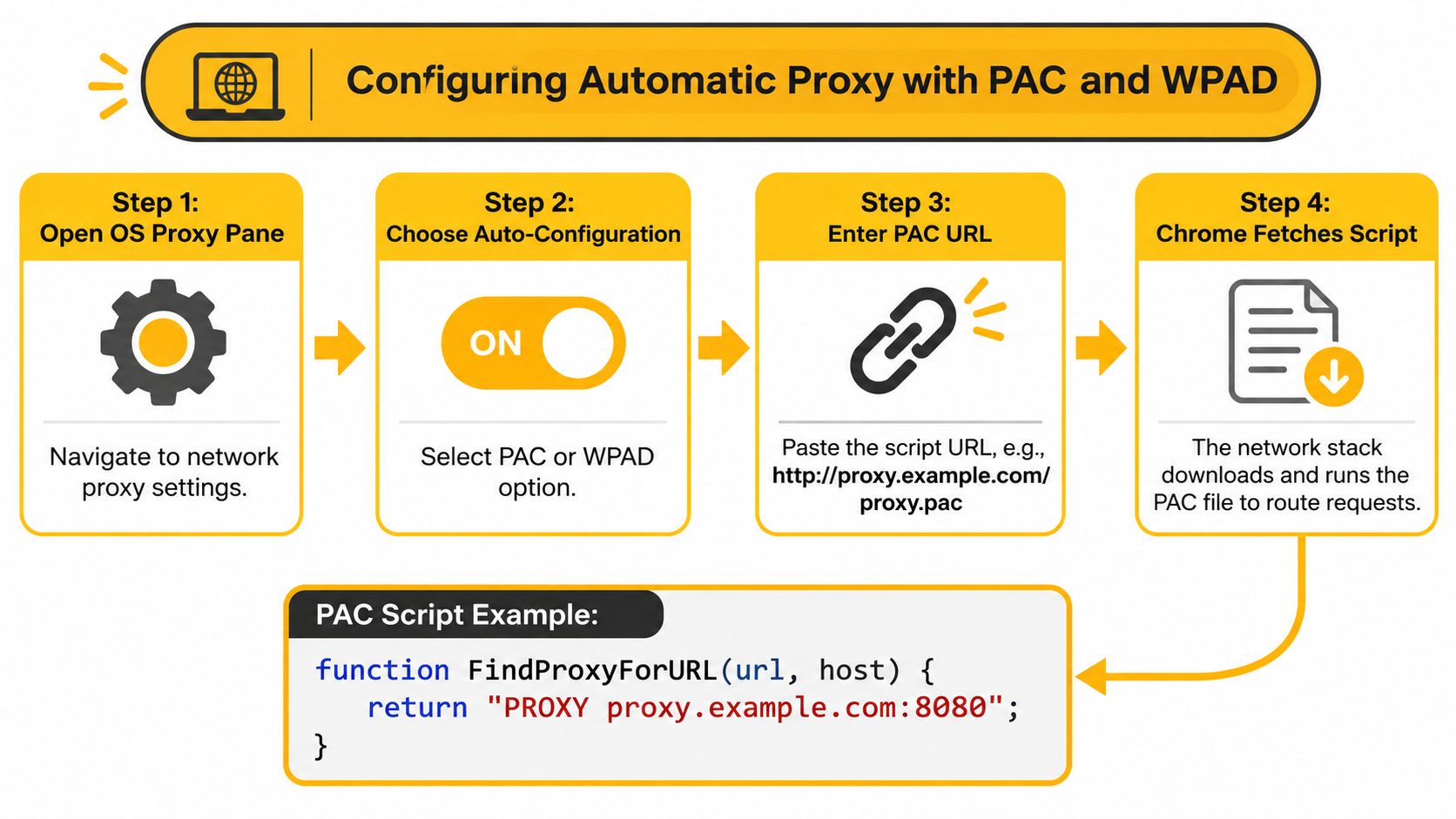
PAC when routing needs logic
A PAC file can be as simple as a single return value for every URL. That works for a fixed test path, but the value is conditional routing, for example sending internal hosts direct while pushing external targets through a proxy. The failure mode is easy to miss: PAC can return DIRECT for a host you expected to proxy, so test the exact destinations your workflow depends on.
A minimal rule set makes the behavior obvious:
function FindProxyForURL(url, host) {
  if (dnsDomainIs(host, ".internal.example")) return "DIRECT";
  return "PROXY proxy.example.com:8080 DIRECT";
}
That kind of branching is why PAC fits sticky-session logic, rotation, and ASN-aware routing. If you need a broader setup reference, this automatic proxy setup guide is useful for standardizing the rollout across a fleet.
WPAD and the Mac caveat
WPAD is the discovery path. It probes DNS or DHCP for the PAC address, which works well on managed networks where the proxy location should be found instead of hard-coded. Chromium's network docs cover the WPAD discovery flow clearly, and Google's Chrome Enterprise guidance describes how that discovery fits managed Chrome deployments (Google's Chrome Enterprise network settings documentation).
One operational caveat matters on Mac fleets. Chromium documents that macOS Chrome does not support DHCP-based WPAD when autodetect is selected (Chrome extension proxy API documentation). That is a deployment failure, not a theoretical edge case.
Use manual settings when the endpoint is stable. Use PAC when routing rules need logic. Use WPAD only when the network is built for discovery and you have tested it on the same platform you plan to roll out.
Changing Proxy Settings on Chrome for Android
Chrome on Android does not give you a separate proxy dialog inside the browser. The proxy setting sits in the Wi-Fi profile, so you change it through the connected network instead of through Chrome itself. On a consumer device, that usually means long-pressing the active SSID, opening the network details, and setting the proxy in the advanced options.
The Android path that actually works
Start with the connected Wi-Fi network, then open the modify or advanced settings for that SSID. Enter the proxy details there, save them, and remember that the proxy only applies while the device stays on that network. If the device falls back to mobile carrier traffic, it uses the operator path again.
That matters for screenshot capture, dashboard review, and QA runs where someone later needs to reproduce the same session. Android does support other proxy behaviors on managed devices and developer builds, but consumer Chrome follows the Wi-Fi-level entry. If you are documenting results for a client or internal reviewer, record the OS version, Chrome version, proxy scheme, and the observed egress IP for that run.
Useful habit: always confirm the session on the same network state you used during the test. A Wi-Fi proxy and a mobile-data path are different workflows.
If you are standardizing mobile QA on mixed devices, keep this Android proxy walkthrough close at hand.
For teams validating mobile flows, Wi-Fi proxying on Android works for controlled tests, but the setup should match the use case.
Browser Proxy vs System Proxy and When to Use Each
The wrong proxy scope creates avoidable failures. A browser-managed setting is narrower, a system-managed setting is broader, and enterprise policy can override both.
| Scope | Best for | Affects non-Chrome apps | Persistence |
|---|---|---|---|
| Browser-managed | Sandboxed automation, one-off test sessions | No | Depends on extension or startup state |
| System-managed | Ad verification, market research, multi-account workflows | Yes | Usually survives browser restarts |
| Enterprise-managed | Locked-down fleets and shared environments | Yes | Enforced by policy |
Picking the right scope
Browser-only control is useful when you need to keep the host clean and isolate a single Chrome session. That fits ephemeral QA, scripted checks, or labs where only the browser should move through a proxy. The trade-off is clear. Anything outside Chrome keeps using the host network path, so support tools, local testers, and other apps may not match the browser route.
System-wide control is the safer default when other tools on the machine need the same exit path. It also reduces mismatches between browser traffic and the rest of the workflow. For fleets, the operational question is less about convenience and more about consistency across the box.
Enterprise-managed settings sit on top of that as policy. If a managed policy says one thing and a local user setting says another, the policy wins. That is how admins keep shared environments predictable.
Chrome extensions and startup flags can change proxy behavior too, but they do so at the browser layer. A browser proxy extension can steer a session without touching the host, while OS settings shape every app that follows system routing. That layered model matters more than the labels on the setting screen.
For geo-dependent work, the proxy type also matters. Mobile 4G proxies run on carrier networks. Residential proxies present home-network origins. Datacenter proxies come from cloud or hosting ranges, which are easier to classify and block because their ASNs are well known. ASN means the network owner behind the IP range, and teams use it to judge whether traffic looks like consumer access or infrastructure traffic.
Troubleshooting When Chrome Ignores Your Proxy
A proxy can be set correctly and still fail in practice. Chrome does not treat every request the same way, and that is where many setups go wrong. Local destinations are often bypassed by default, and localhost or loopback traffic follows special handling unless you deliberately route it through the proxy with -loopback, as documented in Chromium proxy documentation.
Debug in the order that saves time
- Confirm Chrome is in system mode. If a startup flag or extension owns proxy control, the OS dialog is not the active setting.
- Inspect the OS proxy settings. Make sure the browser inherited the route you intended.
- Disable conflicting extensions. A browser proxy extension can override or muddy the system path.
- Test a minimal host and port. Strip the setup down until the basic route works.
- Add authentication and bypass logic last. Early layering makes the failure harder to isolate.
Repeated authentication failures can leave Chrome stuck in a cached bad proxy state, so clearing that cache may be part of recovery, as noted in Chromium proxy documentation. Scheme handling can also trip people up, especially when the symptom is that HTTPS-only sites load while HTTP dashboards time out. That is usually a routing mismatch, not proof that the proxy is healthy end to end.
If the browser keeps prompting for credentials, treat it as a routing or auth-state problem first, not a password problem.
This Chrome proxy error guide is useful when the failure mode is a loop of prompts, a silent DIRECT fallback, or a managed setting that keeps snapping back after local edits.
For ad ops and scraping teams, the discipline is documentation. Record the OS, Chrome version, proxy scheme, authentication method, bypass list, and the observed egress IP for every run. That gives you a clean audit trail when a workflow passes on one machine and fails on the next.
Verifying Your Setup and Choosing the Right Proxy Type
Verification is where a proxy goes from “entered” to “usable.” The fastest check is simple, confirm the public IP you see from inside Chrome matches the egress you expected, then confirm that the traffic path belongs to the right origin class. Carrier-based exits should look like mobile networks, residential exits should look like consumer access, and datacenter exits should look like infrastructure ranges.
What to verify before you trust a session
- Egress IP match. Check that the visible IP matches the geo and proxy type you intended.
- Origin classification. Use ASN and carrier lookup to distinguish mobile, residential, and datacenter ranges.
- Credential behavior. Watch for repeated login prompts, which usually point to an authentication loop.
- Update drift. Re-test after Chrome updates, because a browser update can shift proxy behavior or cached state.
- Evidence capture. Save a screenshot or connection note for auditability when the workflow matters to clients or internal reviewers.
For workflows like multi-account social media management, market research, ad verification, brand protection, SEO monitoring, and geo-dependent QA, the deciding factor is often the footprint, not just the connectivity. Mobile 4G proxies tend to present cleaner consumer-like behavior because they sit on carrier networks with shared address pools, which makes them harder to classify than datacenter ranges. A French mobile provider such as Evoproxy can fit that kind of workflow when you need French mobile IPs, rotation control, and a browser path that matches the task instead of fighting it.
If you're validating French-facing campaigns, account flows, or QA runs that need a realistic mobile exit, test a mobile 4G setup against the exact browser sequence you use in production. That gives you a much better read on whether the proxy, the rotation, and the session behavior are fit for purpose.
If your team needs Chrome sessions that behave like real mobile users instead of obvious datacenter traffic, start by testing a mobile 4G proxy against the exact workflow you care about. Evoproxy provides French mobile connectivity with browser-friendly routing for legitimate ad verification, QA, research, and multi-account operations, so you can validate the setup before you commit. Visit Evoproxy and check whether its mobile proxy setup fits your Chrome-based workflow.