You've selected a proxy, entered the connection details, and opened a regional price page in Chrome. The page still shows your office location, or a colleague gets a different result with apparently identical settings. Before changing providers or credentials, check which setting controls the browser.
A reliable Chrome proxy setup starts with scope and precedence, then ends with evidence. Choose the narrowest configuration that fits the task, identify the network behind the proxy address, and verify the public IP and DNS behavior rather than trusting a settings screen.
Which Chrome Proxy Method Fits Your Task
Chrome offers five practical proxy methods. The right choice depends on how widely the change should apply and whether routing needs to change between destinations, profiles, or managed devices.
A proxy is an intermediate server that forwards requests. When a website receives a request through it, the website generally sees the proxy's public IP address rather than your connection's public address.
Chrome proxy methods compared
| Method | Scope | Setup effort | Best for | Main risk |
|---|---|---|---|---|
| System proxy (OS settings) | Chrome and other apps that follow OS settings | Low | Routing all browser traffic on one machine | Changes every app that reads the system proxy |
Command-line flag (--proxy-server) |
One Chrome launch | Low | Quick tests, scripts and isolated profiles | Ignored if an older Chrome process is still running |
| PAC script (automatic configuration) | Per-URL decision | Medium | Some domains proxied, others direct | Logic errors route traffic unexpectedly |
| Extension proxy manager | Per Chrome profile | Low to medium | Multi-account work and switching between proxies | Extensions can override system settings |
| Enterprise policy (managed Chrome) | Organization-wide or assigned managed scope | High | IT-managed devices and fleets | Users cannot change an enforced policy, so a wrong policy can block its assigned users |
The system proxy is convenient when Windows or macOS should supply Chrome's routing settings. A launch flag is better for a temporary test because it makes the intended configuration explicit at startup.
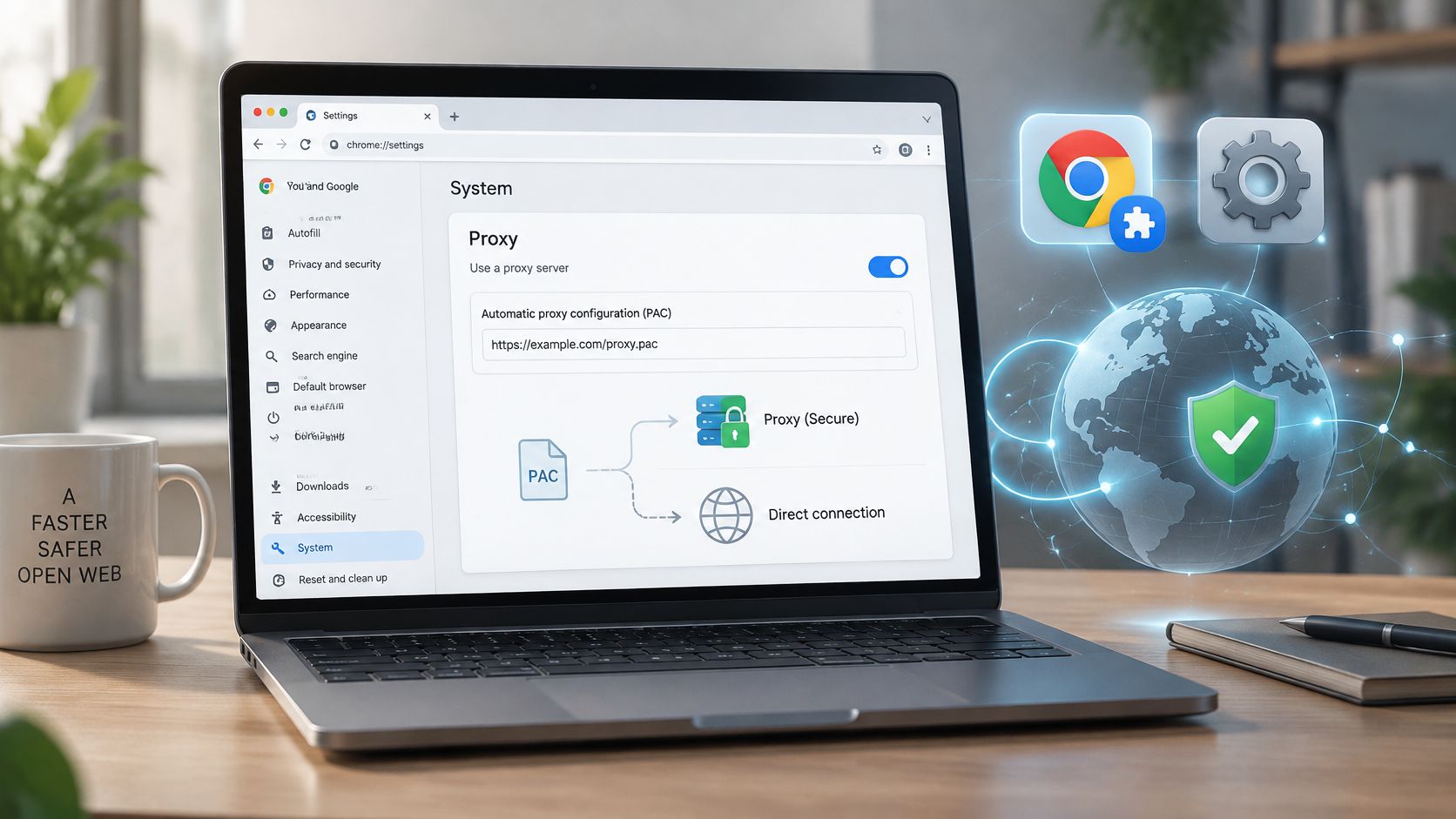
A PAC script makes conditional decisions without manual switching. An extension manager makes profile-based switching easier, while enterprise policy gives IT centrally enforced control.
Choose scope before convenience
Say a social media manager handles five brand accounts with the platforms' permission. Separate Chrome profiles with a proxy extension in each profile make account-to-route assignments easier to inspect, although profiles aren't a substitute for account authorization.
A data engineer testing a geo-dependent price page from a script would instead use a launch flag with a separate user-data directory. That keeps the test environment separate from daily browsing.
Practical rule: Choose the narrowest scope that does the job. A system-wide change can affect every other application that follows the operating system's proxy settings.
Which Proxy Type Changes Your Results
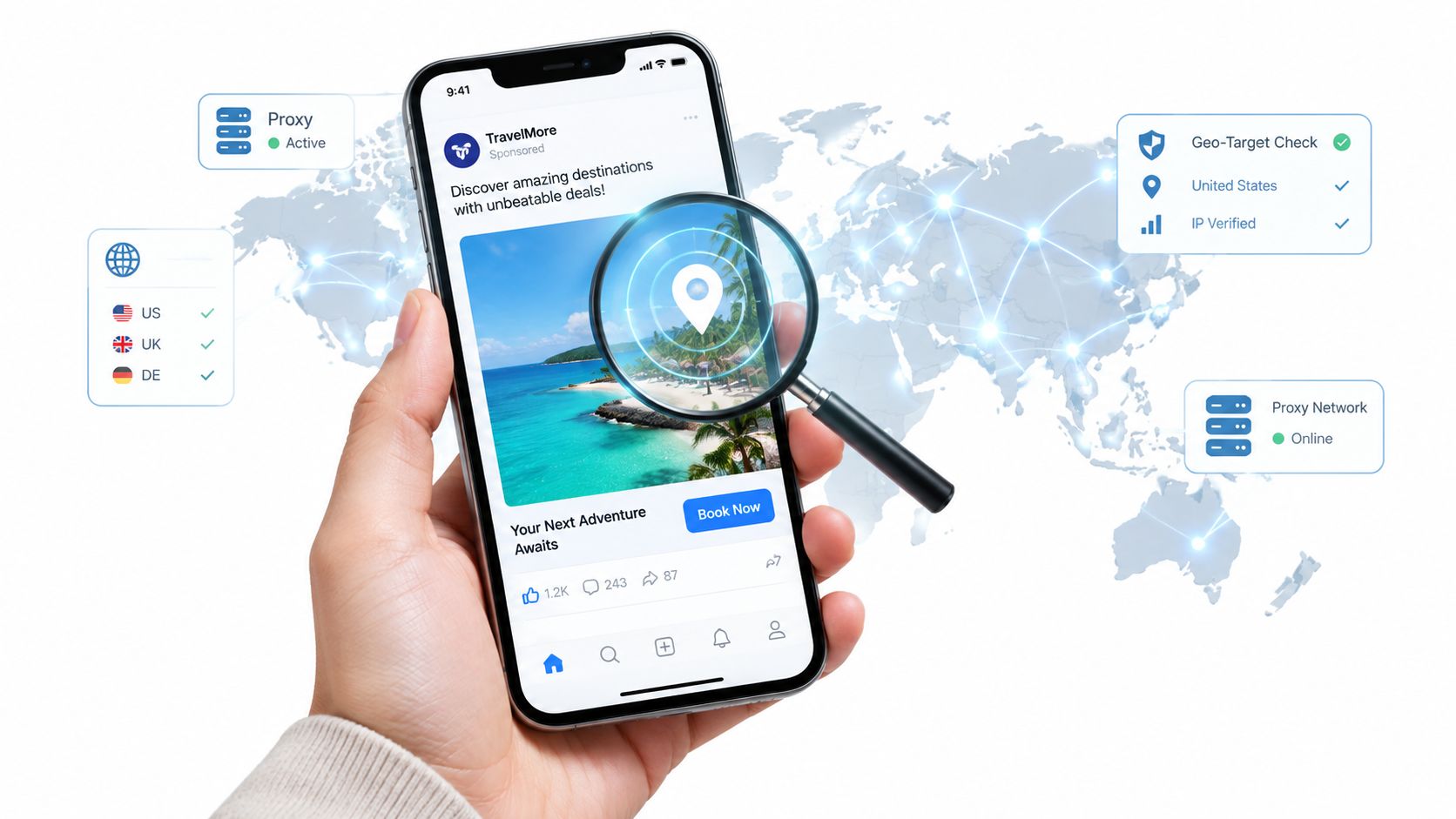
A regional price check can return different results even when Chrome uses the same proxy setting, because the proxy type changes the network identity seen by the destination. Choose the type that matches the test, then compare the observed route and session behavior before drawing conclusions.
An ASN, or autonomous system number, identifies the network announcing an address block. Looking it up can help distinguish a hosting network, a consumer internet provider, or a mobile carrier. It does not identify the person using the address.
Proxy types and what they signal
| Proxy type | IP source | What an ASN lookup usually shows | Typical legitimate use |
|---|---|---|---|
| Datacenter | Servers in hosting facilities | A hosting provider | Load testing and QA on authorized, non-sensitive pages |
| Residential | Home broadband connections | A consumer ISP | Market research and ad verification from local viewpoints |
| Mobile 4G/5G | Carrier network addresses, commonly behind carrier-grade NAT | A mobile carrier | Account work within platform rules and geo-dependent mobile QA |
Understand the session as well as the address
IP rotation changes the outward-facing address on a schedule or when requested. A sticky session keeps the same address for a defined period, while geo-targeting selects a country or region. For login-based workflows, confirm whether the address remains consistent for the session, since unexpected rotation can make results harder to interpret.
Mobile addresses require a little more context. The IETF's carrier-grade NAT guidance explains how providers can share a public IPv4 address among subscribers, distinguishing their connections through port mappings. This arrangement, called carrier-grade NAT or CGN, means an observed address may represent many unrelated customers. As a result, an address-level block can affect more than one subscriber.
To interpret a mobile route, compare the ASN, session behavior, and location context before drawing a conclusion from an observed IP. Check whether the ASN indicates a mobile carrier, whether the address changes during the workflow, and whether the apparent location fits the test. These checks make it easier to identify which part of the route is shaping the result.
The connection protocol must also fit the tool. HTTP proxies handle web-proxy requests; a SOCKS5 proxy relays a broader range of connection types. Confirm which protocol your application supports before choosing a proxy endpoint.
For controlled work, mobile proxies can support account management within platform rules, market research, ad verification, and location-dependent QA. They are not a way to evade detection or bypass access controls. An IP address alone also cannot establish a person's identity, account ownership, or device.
How to Set a Proxy in System Settings or Launch Flags
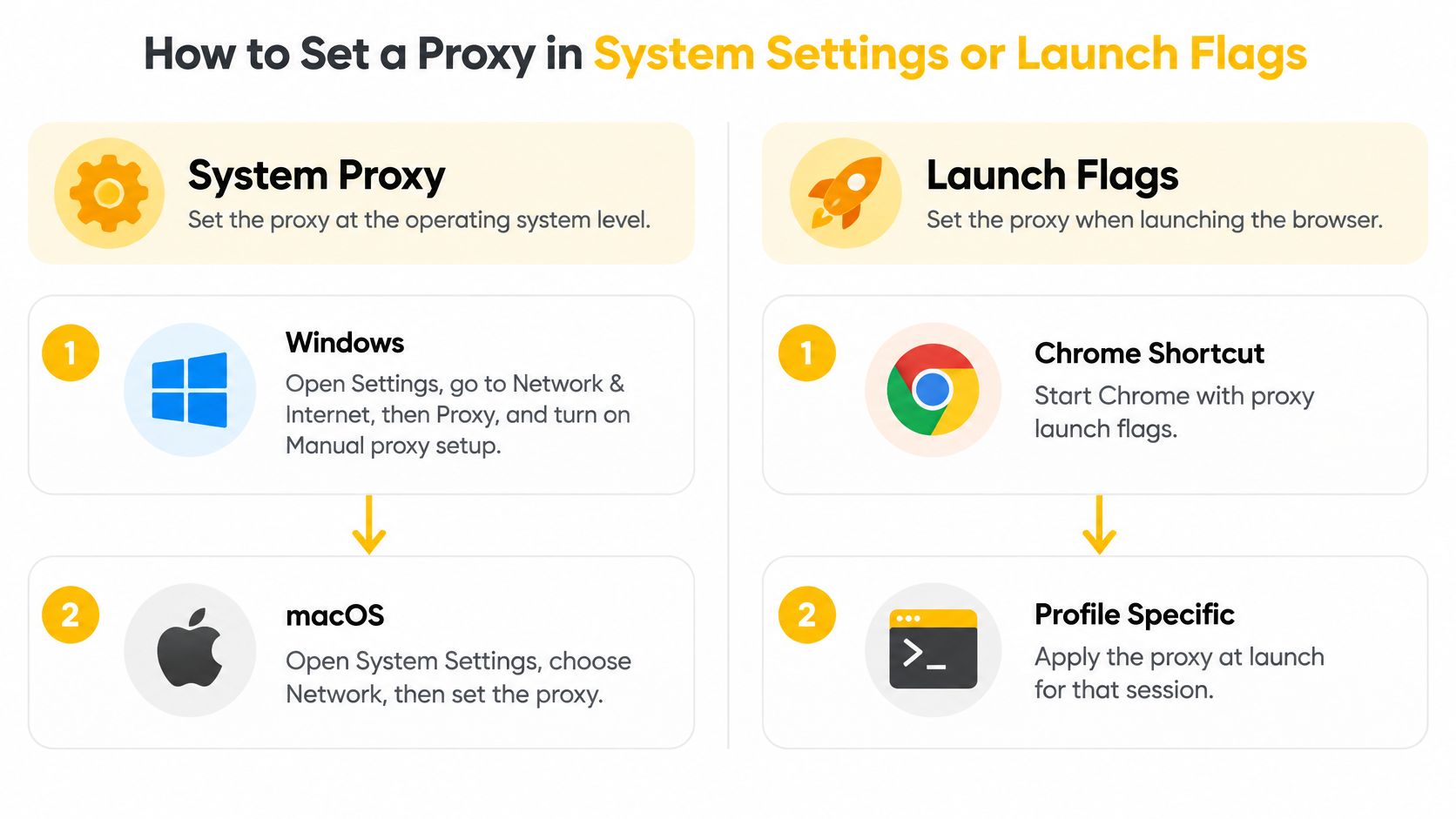
Use operating-system settings for a machine-level change. Use launch flags when you need an explicit, isolated browser session for testing.
Set the operating-system proxy
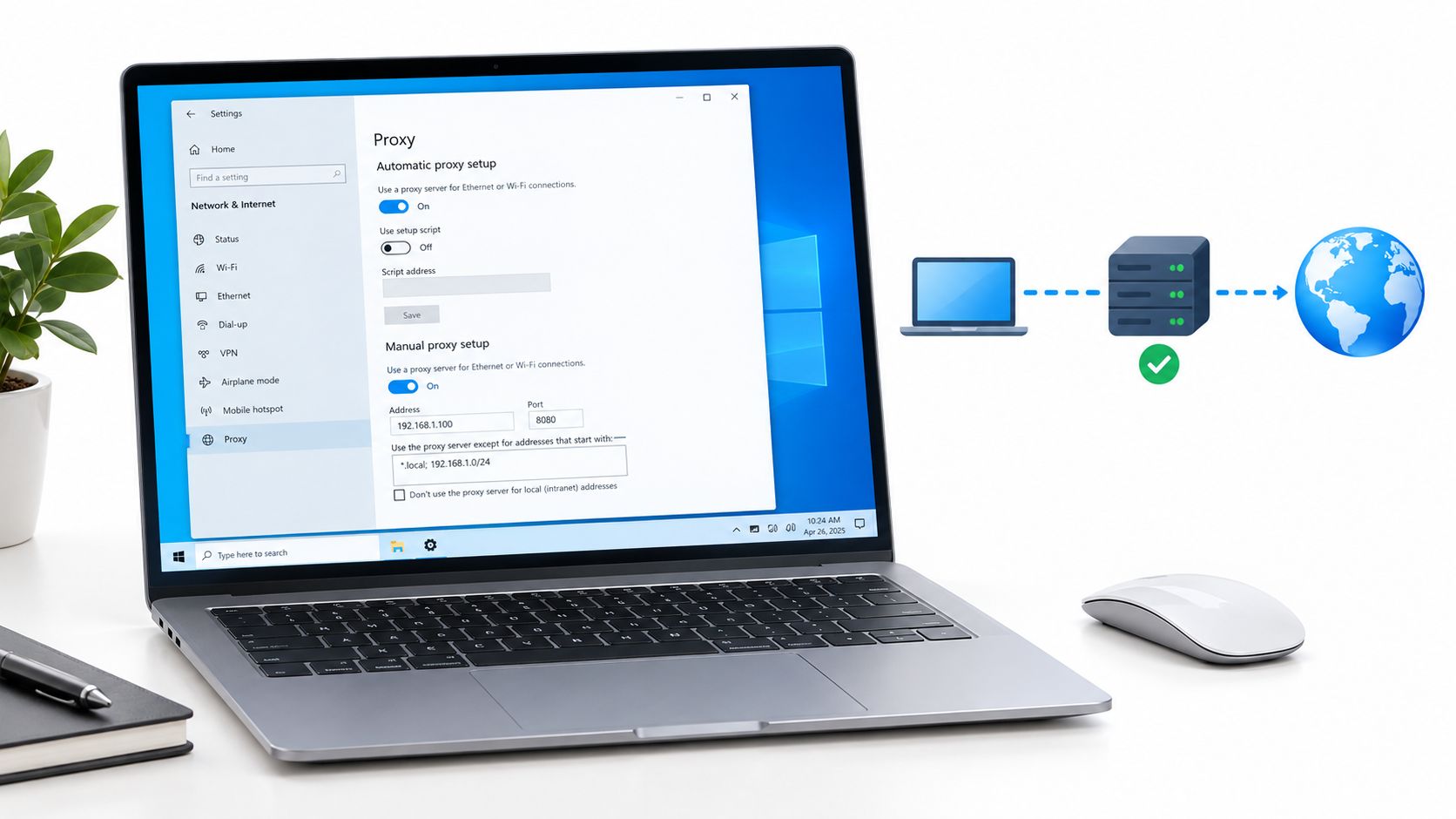
- Open the appropriate settings. On Windows, open Settings, choose Network & Internet, then Proxy, and enable Manual proxy setup. On macOS, open System Settings, choose Network, select the active connection, then open Details and Proxies.
- Enter the endpoint. Supply the proxy host and port in the appropriate fields. Keep authentication credentials separate from the hostname unless the interface explicitly supports another format.
- Save and test. Chrome follows the system configuration by default, so you don't need a separate Chrome option. If the route doesn't change, investigate extension control or managed policy before repeatedly editing the same fields.
Menu wording can differ between operating-system releases. The important distinction is between a manually entered endpoint and an automatic configuration script.
Start an isolated Chrome session
- Quit Chrome completely. Close every window and check for background processes. An existing browser process can accept the launch request without adopting the new flags.
- Prepare a launch entry. Edit a shortcut to the Chrome executable, or use a terminal on macOS or Linux.
- Specify the proxy. Add
--proxy-server="socks5://myproxy:8080"for SOCKS5, substituting your actual endpoint. For an HTTP proxy, use its HTTP scheme, hostname, and port. - Set exceptions deliberately. Add
--proxy-bypass-listfor destinations that should remain direct, such as local development services or approved internal domains. - Separate the browser data. Add
--user-data-dirpointing to a dedicated test folder, then launch Chrome and verify the route.
The Chromium proxy documentation documents the SOCKS5 example above as routing HTTP and HTTPS URL requests through the proxy on port 8080. SOCKS5 relays connections without interpreting the application's web content; it doesn't itself promise encryption.
DNS, the process that translates hostnames into addresses, needs its own check. A proxied web request isn't sufficient evidence that every lookup took place remotely, so don't treat a changed public IP as complete verification.
How to Route Traffic Conditionally with a PAC Script
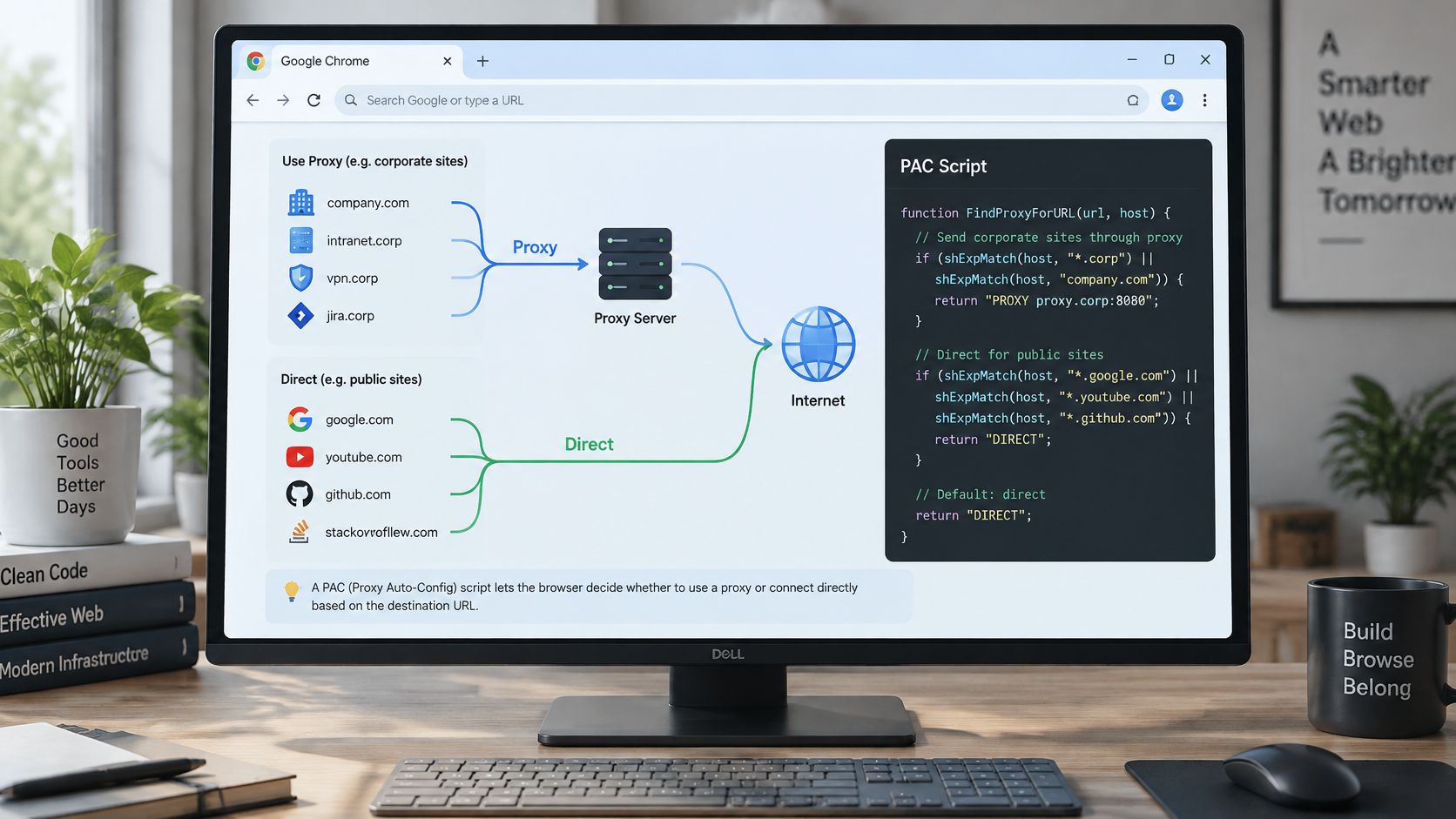
A PAC, or Proxy Auto-Configuration, script fits workflows where selected destinations need a proxy and others should remain direct. It's useful when an ad-verification team needs a regional storefront route but wants internal reporting traffic to stay on the office connection.
The script contains a JavaScript function named FindProxyForURL. A minimal illustrative function is function FindProxyForURL(url, host) { if (host === "shop.example.com") return "PROXY proxy.example.net:8080"; return "DIRECT"; }.
That example sends the selected hostname through a proxy and returns DIRECT, meaning no proxy, for other destinations. The names are placeholders, not a working service configuration.
Deploy rules that are easy to inspect
- Match hostnames intentionally. Use the host value for destination matching rather than assuming a hostname and its resolved address are interchangeable. Include required supporting hosts, not just the page's main hostname.
- Publish the file reliably. Host it on an internal server or stable HTTPS location your test devices can reach.
- Select automatic configuration. On Windows, use the system proxy's Use setup script option. On macOS, select the automatic proxy configuration option.
- Choose a failure policy. An ordered return such as
PROXY proxy.example.net:8080; DIRECTallows a direct fallback if the proxy is unavailable. Use it only when direct access is acceptable; otherwise it can invalidate a regional test. - Reload and inspect. Refresh the configuration after edits, then test a deliberately proxied host and a deliberately direct host.
WPAD, Web Proxy Auto-Discovery, is an alternative that discovers configuration through DHCP or DNS when automatic discovery is enabled. For a team deciding between discovery and a specified script URL, the distinction matters when reviewing automatic proxy setup.
The Chrome proxy API documentation distinguishes pac_script, which uses a script or embedded PAC data, from fixed_servers, which applies explicit proxy rules. It also defines system and direct modes.
A direct fallback is an availability decision, not a neutral default. Don't include it in a test that requires every matching request to use the regional proxy.
PAC decisions occur per URL. Unexpected changes within a session warrant inspection of matching rules, supporting destinations, and fallbacks before blaming the network.
How to Manage Multiple Proxies with Extensions
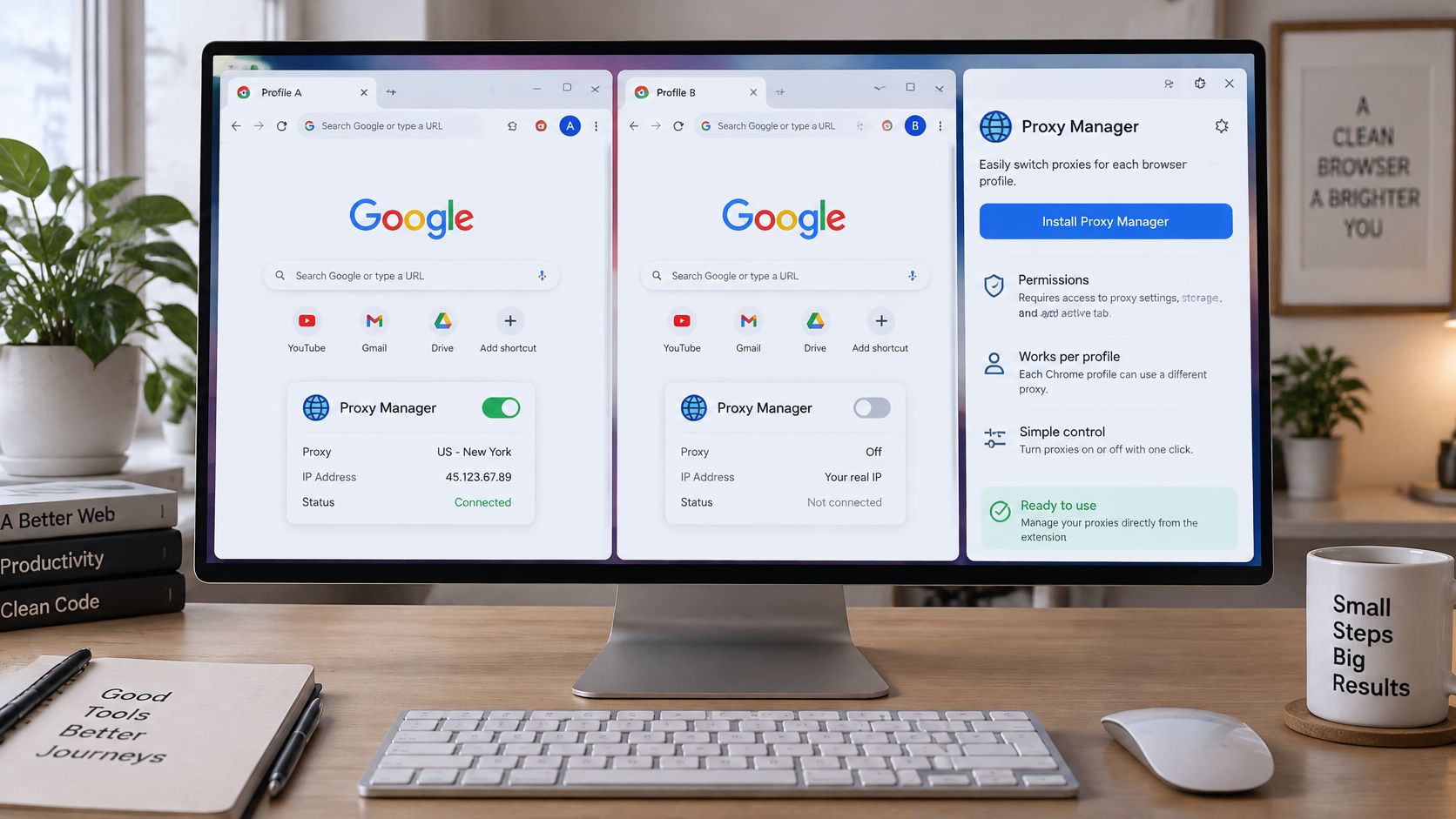
An extension-based proxy manager makes desktop Chrome routing easier to operate by profile. The key is to distinguish a saved proxy configuration inside an extension from a Chrome profile, which holds the browser's account and browsing state.
Keep account and route assignments explicit
- Review the extension before installation. Install through the Chrome Web Store and read its permissions. Proxy control requires the
proxypermission; unrelated access deserves scrutiny. - Create named connection configurations. Record the host, port, protocol, and authentication details. Names such as “client regional QA” are more useful than an unlabeled endpoint.
- Define approved exceptions. Add internal sites and local addresses that should remain direct. Avoid broad exceptions that accidentally include a destination under test.
- Match configurations to Chrome profiles. Assign each account, market, or client to the intended profile and select its connection there.
- Check before beginning work. Inspect the toolbar's active configuration, then confirm the observed route before opening sensitive sessions.
Resolve control conflicts before changing endpoints
Suppose you switch a profile to a new proxy, but the browser still uses the old route. Open Chrome settings, search for proxy, and look for a notice identifying the controlling extension. Disable the other controller or reset the affected profile's routing configuration.
An extension calling chrome.proxy supplies a ProxyConfig object, and its manifest must declare the proxy permission. On unmanaged desktop Chrome, an active proxy-controlling extension can override the operating-system configuration.
Keep one proxy-controlling extension active per profile. Multiple controllers make ownership harder to understand, even when Chrome resolves their precedence deterministically.
Managed fleets need a separate policy review. For ChromeOS, Google's enterprise proxy guidance lists precedence as global user ProxySettings, global extensions, per-network user policy, per-network device policy, then the user-configured network interface.
A local change won't defeat a higher-priority policy. IT should inspect effective policy on a pilot device, test relevant traffic paths, and retain a rollback configuration before expanding deployment.
How to Test Your Proxy Route Step by Step
A configured proxy isn't proof of a working route. You need observations from the browser session that will perform the work, not just a successful connection message from the proxy manager.
Capture evidence from a controlled session
- Inspect the effective configuration. Try
chrome://net-internals/#proxywhere available. If your Chrome version no longer exposes useful details there, capture a browser network log and inspect proxy resolution alongside the active extension or policy. - Check HTTPS and the public IP. Open an approved HTTPS endpoint that reports the requesting address. Record what it observes rather than relying on the proxy's configured hostname.
- Exercise exceptions. Test a bypassed hostname and a hostname intended for the proxy. Record whether each used DIRECT or the proxy.
- Compare DNS behavior. Use the same hostname on the normal and proxied paths. Different answers alone don't prove a leak; regional resolvers can legitimately return different answers. Inspect where resolution occurs.
- Test authentication. Check proxy authentication separately from a login-protected application page. Repeated prompts can come from different credential systems.
- Test failure handling. Disable the primary route in a controlled environment and check whether the configured fallback occurs, including whether direct access becomes possible.
For production QA, use at least 30 repetitions across cold browser sessions, recording connection time, TLS errors, HTTP status, final public IP, and selected route, following the validation approach described with Chromium's routing and bypass behavior.
Test results and what they usually mean
| Observed result | Likely cause | Next action |
|---|---|---|
| Public IP matches your home or office IP | Traffic bypassed the proxy | Check the active mode and bypass list |
| Bypassed IP works but the same site by hostname does not | A literal-IP exception doesn't match the hostname URL | Add the hostname or domain rule as well |
| DNS result differs between normal and proxied paths | Different resolvers, regional answers, or possible local resolution | Inspect resolution location; enable remote DNS where supported and retest |
| Repeated credential prompts on a login-protected page | Incorrect credentials or an authentication-scheme mismatch | Identify whether the prompt comes from the proxy or application, then retest |
| Route changes between identical requests | Conditional routing, fallback, or control conflict | Inspect matching rules and repeat the controlled test |
| Only some cases show latency above baseline | Proxy capacity, target distance, or destination behavior | Compare median and tail latency by destination class |
Use a proxy detection test as supplementary evidence, not the sole acceptance criterion. For mobile customer journeys, pair browser routing checks with 99tests' real-device testing guidance for release teams, because a desktop proxy test doesn't reproduce an entire handset environment.
Treat unexplained route changes as a configuration defect to investigate. Keep the log beside the configuration so later edits can be compared with a known-good baseline.
Verify Your Route and Take the Next Step
A setup is ready to reuse when its scope, controlling proxy method, and observed route are documented together. Record the configuration, controller, and test results together, since an extension update or policy change can alter the outcome. Keep credentials in an approved secret store, separate from ordinary test records.
Before adopting the setup across a team, check that the intended activity meets platform terms, authorization requirements, privacy obligations, and internal approval rules. Version the configuration and note its approval status so a later change can be reviewed against the version in use.
For mobile proxy use cases and compliance considerations, see the earlier section on proxy types. Choose a mobile route when mobile network context, session continuity, or exclusivity is part of the authorized requirement, not as a way to evade detection or access controls.
A proxy is only as reliable as its last verified route.
Evoproxy offers personal and shared mobile proxy ports from France, with dedicated hardware for personal plans and automatic setup. If mobile network context, session continuity, or exclusivity matters to your Chrome workflow, visit Evoproxy to evaluate a configuration against your target network conditions.