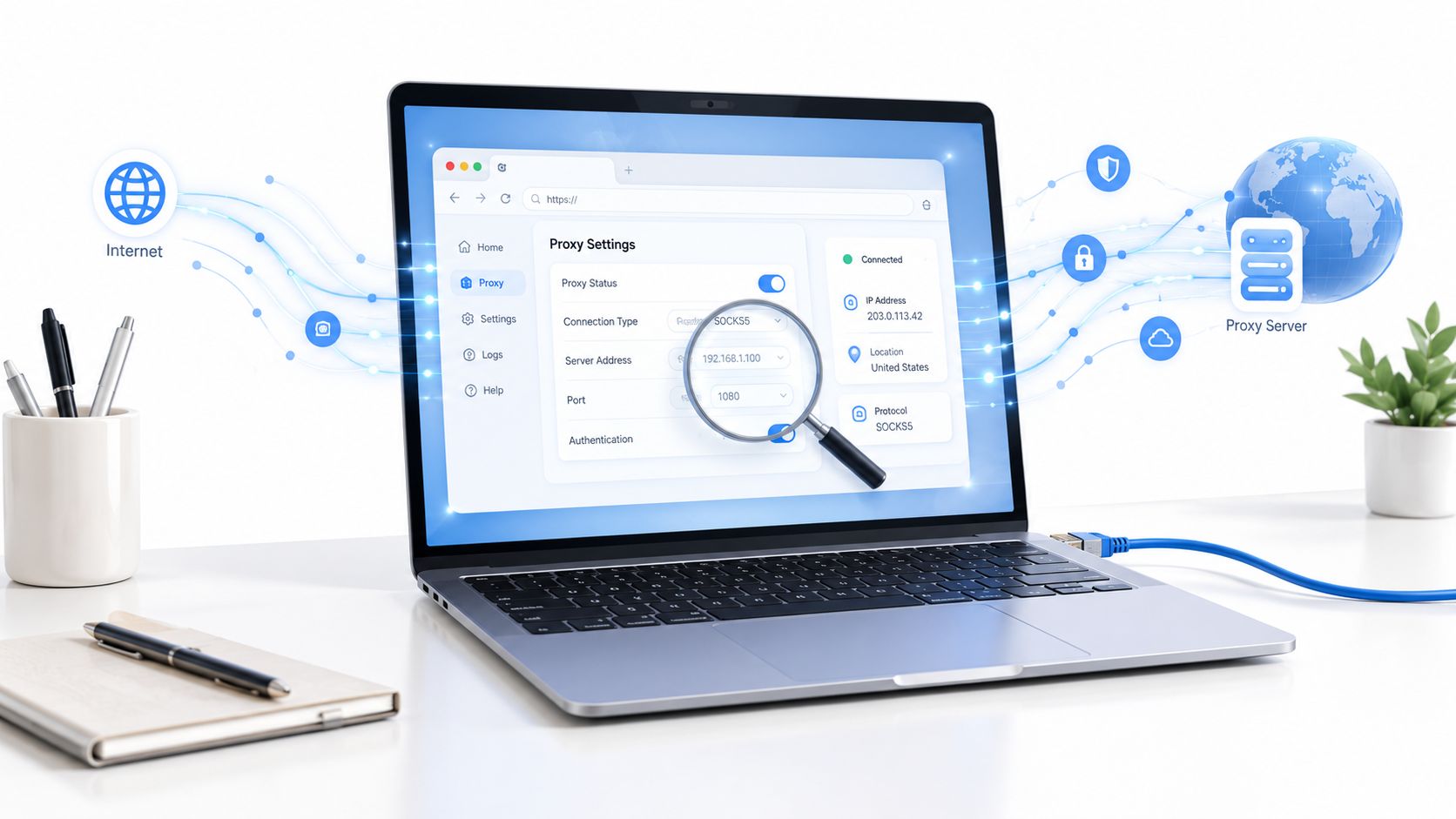
The first proxy setup usually looks fine right up until the browser starts behaving differently from the test machine. A login loop appears, a page loads without the content you expected, or the browser is clearly online while the app next to it still can't reach the network. That's where browser proxy settings stop being a simple host-and-port field and become a routing decision that affects how every request leaves the machine.
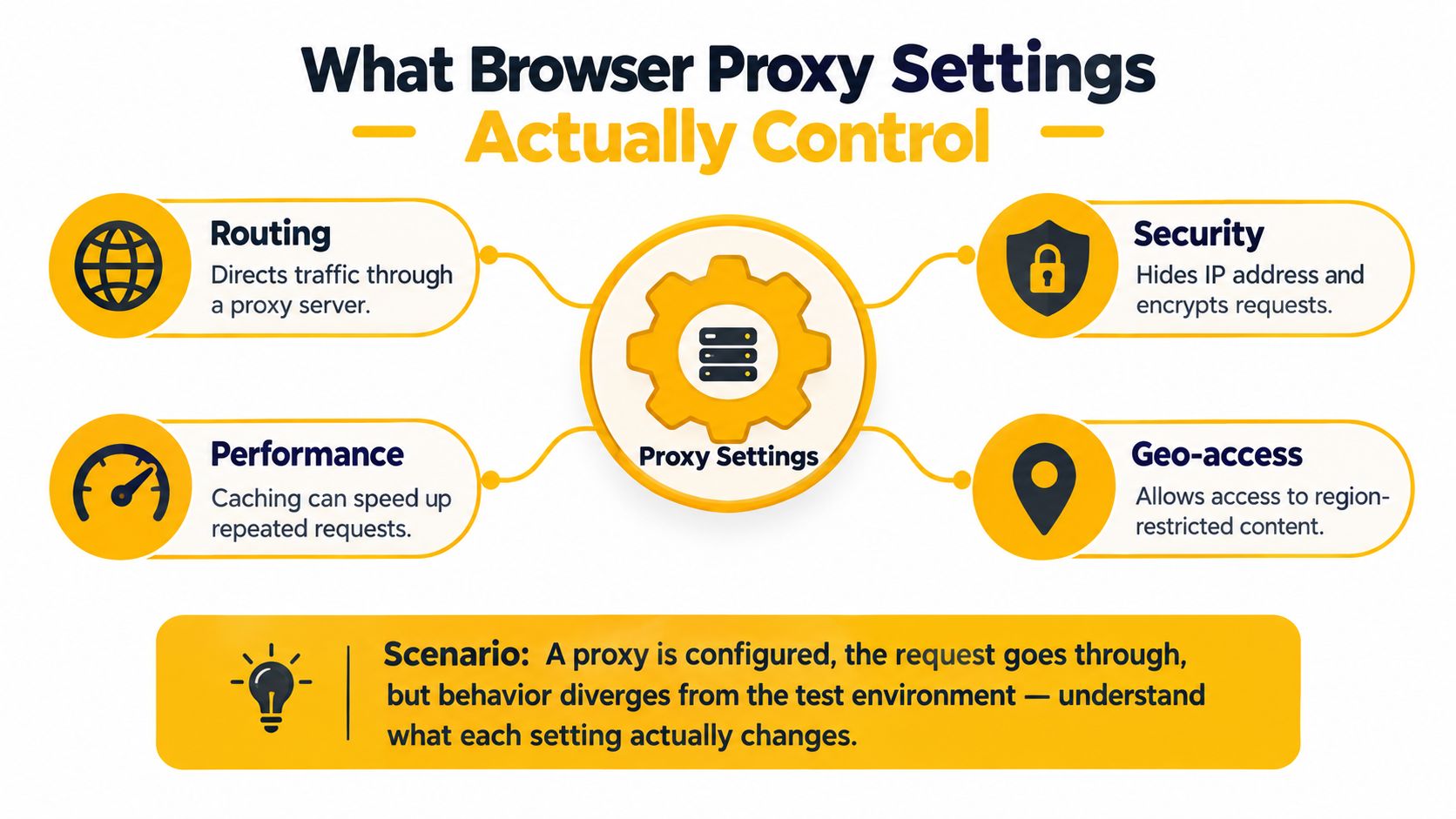
What Browser Proxy Settings Actually Control
A browser proxy changes the path a request takes, not just the address it connects to. Modern browsers generally work in three modes, direct connection, manual proxy configuration, or automatic configuration through PAC or WPAD, and each mode changes how traffic is routed at the request level rather than at some vague “browser on or off” level. PAC, short for Proxy Auto-Configuration, is a small JavaScript file that tells the browser whether a given URL should go direct, through one proxy, or through a fallback path. Netscape originally designed the PAC format in 1996 for Navigator 2.0, and that destination-aware idea is still the core of browser proxy routing today Proxy Auto-Config history and PAC basics.
Practical rule: if the browser is reaching the web but the session is still wrong, the proxy may be working exactly as configured, while the routing rules are still wrong for that destination.
The layer matters more than the field you edited
The most common setup mistake is editing the wrong layer. Chromium-based browsers often inherit the operating system's proxy configuration, while Firefox keeps its own browser-level controls. Windows also has a separate path that background services use, so a browser can load sites while update services, command-line tools, or other apps still fail.
That's why the first question isn't “what proxy host did you enter?” It's “which traffic are you trying to influence?” If you only need browser traffic to go through a proxy, change the browser layer. If you need the whole device to follow the same route, the browser field alone won't do that.
Proxy Types and Protocols You Will Encounter
The proxy market gets messy because people mix up proxy type and proxy protocol. Those are different choices. Mobile, residential, and datacenter proxies describe where the traffic appears to come from, while HTTP and SOCKS5 describe how the browser relays that traffic.
Mobile, residential, and datacenter are not interchangeable
Mobile proxies use carrier networks, residential proxies present as consumer internet connections, and datacenter proxies come from hosting infrastructure. In practical terms, mobile connections are usually the hardest to flag because they sit inside real carrier routing, often behind carrier-grade NAT, where many subscribers share an egress. That makes simple blocking riskier for the target, because one blocked range can catch legitimate users along with automation.
Datacenter proxies are easier to fingerprint because they sit in obvious hosting environments. Residential proxies sit in between, with a more home-like footprint than datacenter traffic but not the same carrier-level disguise as mobile. That's why teams doing ad verification, market research, or account work often choose the proxy class based on how sensitive the target site is to network origin.
HTTP and SOCKS5 solve different problems
HTTP proxies are common for browser-only traffic and straightforward geo checks. SOCKS5 is more general, and it becomes important when DNS behavior matters or when you need a cleaner relay for non-HTTP traffic. Mozilla's browser documentation distinguishes HTTP and SOCKS proxies, supports SOCKS version 4 or 5, and notes that proxyDNS defaults to true for SOCKS5 and false for SOCKS4 Mozilla proxy settings API.
| Dimension | HTTP Proxy | SOCKS5 Proxy |
|---|---|---|
| Routing model | Browser-facing web requests | More general connection relay |
| DNS behavior | Usually resolved outside the proxy layer | Can send hostname resolution through the proxy when enabled |
| Best fit | Simple browser geo checks, basic authenticated sessions | DNS-sensitive testing, sticky session validation, non-HTTP routing needs |
| Operational risk | Easier to configure, easier to partially misconfigure | More moving parts, but more control over routing |
If the page looks right but the session still behaves wrong, check DNS before you blame the proxy itself.
Configuring Proxy Settings in Desktop Browsers
Chrome and Edge on Windows usually ride the operating system's proxy panel, so you're often configuring the device rather than the browser window. Firefox is different, because it keeps its own network settings inside the browser. Safari on macOS follows the system proxy panel too, which means browser behavior inherits from the system configuration.
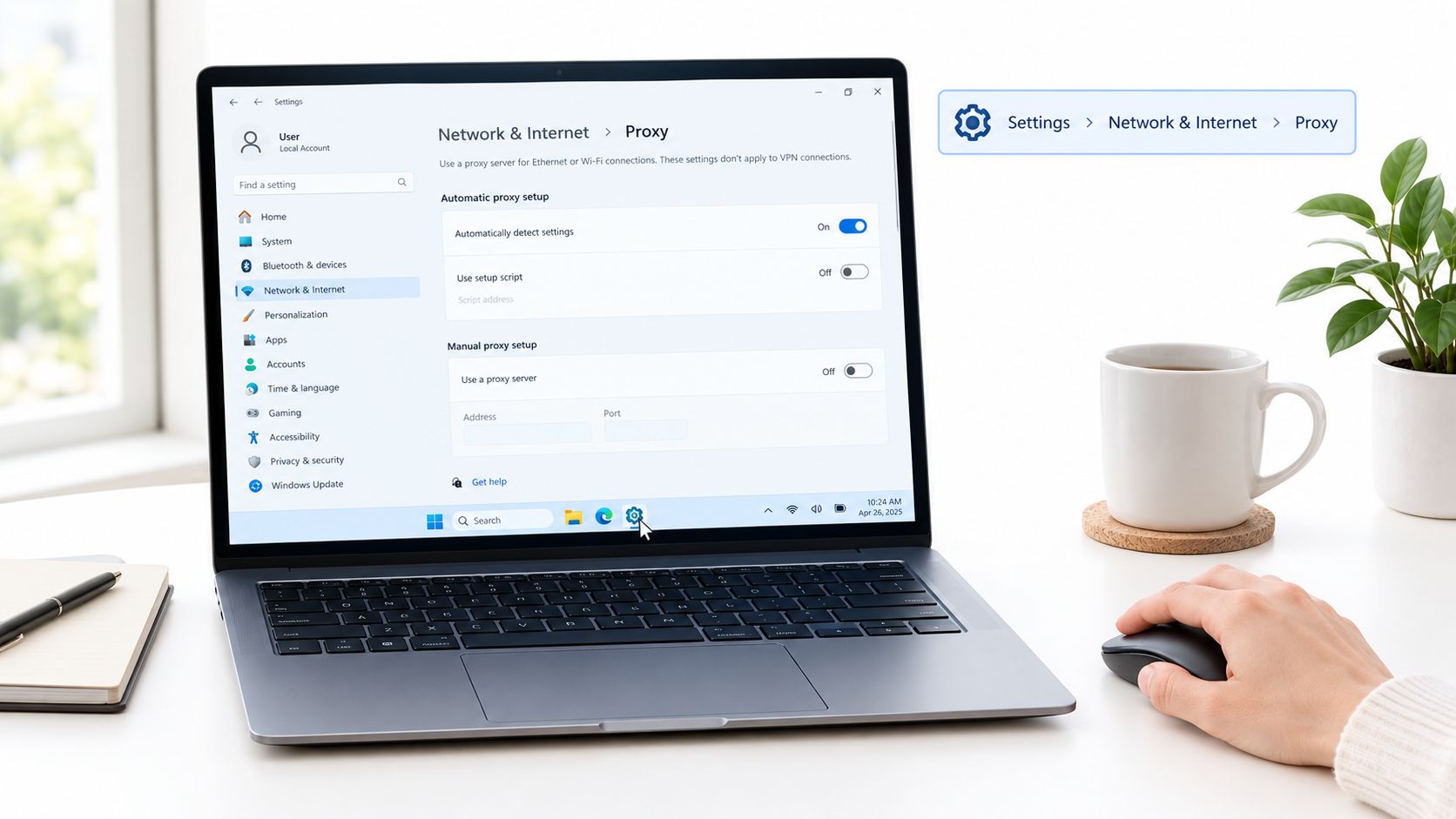
For Chromium-based browsers, start in Settings > Network & Internet > Proxy on Windows, then enter the HTTP, HTTPS, FTP, and fallback values where needed. Chrome's proxy model explicitly supports separate HTTP, HTTPS, FTP, and fallback rules, and leaving only one protocol configured can make some requests bypass the proxy entirely Chrome proxy rules and modes. The most common mistake here is typing a full ` URL into a field that expects only a hostname and port. Another is assuming that one protocol covers everything.
Firefox lives in Preferences > Settings > General > Network Settings > Connection Settings. There you can set manual mode, choose whether one proxy also handles HTTPS, and define the No Proxy For bypass list. Firefox also recognizes the special token <local> for hostnames without periods, which is useful when internal names should skip proxying. The internal guide for Chrome setup is useful if you want a browser-specific walkthrough, and the same logic applies when you're comparing browser-level and system-level routes: Chrome proxy setup walkthrough.
Safari points back to Preferences > Advanced > Proxies > Change Settings, because macOS handles the network layer outside the browser itself. That distinction matters when a teammate says “Safari works” but the rest of the machine doesn't, or the other way around. The browser may be fine while the broader system is not.
Handling Authentication and PAC-Based Routing
Authentication is where a lot of browser proxy setups get brittle. Some clients accept credentials inline, in the form username:password@host:port, but that's a poor fit for shared environments because the full string passes through another layer and gets harder to manage cleanly. In practice, the safer route is to let the browser prompt for credentials or to handle auth through a PAC-driven setup where the browser resolves routing separately from the login prompt.
PAC files are for conditional routing, not just convenience
A PAC file is the right choice when routing depends on destination. It can send one host direct, another through a primary proxy, and a third through a fallback. Chrome's proxy architecture supports both auto_detect, which gets a PAC script through WPAD, and pac_script, which loads a PAC file from a URL or supplied content. Chromium's documentation also identifies port 80 as the default port for the PROXY identifier Chrome proxy API.
A PAC file contains routing logic, not just a single proxy address.
If you're managing a fleet, PAC gives you a maintainable way to separate internal and external destinations without hand-editing every workstation. WPAD can distribute PAC locations through DHCP or DNS, but it's widely supported rather than an official Internet standard, so explicit security controls still matter. For a broader setup overview, the automatic proxy setup guide is worth keeping nearby: automatic proxy setup guide.
Configuring Mobile Browsers Through System Settings
Mobile browsers usually don't give you a rich proxy panel inside the app. They inherit from the operating system, which means you're configuring the phone's network profile, not just a browser tab. That's the right mental model if you're testing mobile-first flows, especially when the target cares about network origin and device behavior together.
On iOS, the path is Wi-Fi settings > HTTP Proxy > Manual. You enter the server, port, and authentication details there, and the change applies only to that Wi-Fi network. Join a different SSID, and the setting doesn't necessarily travel with you. That catches people off guard because the browser looks identical while the route changed underneath it.
On Android, the route is Wi-Fi settings > Modify network > Proxy > Manual. The same network-scoped limitation applies, and some apps can still bypass the configured proxy for specific traffic. That's why mobile browser testing often needs a mobile proxy endpoint or an on-device proxy app rather than a desktop-style browser tweak.
You're configuring the system path, not a browser-only shortcut.
If you're comparing mobile and datacenter routing for QA, social workflows, or geo-dependent checks, this is the point where the difference becomes practical. A mobile browser on a carrier-backed network behaves like a mobile browser, while a desktop browser pointing at a local setting still behaves like a desktop browser that happens to use a proxy.
Testing Connections and Diagnosing Partial Failures
A proxy test passes when the browser can fetch a page. It passes properly only when the browser fetches the right page, from the right place, with the right session behavior. That distinction matters because a proxy can be reachable while the browsing experience is still wrong.
Start with four checks. First, confirm the browser is using the intended mode in its settings panel. Second, open an HTTPS test endpoint so you know TLS handling isn't the problem. Third, check the observed egress IP and geolocation through an external lookup. Fourth, hit a hostname that should bypass the proxy, such as an internal or local test target, and confirm the bypass list is working.
The hard failures are obvious. The subtle ones are not. Redirect loops, repeated logins, blank pages, missing subscribed content, and destination-specific blocks often point to DNS behavior, cookies, browser fingerprinting, or target-side policy rather than a dead proxy. That's why it helps to compare direct and proxied requests, test more than one destination, and use a clean browser profile when results don't line up.
Authentication and transport errors are different too. An HTTP 407 points to proxy authentication, a 403 points to destination rejection, and 5xx responses usually mean the relay or upstream path is failing. If you only check that the browser connected, you'll miss those differences.
“Proxy works” is not binary, cookies, locale, DNS, IP reputation, and browser fingerprint can all change the result independently of basic connectivity.
For a structured troubleshooting reference, this proxy detection checklist is a useful companion: proxy detection test.
Choosing Personal Versus Shared Ports and Next Steps
For legitimate workflows like multi-account social media management, market research, ad verification, price and SEO monitoring, brand protection, QA testing, and privacy, the choice is usually between clean footprint and lower cost. Personal ports fit work that needs a stable, dedicated setup. Shared ports fit short-term testing, budget-sensitive jobs, and workflows where rotation matters more than continuity.
The trade-off is simple. Personal mobile hardware gives you unique IPs and a cleaner identity for production work that can't afford frequent churn. Shared ports are easier to use for validation and short runs, especially when you want scheduled rotation or on-demand switching. Rotation windows and traffic allowances matter less than whether the route stays believable for the target you're testing.
Choose personal ports when account integrity matters, choose shared ports when volume and cost matter more.
If you're working through compliant automation, geo-sensitive QA, or ad verification and need a mobile footprint that matches the task, mobile 4G proxies are usually the next thing to test. Evoproxy provides mobile proxy access that fits browser-based workflows, so you can validate whether your setup behaves correctly before you scale it across accounts or campaigns.
If you want to tighten browser routing, session stability, and geo-specific testing without guessing at the network layer, take a look at Evoproxy. It's a practical fit for mobile proxy workflows where browser proxy settings, authentication, and destination behavior all need to line up cleanly.