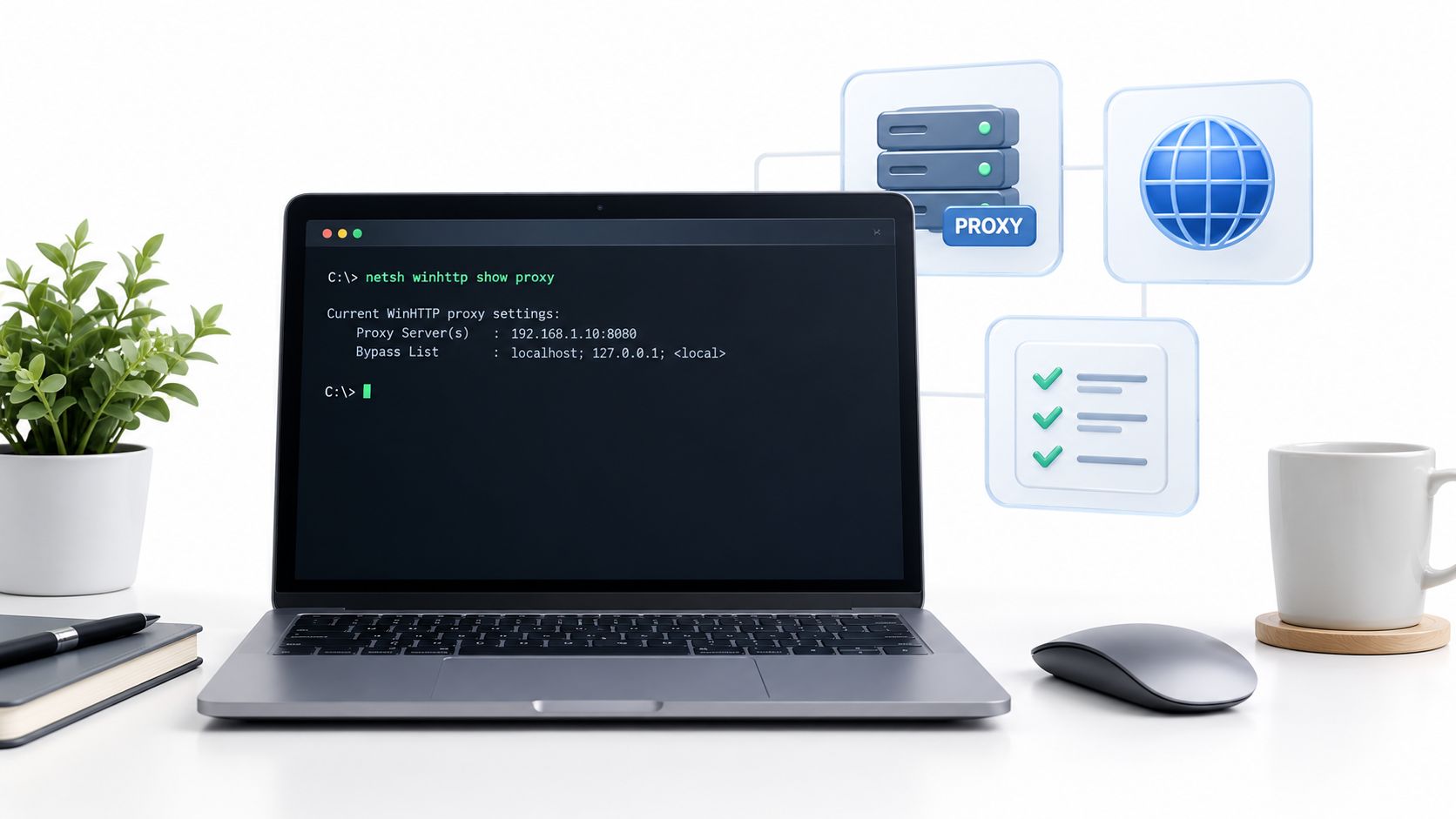
At 9:14 a.m., a background data-sync service starts failing again. It throws a connection error every few minutes, while the user sitting at the same workstation loads websites normally and the Windows proxy page already shows the corporate proxy. The browser works, but the service doesn't.
That situation usually isn't a contradiction. It means the browser and the service may be using different networking stacks. Before changing a proxy, open an administrator shell and run netsh winhttp show proxy. This command answers a narrow but important question: what does the machine-level WinHTTP configuration tell background processes to use?
When a Working Browser Hides a Broken Service
The first thing I check is the context of the failing process. A Windows service may run through services.exe, use SYSTEM credentials, and inherit Group Policy settings that don't match the interactive user's configuration. A scheduled task or update agent can face the same split. The operator sees a configured proxy in a browser or Windows Settings, but the non-interactive process sees direct access.
That mismatch is common in locked-down environments where Group Policy or mobile device management applied a user setting without applying the corresponding machine-level setting. The result is a service that repeatedly attempts a direct connection, even though the person testing the connection has a functioning browser session.
Practical rule: Test the network context that failed. A browser test proves that the browser can connect, not that a service account can.
Run:
netsh winhttp show proxy
Microsoft documents this command as the way to display the current WinHTTP proxy setting. It reports whether WinHTTP uses a direct connection or a configured proxy, along with the proxy server and bypass list, although Microsoft now marks show proxy as deprecated and recommends show advproxy for newer configurations in its WinHTTP netsh command documentation.
The rest of the diagnosis depends on reading that result correctly. You need to distinguish WinHTTP from WinINet and browser settings, identify whether the failing process runs under a different account or bitness, and test changes in the same context as the service. Start with the command because it removes guesswork from the first layer of the investigation.
What WinHTTP Is and Why It Has Its Own Proxy Settings
WinHTTP is a system-level HTTP API in Windows. It gives services and other non-interactive applications a way to make HTTP and HTTPS requests without depending on a logged-in user's browser session. Microsoft describes WinHTTP settings as machine-level configuration used by applications that rely on the WinHTTP API, with settings generally applied when a session is created and potentially overridden for an individual request in the WinHTTP proxy configuration guidance.
A proxy server is an intermediary that forwards a client request to its destination. A bypass list is a set of hosts that WinHTTP should contact directly instead of sending through that intermediary. Direct access means no proxy is configured at the WinHTTP layer, so requests go straight to their destinations unless the application applies another rule.
These settings can exist separately from browser settings. WinINet is a Windows client networking layer associated with older interactive applications and per-user Internet Options. Modern browsers may also maintain their own networking behavior. Changing one layer doesn't automatically change the others.
That separation matters for practical workloads:
- Windows services can use WinHTTP while the signed-in user relies on a browser stack.
- Scheduled tasks can run under a service identity with different credentials and profile settings.
- Windows Update and management agents can depend on machine-level connectivity.
- Background automation can inherit the system configuration rather than the proxy selected in a browser window.
Microsoft's Windows Update guidance explicitly uses netsh winhttp show proxy to verify proxy configuration before scanning or downloading updates. The same documentation confirms that netsh winhttp commands can run interactively at the netsh prompt or inside scripts and batch files, which makes the command useful for repeatable administration rather than only one-off checks.
For a WinHTTP client, netsh winhttp show proxy is therefore the authoritative read of that specific layer. It isn't a universal report of every proxy configured on the computer.
Running the Command and Reading the Output
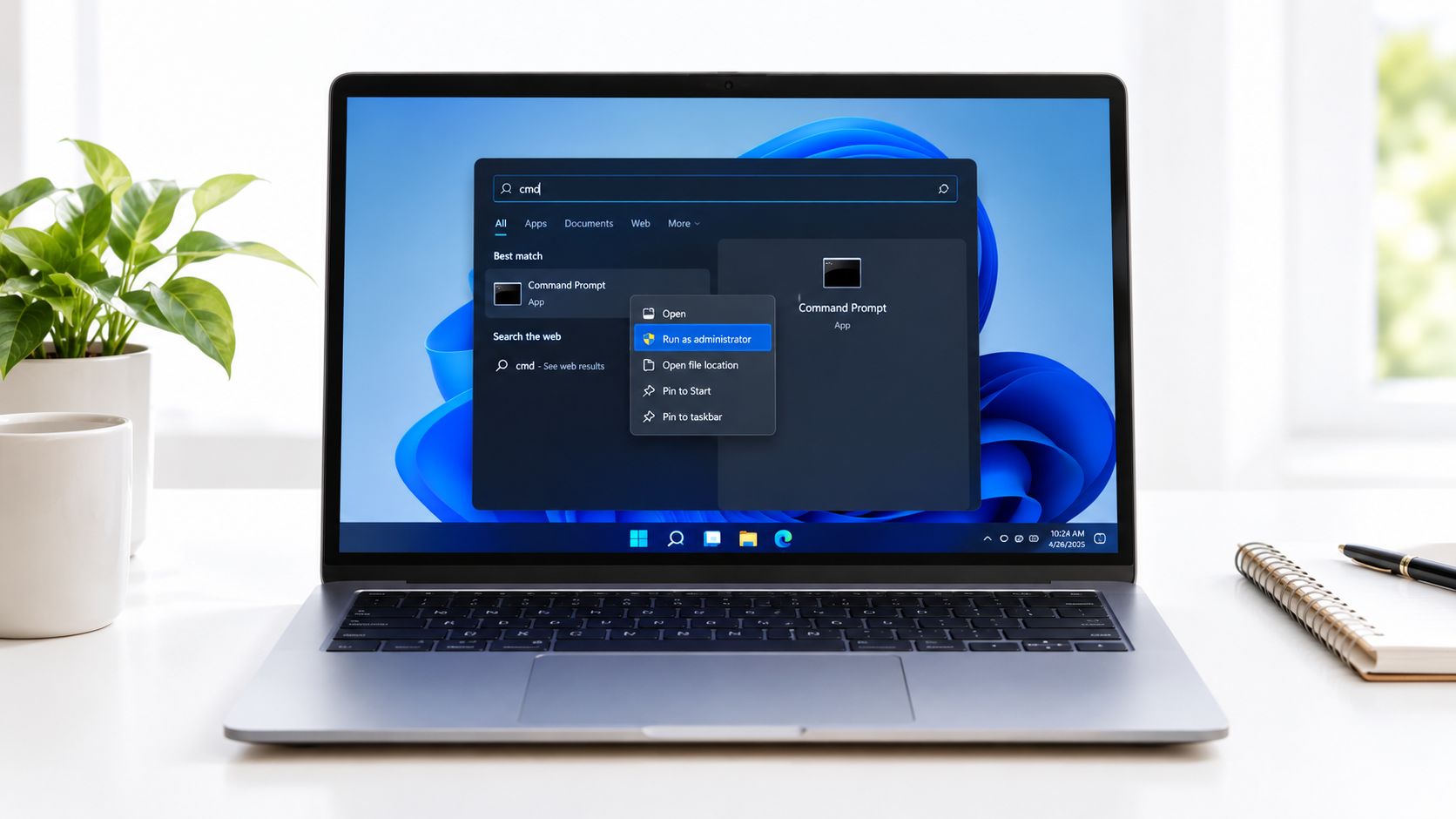
Use a shell with admin rights when you need to inspect or change machine-level settings.
- Open Start and type
cmd. - Right-click Command Prompt and select Run as administrator.
- Type
netsh winhttp show proxyand press Enter.
PowerShell works too. The command syntax is identical because PowerShell can invoke the Windows netsh utility directly.
On supported newer Windows configurations, the output can include a deprecation notice recommending show advproxy. Treat that notice as guidance about the command interface, not as proof that the displayed setting is invalid. The body of the output still tells you what the current WinHTTP layer reports.
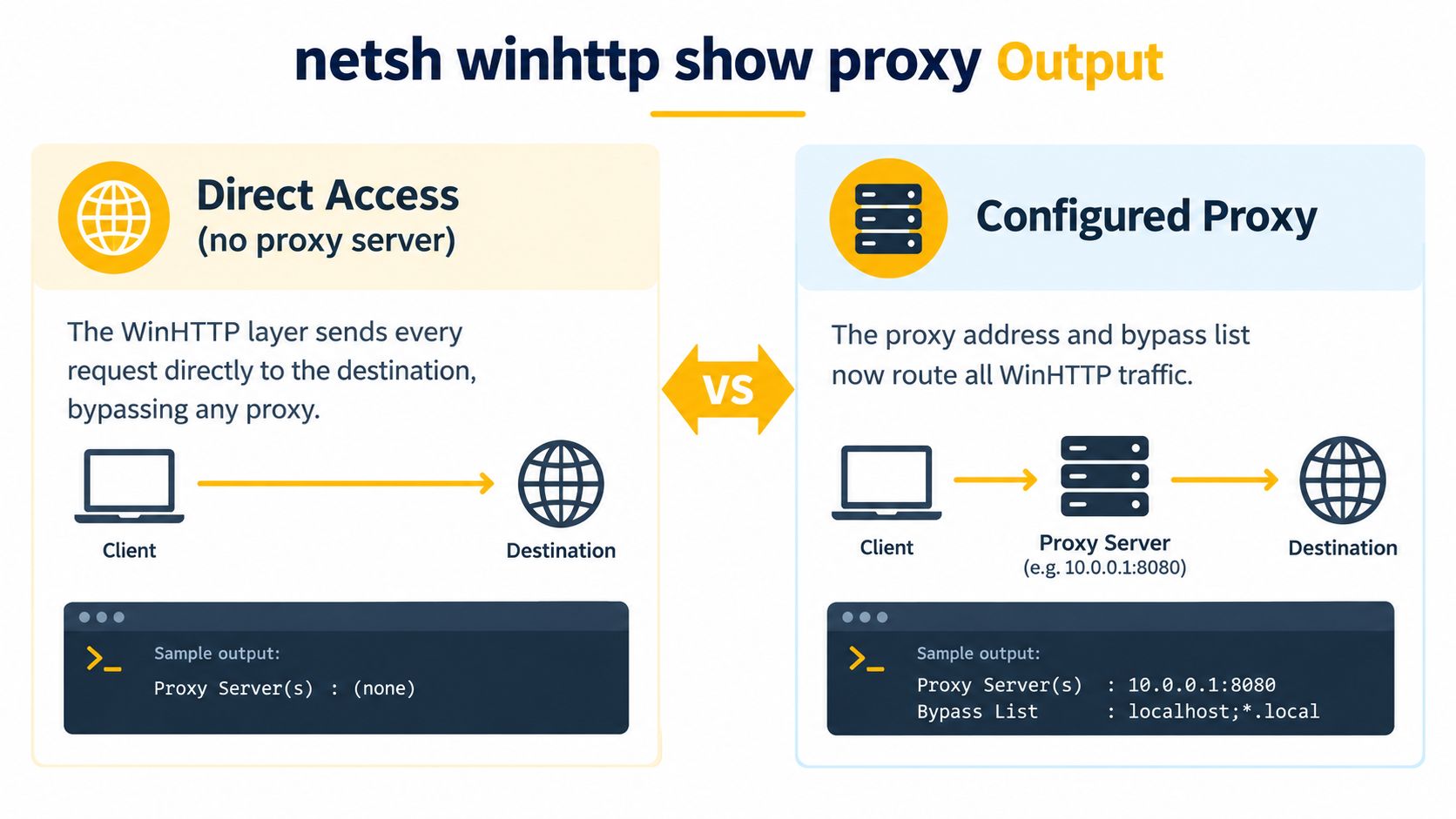
You'll normally interpret one of these states:
- Direct access (no proxy server) means WinHTTP has no configured proxy at this layer.
- Proxy Server: server:port means WinHTTP has a proxy endpoint configured.
- Bypass List identifies hosts that should be contacted directly.
The proxy value is written as a host and port, such as proxy.corp.local:8080. A bypass entry such as <local> represents local or intranet destinations that should avoid the proxy.
The command reports the per-machine configuration associated with HKEY_LOCAL_MACHINE, not the per-user configuration stored under HKEY_CURRENT_USER. On 64-bit Windows, some 32-bit processes can read the separate WOW6432Node registry view. That distinction becomes important when a service and an administrator's diagnostic shell don't appear to agree.
Interpreting Direct Access vs Configured Proxy
The output is short, but each state points toward a different failure path.
Direct access (no proxy server) means the WinHTTP layer sends requests directly to their destinations. A browser proxy or per-user Internet Options setting doesn't override that result for a WinHTTP client. If a background service must traverse a corporate proxy, direct access can explain why it cannot reach an external endpoint, while the user's browser continues to work.
A configured result looks more like this conceptually:
Proxy Server: proxy.corp.local:8080Bypass List: <local>;internal.example
The proxy address identifies the intermediary. The bypass list tells WinHTTP which destinations should skip it. A bypass rule that is too broad can send traffic directly when it should be inspected or routed through the corporate path. A rule that is too narrow can send internal traffic to a proxy that can't resolve or reach the internal hostname.
Don't stop at the presence of a proxy line. Confirm that the affected application uses WinHTTP, that the endpoint is not covered by a bypass rule, and that the process reads the same registry view you inspected. A setting can also be cleared by policy or by another administrative change, leaving the machine in direct mode after someone believed a proxy had been applied.
| Output pattern | What it means | Failure a sysadmin may see |
|---|---|---|
| Direct access, no proxy server | WinHTTP has no proxy at this layer | A service attempts external traffic directly |
| Proxy server with bypass list | WinHTTP routes eligible traffic through the named proxy | Internal names fail because they were sent through the wrong path |
| Proxy present, unexpected exclusions | The bypass rules alter routing before the request reaches the proxy | Some destinations work while others consistently fail |
The command doesn't test authentication, DNS resolution, firewall policy, or application-level overrides. It tells you which WinHTTP route the application is being offered.
WinHTTP vs WinINet vs Browser Proxy Settings
Treat proxy configuration as a stack map, not as a single Windows setting. WinHTTP, WinINet, and browser-level configuration can coexist on one device, and each application decides which layer it reads.
WinHTTP is the machine-oriented layer. It commonly serves background Windows components and applications built against the WinHTTP API. WinINet is a higher-level client library historically associated with interactive Windows applications and per-user Internet Options. Browser configuration may follow operating-system settings, use a profile-level setting, or apply its own rules.
| Stack | Where settings live | Used by | netsh or browser equivalence |
|---|---|---|---|
| WinHTTP | Machine-level WinHTTP configuration | Services, scheduled tasks, update and management processes that use WinHTTP | Read with netsh winhttp show proxy; browser changes don't automatically update it |
| WinINet | Per-user Internet Options and related user context | Legacy interactive applications and clients built for WinINet | Not interchangeable with netsh winhttp |
| Browser proxy | Browser or operating-system integration, depending on the browser | Interactive browsing and browser-driven workflows | A working browser session doesn't prove WinHTTP is configured |
This is why copying a proxy into a browser setting may fix an interactive test while leaving a scheduled scraper, QA worker, or update service unchanged. The reverse is also true. Running netsh winhttp set proxy can alter machine-level behavior without changing what a signed-in user sees in Internet Options.
For teams automating legitimate market research, ad verification, price monitoring, or geo-dependent QA, identify the client stack before selecting a proxy integration method. A useful reference for application-side setup concepts is this proxy setup guide, but the Windows diagnostic still begins with the process that failed and the layer it uses.
The mental model is simple: browser success is a browser result, WinINet success is a user-context result, and WinHTTP success is a machine or service-context result. Don't use one as a substitute for another.
Setting, Importing, and Resetting WinHTTP Proxy
Inspection should come before modification. If the output confirms that WinHTTP is the layer involved, use the relevant command deliberately and record the previous state.
A traditional explicit configuration looks like this:
netsh winhttp set proxy proxy-server="proxy.corp.local:8080" bypass-list="<local>;internal.example"
The proxy-server value identifies the endpoint, while bypass-list contains destinations that should connect directly. Microsoft now treats the older set proxy and show proxy path as legacy administration for newer configurations. For automatic discovery, PAC-based routing, or more advanced enterprise settings, use the advproxy commands instead:
netsh winhttp show advproxynetsh winhttp set advproxy
Importing is another option:
netsh winhttp import proxy source=ie
That command copies the current per-user WinINet configuration into the machine-level WinHTTP context. It can be convenient when the user's settings are known to be correct, but it can also surprise you on a multi-user server because a user-context configuration becomes a machine-wide setting.
To return WinHTTP to direct access, use:
netsh winhttp reset proxy
Microsoft specifically warns against relying on netsh winhttp set proxy for Delivery Optimization because it doesn't provide auto-detection, PAC URL support, or proxy authentication support. That makes explicit set proxy a poor fit for enterprise workflows that depend on automatic discovery or authenticated proxy chains. For background on automatic discovery concepts, see this automatic proxy setup guide.
Run Command Prompt as administrator, then follow this order:
- Read the current state.
- Change one setting.
- Run
show proxyorshow advproxyagain. - Test from the affected service context.
- Reset if the change worsens the incident.
A bad machine-level value can affect every WinHTTP client on the host, not just the application you were investigating.
Common Proxy Mismatches the Command Reveals
The painful Windows proxy failures are usually not caused by an obviously empty configuration. They come from a configuration that looks correct in one context and wrong in another.
| Mismatch pattern | Symptom | Typical root cause |
|---|---|---|
| Browser has a proxy, WinHTTP reports direct access | Interactive browsing works, but a service cannot reach its endpoint | The user setting was never applied to the machine-level WinHTTP layer |
set proxy was run, but the service still bypasses it |
The administrator sees a proxy in one test, while the service continues direct connections | The process uses another stack, account context, or registry view |
| 32-bit and 64-bit behavior differs | One application works while another fails on the same host | The processes read different WOW64 and native registry views |
| Internal destinations fail after proxy configuration | External requests work, but local service calls fail | The bypass list doesn't include the required internal destinations |
The first pattern is the classic browser-versus-service trap. A user configures a proxy through Internet Options or a browser surface, but the WinHTTP command returns direct access. Windows Update and other machine-level clients can then follow a different route from the browser.
The second pattern often appears after a hurried change. The operator runs set proxy, confirms the command completed, and assumes every process now uses the value. The affected service may not use WinHTTP at all, or it may run under a context that has different user-level settings and application overrides.
The third pattern deserves a registry-view check. A 32-bit process under WOW64 can read HKLM\SOFTWARE\WOW6432Node, while a 64-bit service reads the native machine view. Scripts that edit the registry directly can update one view and leave the other unchanged. Re-run the diagnostic after every change and compare the result with the behavior of the actual process.
Troubleshooting WinHTTP Proxy Issues Step by Step
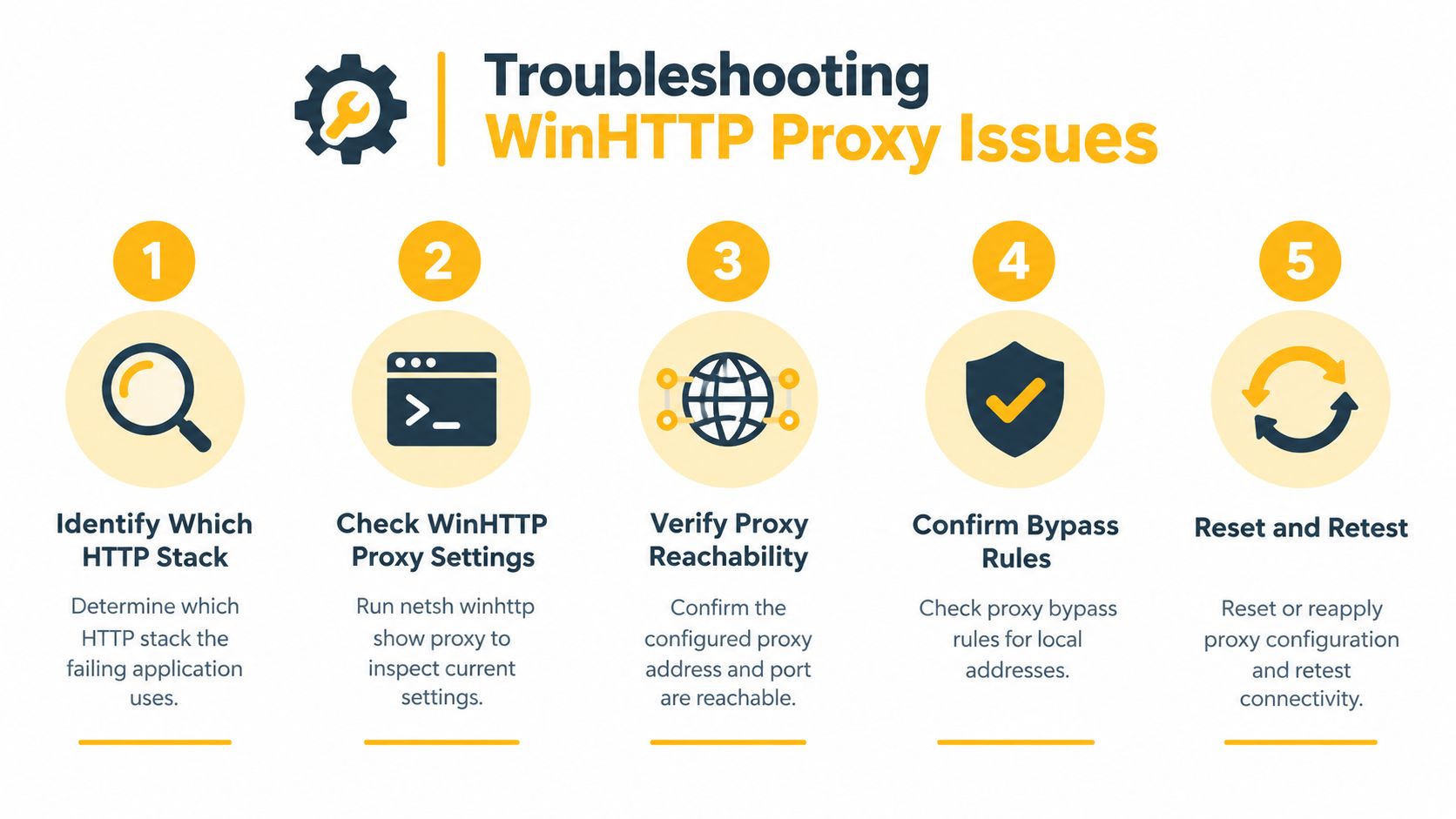
Use a layered process. Changing proxy values repeatedly without identifying the client stack creates noise and can break unrelated services.
- Identify the stack. Confirm whether the failing application uses WinHTTP, WinINet, a browser-managed configuration, or an application-specific setting. Don't use browser success as evidence for a service.
- Read the machine state. In an administrator Command Prompt, run
netsh winhttp show proxyand record whether the result is direct access or a configured proxy. - Check the route. Verify that the configured proxy host and port are reachable from the affected machine and that the target isn't accidentally covered by a bypass rule.
- Check process context. Confirm whether the process is 32-bit or 64-bit, then compare the native WinHTTP registry view with the
WOW6432Nodeview when applicable. - Reproduce in the service identity. If the process runs as LocalSystem, open a diagnostic shell with
psexec -s -i cmd, run the same command, and compare the result.
For deeper tracing, use netsh winhttp show tracing to enable tracing, reproduce the failure, and then disable tracing so diagnostic logs don't grow unnecessarily. Correlate the request failure with Event Viewer under Applications and Services Logs, Microsoft, Windows, WinHttp.
The registry locations worth checking are HKLM\SOFTWARE\Microsoft\Windows\CurrentVersion\Internet Settings\WinHttp and its WOW6432Node sibling. If you need a practical connection-failure checklist, this guide to a proxy refusing connections can supplement the Windows-side checks.
Automation Use Cases That Rely on WinHTTP
A proxy-stack error becomes an operational problem when it affects a process nobody is watching. Windows Update, Delivery Optimization, management agents, and other background components can depend on WinHTTP. A machine may still look healthy to its logged-in operator while patch retrieval, telemetry, enrollment, or certificate-related network requests fail in the background.
The command also matters to Windows-native automation. A scheduled job that polls an API, synchronizes data, checks prices, verifies advertising locations, or runs a compliant QA workflow can inherit machine-level networking rather than the browser's proxy. If the job runs under a service account, test that account's context instead of assuming the administrator's session is representative.
A proxy that works in an interactive browser is not automatically a proxy that works for automation.
Proxy type is a separate decision from Windows stack selection. Datacenter proxies generally provide infrastructure-hosted addresses and predictable connectivity. Residential proxies use addresses associated with residential access networks. Mobile proxies use 4G or 5G carrier connections, where carrier-grade NAT can place many subscribers behind shared mobile address space.
Mobile IPs can be harder for services to classify and block than datacenter addresses because they resemble ordinary carrier traffic, but that doesn't remove the need for responsible rate control, account ownership, platform compliance, or accurate identification. Choose HTTP or HTTPS for clients that speak those protocols, and SOCKS5 when the application specifically supports it. Then align rotation, sticky sessions, ASN, and geo-targeting with the workflow instead of treating rotation as a substitute for sound automation design.
Quick Reference for Netsh WinHTTP Subcommands
Use an administrator shell for changes. Read output after every modification, and remember that 32-bit and 64-bit processes can use different registry views.
| Subcommand | Purpose | When to use |
|---|---|---|
show proxy |
Displays the traditional WinHTTP proxy state | Fast compatibility check during triage |
show advproxy |
Displays newer advanced proxy configuration | Preferred for modern configurations |
show state |
Shows WinHTTP configuration state | Inspect broader command context |
set proxy proxy-server="host:port" bypass-list="hosts" |
Applies a traditional explicit proxy | Controlled legacy or simple environments |
set advproxy |
Applies advanced proxy settings | PAC, auto-detection, or modern enterprise configuration |
import proxy source=ie |
Copies the current user proxy into WinHTTP | Use only when the user configuration is known to be appropriate machine-wide |
reset proxy |
Restores direct WinHTTP access | Remove a faulty traditional proxy configuration |
show tracing |
Controls WinHTTP diagnostic tracing | Capture a reproducible request failure, then disable it |
Microsoft's WinHTTP command reference documents interactive and scripted use, which is useful when these checks form part of a deployment or compliance script.
Frequently Asked Questions About the Command
Why can the browser work when WinHTTP reports direct access
They can use separate proxy stacks. A browser or per-user configuration doesn't automatically populate the machine-level WinHTTP setting.
Does the command work in PowerShell
Yes. Open PowerShell with administrative rights and run netsh winhttp show proxy exactly as you would in Command Prompt.
How do PAC files fit into this
A PAC file provides automatic proxy selection logic. Use the advanced WinHTTP configuration path for PAC or automatic discovery rather than treating the traditional set proxy syntax as a complete replacement.
What happens without elevation
You may be able to read some information, but machine-level changes require a shell with administrator rights. If a change appears not to affect the service, reopen the shell as administrator and verify the result.
Why might a 32-bit process disagree with a 64-bit service
Under WOW64, 32-bit and 64-bit processes can read separate registry views. Check the view used by the failing process instead of relying on the result from an unrelated shell.
Choosing a Reliable Proxy Layer for Your Workflows
The command tells you whether the Windows machine is routing WinHTTP traffic directly or through a configured intermediary. It doesn't decide whether the intermediary suits your workflow.
For multi-account social media management, ad verification, market research, price and SEO monitoring, brand protection, and geo-dependent QA, consider the traffic pattern first. Sticky sessions help preserve continuity when a workflow depends on the same IP. Rotation is useful when separate, legitimate tasks need different exits. ASN and geography matter when you're validating how a service behaves for a carrier network or location. HTTP, HTTPS, and SOCKS5 support should match the client that will consume the proxy.
Mobile 4G proxies can fit workflows where carrier-network presence matters more than a datacenter exit. Use them with clear account ownership, conservative automation, and respect for each platform's rules. Evoproxy offers mobile proxy access for compliant social media, verification, research, and testing workflows, giving teams another layer to evaluate after they confirm which Windows stack their application uses.
If your service, verification worker, or multi-account workflow needs carrier-based routing, test mobile 4G proxies against the exact WinHTTP context that failed. Visit Evoproxy to review a mobile proxy option for your use case and validate the configuration before rolling it across your Windows automation hosts.


