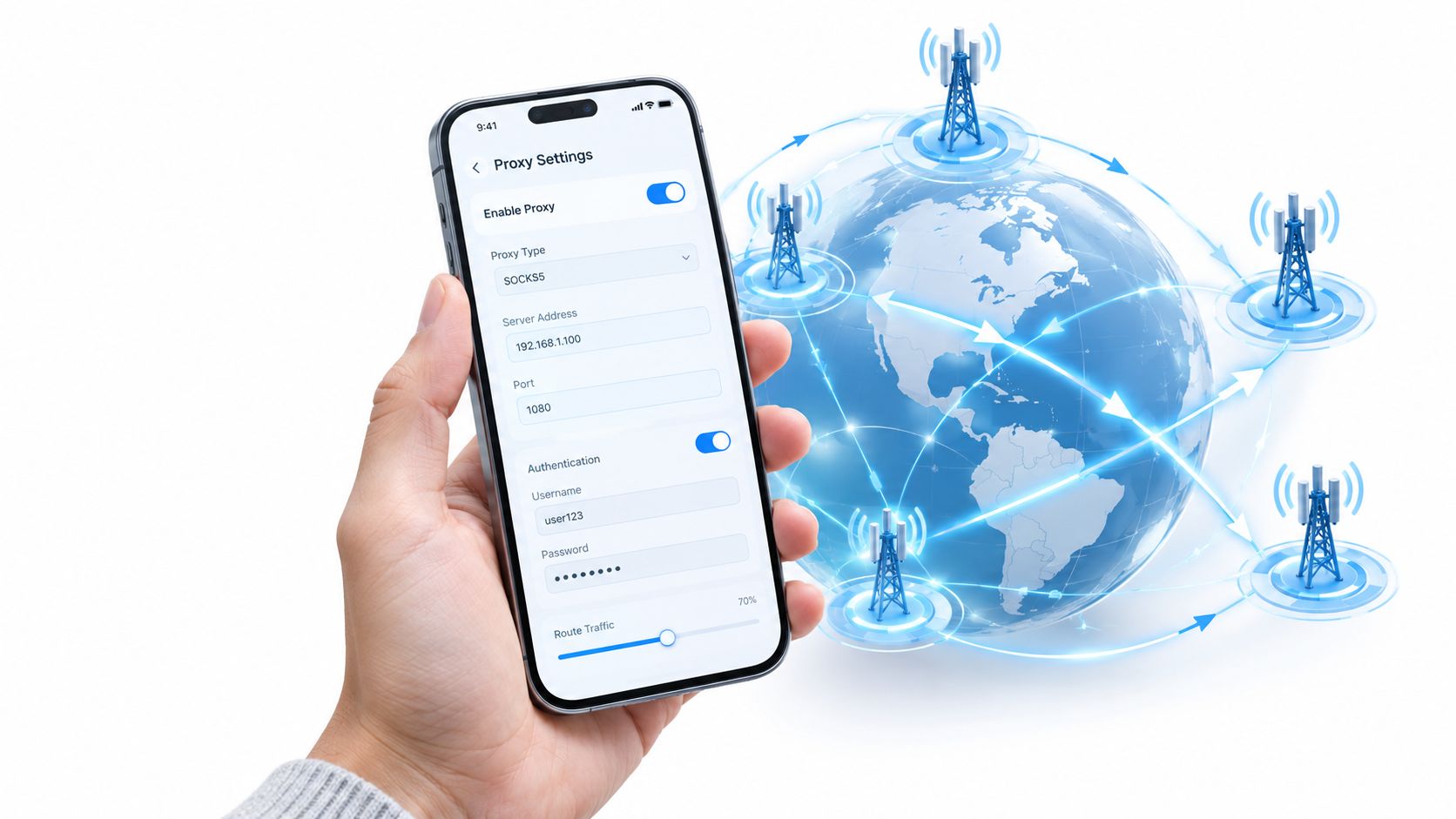
You've configured a proxy on your phone, opened a social app, and the account still shows the same carrier IP. Or the connection works on Wi-Fi, then falls back to the cellular network when you leave the office. That's the gap most basic guides miss.
Learning how to use proxy in mobile devices means separating Wi-Fi settings from cellular routing, choosing the right protocol and session behavior, and testing what apps send through the proxy. A saved hostname and port aren't proof that traffic is protected. You need to verify the exit IP, ASN, geolocation, DNS path, and app behavior before putting a production account, research workflow, or QA test behind it.
Why Mobile Proxies Are Different from Residential and Datacenter IPs
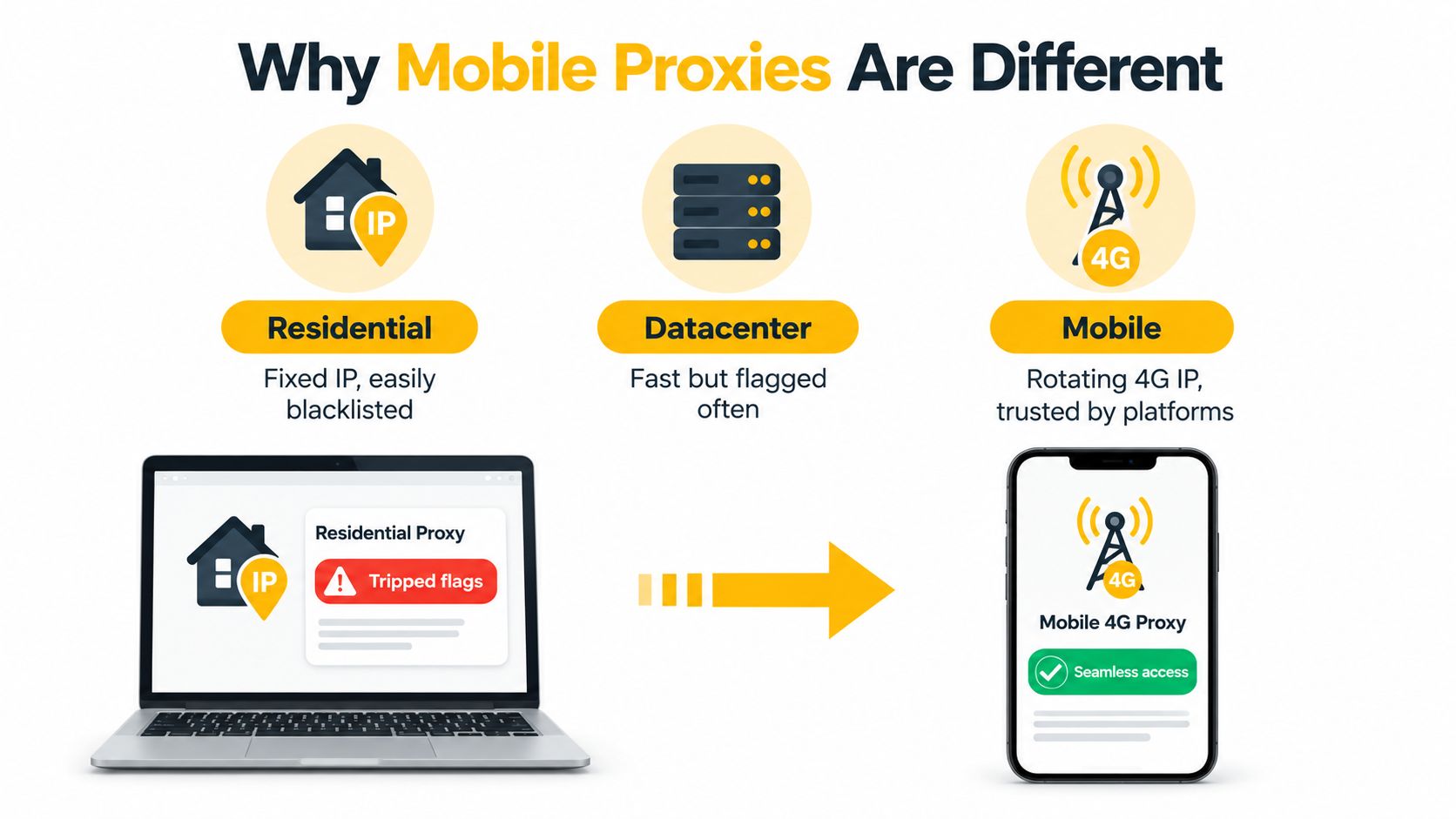
A mobile proxy sends traffic through a real cellular connection, commonly associated with a 3G, 4G, or 5G carrier network. A residential proxy uses an IP linked to a home or ISP connection, while a datacenter proxy comes from hosting infrastructure. These sources create different network signals. Platforms may assess requests through IP reputation, ASN, location, and connection behavior.
The defining technical difference is carrier-grade NAT, or CGNAT. Mobile operators often place many subscribers behind shared public IPv4 infrastructure. The reserved shared address range for CGNAT is 100.64.0.0/10, as specified by RFC 6598. Because many subscribers share this environment, a mobile IP can resemble ordinary carrier traffic rather than an address associated with hosting infrastructure.
A datacenter range is usually fast and predictable, but anti-abuse systems can classify it more easily. A residential address may appear more natural, yet it can remain tied to a stable household connection or a history of unrelated users. Mobile IPs reflect cellular network behavior, which suits workflows that depend on credible mobile-origin traffic.
The operational trade-off
Mobile proxies are not automatically faster or safer. Cellular routing can add latency, limit throughput, interrupt sessions, and cost more bandwidth than datacenter infrastructure. The main benefit is usually network legitimacy, not raw speed.
Proxy routing also needs monitoring at the correct layer. Research has documented Android apps integrating multiple proxy SDKs, with those SDKs consuming substantial Wi-Fi and cellular data in the observed environment, according to the NDSS mobile proxy research paper. The finding supports testing proxy behavior at the connection or device-routing layer when an app must use the mobile path, rather than assuming browser settings cover every request.
A concise definition and architecture overview appears in this guide to what a mobile proxy is. Use mobile IPs when carrier-origin behavior matters. Choose residential or datacenter infrastructure when speed, scale, or cost matters more than mobile-network authenticity. In production, test the route, app coverage, session stability, and bandwidth before assigning it to a live workflow.
Choosing the Right Protocol, Rotation Mode, and Targeting
Choose the connection design before editing device settings. Three choices determine whether the route fits the workflow: protocol, session mode, and targeting. They also determine which requests the proxy can handle and how consistently an app presents the same network identity.
HTTP and HTTPS proxies suit browsers, web requests, and software that accepts standard proxy fields. SOCKS5 operates at a broader connection layer and can forward TCP and UDP traffic, so it fits applications that do not speak HTTP directly. The protocol changes compatibility, not the legitimacy of the mobile IP. Review this proxy protocol guidance for the practical distinction between HTTP and SOCKS5 behavior.
Rotation controls identity continuity. A rotating session changes the exit IP per request or according to a schedule. That pattern can support market research, broad crawling, and distributed verification. A sticky session holds the same IP for a defined period, which better suits login flows, account administration, and app tests where an address change can make one active session appear inconsistent.
Targeting can remain broad or focus on the network behind the address. Country targeting supports general localization checks, while city targeting helps when content differs by market. ASN targeting selects a particular carrier network, often giving a more precise mobile context than country selection alone. Mobile proxy documentation on ASN and session targeting describes how carrier-level targeting and sticky or rotating sessions are commonly exposed.
| Use case | Protocol | Session mode | Targeting |
|---|---|---|---|
| Social account administration | SOCKS5 or HTTPS | Sticky | Same carrier ASN and intended region |
| Market research | HTTP/HTTPS | Rotating | Country, city, or broad regional targeting |
| Ad verification | HTTP/HTTPS | Sticky during each test | Match the test market and carrier |
| App QA | SOCKS5 when supported | Sticky | Carrier ASN and target geography |
| Public price monitoring | HTTP/HTTPS | Rotating | Country or city, depending on the question |
For account and app workflows, start with SOCKS5 plus sticky sessions plus consistent ASN targeting. For higher-volume web research, HTTP plus rotating sessions plus broad geographic targeting is usually easier to operate. Rotation policies differ by endpoint, so review rotating mobile proxy sessions before selecting an endpoint format or assigning it to a live workflow. Test how the chosen route behaves at the app or device layer, not only in a browser.
Setting Up a Proxy on Android Devices
A phone can show the expected IP on Wi-Fi while sending cellular traffic directly through the carrier. Configure and test those routes separately, or an app may bypass the proxy without any visible warning.
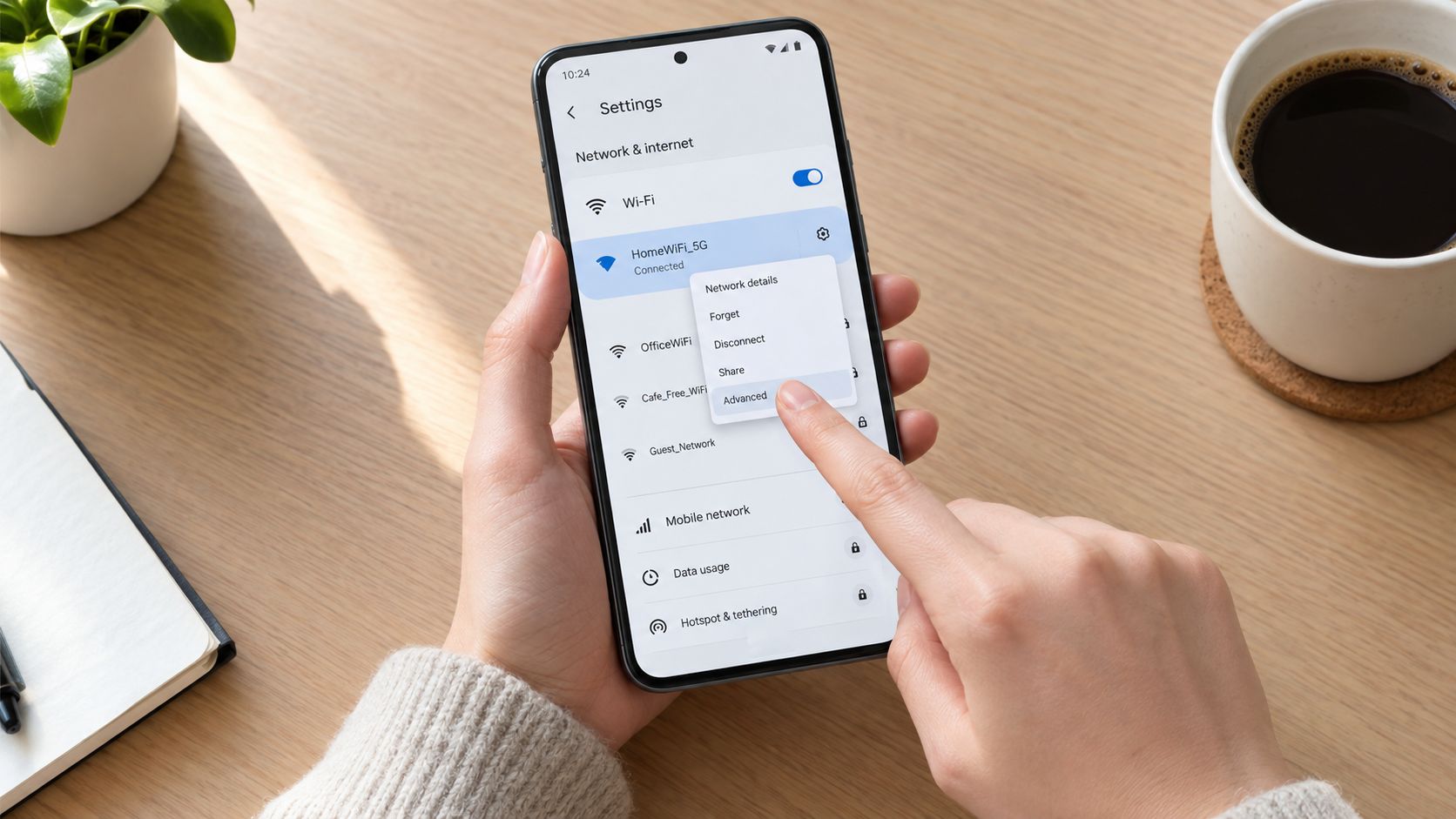
For Wi-Fi, open Settings, select the connected network, edit it, expand the advanced options, and change Proxy from None to Manual. Enter the proxy hostname and port, add authentication if those fields are available, save, and reconnect. Menu names differ across Android versions and manufacturers, but the sequence remains similar. This Android proxy configuration walkthrough shows the standard configuration flow.
Wi-Fi and cellular data require different paths
The Wi-Fi proxy belongs to that network profile. It does not automatically apply when the phone switches to 4G or 5G. For cellular data, check the active APN through Settings, Network and Internet, Mobile network or SIMs, Access Point Names. Open or duplicate the APN, enter the proxy hostname and port in the relevant fields, and save the new profile.
Duplicate the carrier profile instead of overwriting it. Keep the original available as a fallback if mobile data, messaging, or carrier services stop working. APN behavior depends on the carrier, so visible proxy fields do not confirm that cellular routing uses them.
If the APN does not support proxy routing, use a VPN-based proxy client or an app-level proxy manager. A local tunnel can route selected applications or wider device traffic through the proxy. It also handles apps that ignore Android's Wi-Fi proxy setting. This app-level layer matters for cellular workflows and for testing traffic outside the browser.
Validate the actual route
After saving, check the external IP. Confirm that the public IP, location, and ASN match the selected proxy plan. Run a DNS leak check and make an HTTPS request as well. A connection may appear active while DNS still uses the carrier or an application bypasses the proxy, so follow an Android mobile proxy testing guide during validation.
Record the original APN before editing, then test one application at a time. That isolates authentication, DNS, APN, and application-level failures. For production phone fleets or emulators, validate sticky and rotating sessions at the same layer used by the application, not only through the device browser.
Setting Up a Proxy on iPhone and iPad
On iPhone and iPad, manual proxy configuration is tied to the selected Wi-Fi network. Open Settings, tap Wi-Fi, select the active network, and choose Configure Proxy. Change the setting from Off to Manual, enter the server and port, enable authentication only when your proxy credentials require it, and save.
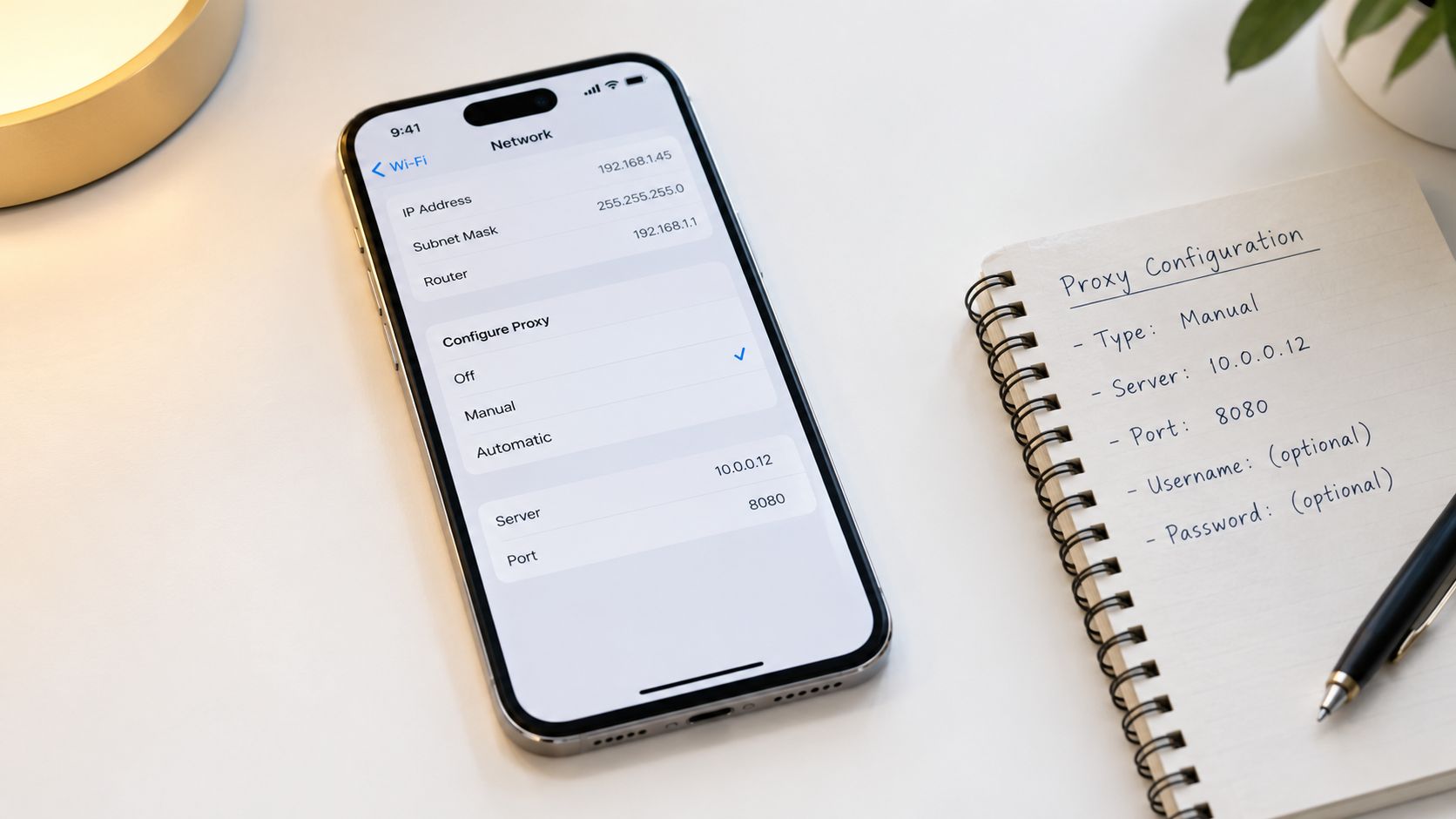
That configuration affects traffic using the selected Wi-Fi network. When the device switches to cellular data, the manual Wi-Fi proxy doesn't provide system-wide 4G or 5G routing. This is the central limitation for anyone researching how to use proxy in mobile data rather than using a proxy at a coffee shop or office.
When a profile or app is necessary
Configuration profiles can provide a more managed approach, particularly for supervised devices, controlled testing fleets, or environments that need per-app policies. Only install profiles from a trusted administrator, confirm what traffic they route, and keep them revocable. After edits, check the installed profile under Settings, General, VPN and Device Management.
For cellular routing, use an app-based proxy manager or a provider-supported network profile that creates a VPN-style tunnel. iOS apps often don't honor the Wi-Fi proxy field, even when the browser does. Social applications, automation clients, and applications that open direct connections may require explicit per-app routing.
A good deployment separates traffic deliberately. Route the test browser or QA application through the mobile proxy, while leaving banking, personal messaging, and device-management traffic on the normal connection unless your approved test plan requires otherwise. This reduces accidental exposure and makes troubleshooting much clearer.
Test on Wi-Fi first, then disable Wi-Fi and repeat the IP, ASN, geolocation, DNS, and HTTPS checks over cellular. If the results change unexpectedly, the proxy is attached to the wrong layer.
Using Rotation, Sticky Sessions, and Authentication in Apps
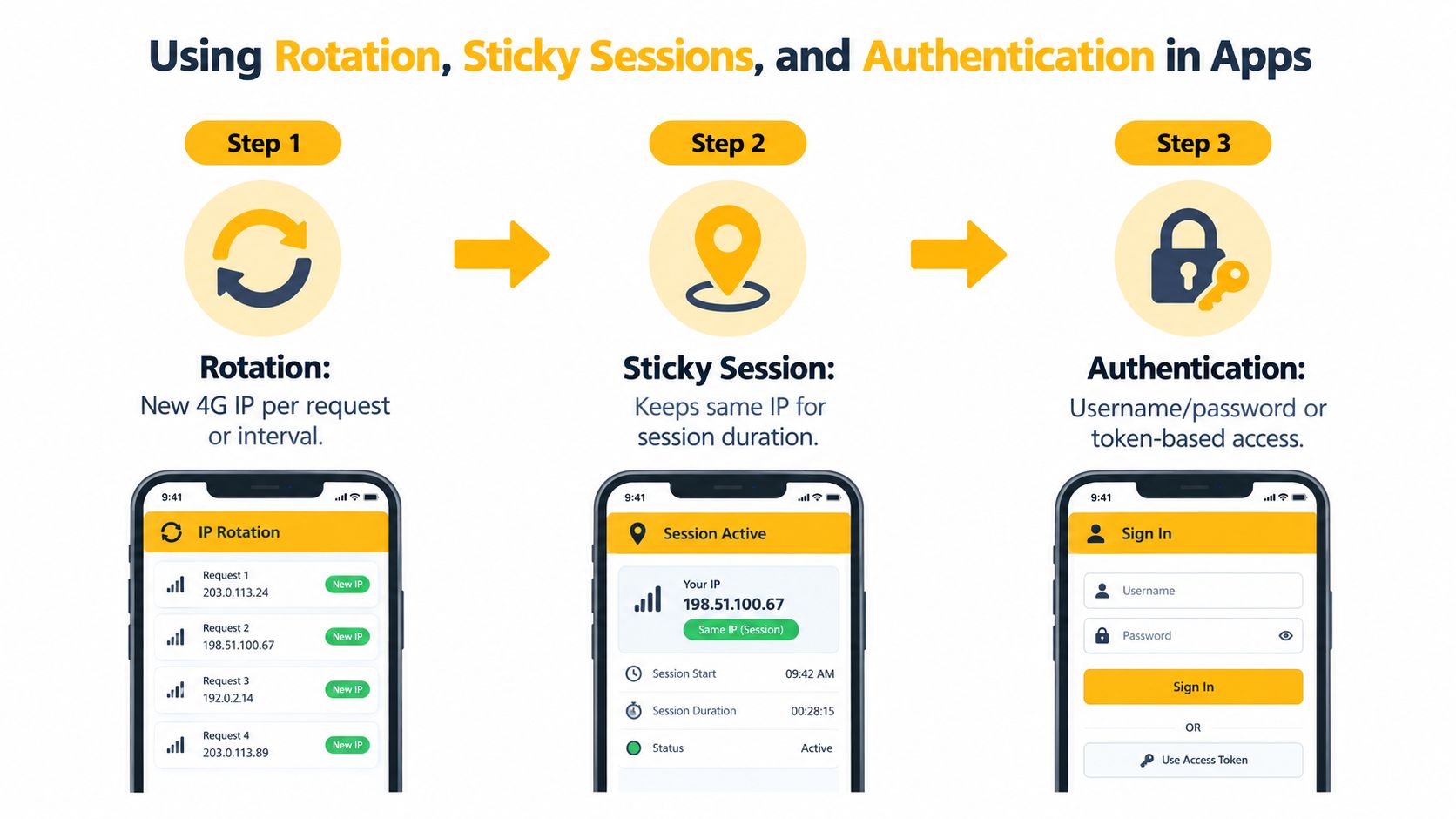
Once the phone is configured, the endpoint settings inside each app determine how the session behaves. A rotating mobile proxy supplies a different IP per request or interval. A sticky session keeps one exit IP associated with the session for its configured lifetime.
That distinction matters for account workflows. A social login that starts on one carrier IP and continues on another can look inconsistent, even when both addresses belong to the same country. A research crawler may benefit from rotation, while an account administrator usually needs continuity.
Match authentication to the network
Two authentication patterns are common:
- IP allow-listing: Useful when requests originate from a stable office, server, or controlled gateway. The proxy accepts traffic from approved source addresses without placing credentials in every app.
- Username and password credentials: Better for phones, emulators, and changing source networks. The app or proxy manager stores the credentials and sends them with the connection request.
For application configuration, enter the provider's host, port, username, and password in the fields supplied by the client. Don't paste credentials into URLs shared in tickets or screenshots. If the provider supplies an on-demand rotation link, treat it as a control endpoint that requests a new exit IP without rebuilding the entire app configuration.
The safest operating pattern is to assign one account or test identity to one sticky session, then rotate only at a clean workflow boundary. Don't alternate randomly between rotating and sticky pools. Keep a record of which endpoint, ASN, geography, and session mode each account uses.
Before running automation, test the endpoint in a controlled request. Check the returned IP, confirm the expected protocol, and verify that the client doesn't fall back to the device's cellular interface after an authentication error. Connectivity is only the first test. Consistency is what makes the setup usable.
Keeping Trust Scores Clean and Avoiding Detection Pitfalls
A 4G label does not make every IP trustworthy. Carrier networks reassign addresses, shared ranges may carry a history of abuse, and services evaluate more than the proxy handshake. They can compare the IP's ASN and location with an account's timezone, language, device fingerprint, login history, and activity pattern.
Operational consistency matters more than frequent rotation. Switching IPs during an active session, mixing session pools for one account, or repeating failed authentication attempts can create a suspicious profile. DNS leakage and WebRTC exposure can also reveal network details that conflict with the intended exit.
Mobile proxy software installed on a device deserves its own audit. Research has found proxy SDKs embedded in Android and iOS apps, including apps with very large install bases, and reported that some SDKs consumed substantial Wi-Fi and cellular data per day, as documented in the NDSS mobile proxy study. An installed app may change bandwidth usage or routing without matching your proxy design. Review the device fleet before production use, especially on shared phones and emulators.
Use a verification pipeline
Start outside the phone. Test the credentials and endpoint from a controlled environment, then repeat the checks on the device. Confirm:
- The public IP belongs to the expected proxy network.
- The ASN matches the selected carrier or targeting rule.
- The geolocation fits the account or test market.
- DNS queries do not expose the carrier resolver unnecessarily.
- WebRTC does not reveal a conflicting local or public address.
- HTTPS requests succeed without repeated authentication failures.
- The target app uses the system or app-level proxy.
Browser-based WebRTC checks help when the workflow runs in a browser. Follow this guide to prevent WebRTC leaks during that validation step.
Operational rule: Measure success through stable IP presentation, low error rates, and predictable data consumption, not simply by whether one page loads.
Keep locale signals aligned. If an account operates in a French market, its IP geography, carrier ASN, timezone, language, and normal activity should fit together. This does not guarantee acceptance by a service, and a proxy cannot override its rules. It does prevent obvious configuration contradictions.
| Risk | What triggers it | Mitigation |
|---|---|---|
| IP changes during login | Rotation occurs mid-session | Use a sticky session until logout or task completion |
| Conflicting account history | Account geography and proxy location disagree | Match proxy region, ASN, language, and timezone |
| DNS leakage | Device resolves names through the carrier | Enable remote DNS in the routing client and run a leak test |
| App bypass | App ignores system proxy settings | Use approved per-app routing or a VPN-based proxy layer |
| Authentication loops | Wrong credentials or repeated retries | Test credentials separately and capture the exact error |
| Hidden bandwidth use | An installed app contains proxy SDKs or routes traffic silently | Audit apps, restrict routing, and monitor consumption |
| Device IP exposure | WebRTC or direct connections bypass the proxy | Test browser leak surfaces before production use |
Troubleshoot one variable at a time. A timeout usually points to reachability or routing. A 407 error indicates proxy authentication, while a DNS failure points to name-resolution handling. If an app shows the device IP, check for a bypass or unsupported proxy method. Record the symptom before changing settings, or several misconfigurations may conceal the original cause.
Putting Mobile Proxies to Work for Legitimate Use Cases
Mobile proxies work best as a network presentation layer for a defined business task, not as a shortcut around platform rules. A social media team can assign consistent sticky sessions to approved client accounts, keep account geography coherent, and use conservative rotation only between completed workflows.
QA teams can test location-sensitive application behavior through different carrier networks and regions. That helps reproduce mobile-origin conditions for location screens, ad placements, checkout flows, and other user journeys. The test remains meaningful only when the device locale, app state, and network location represent the scenario being evaluated.
Market research and price monitoring benefit from controlled targeting. An ASN can represent a specific carrier, while city or country targeting can support localized search, pricing, and storefront checks. Ad verification teams can compare what a campaign displays for a defined region without confusing a datacenter route with a cellular user experience.
Brand protection teams can inspect regional content, and privacy-conscious operators can separate approved research traffic from personal device traffic. In every case, respect the target service's terms, applicable privacy rules, and consent requirements. Don't use proxy routing to impersonate users, evade enforcement, or automate prohibited activity.
Evoproxy provides French 4G, LTE, and 3G mobile proxy access through personal and shared ports, with rotation configurable from one to five minutes or on demand. That model can fit legitimate social management, research, advertising validation, and QA workflows where French carrier-origin traffic and controlled session behavior are relevant.
If you need consistent French cellular routing for approved multi-account management, market research, ad verification, or mobile QA, review the available session and port options from Evoproxy. Start with one controlled workflow, verify the IP, ASN, geolocation, DNS path, and app behavior, then expand only after the route remains stable.


